
Starting a Labor Transaction
Labor transactions capture the time employees spend working on work orders. At a minimum, the employee identifies the work order they are going to start working on. Optionally, you can also have employees identify the operation they will perform. The buttons that display on the PC Data Collection screen, and the sequence of screens, depend on the PC data collection profile you’re using.
Employees log on to either one work order, or they log on to several. If an employee logs on to several work orders, ShopPAK allocates time based on your ShopPAK Options | Job Cost Tab setting:
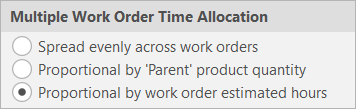
Spread Evenly
Simply divides the total time by the number of work orders and allocates the time evenly across all work orders.
Proportional by ‘Parent’ Product Quantity
Only an option if you define work orders with one parent product. ShopPAK takes the total time and allocates it proportionally based on ‘Parent’ product quantity.
Proportional by Work Order Estimated Hours
Proportionally divides time between multiple work orders based on work order estimated hours.
1. Identify yourself by selecting your name from the list of employees. Buttons appear that are based not only on the PC profile, but the outstanding transactions for the employee.
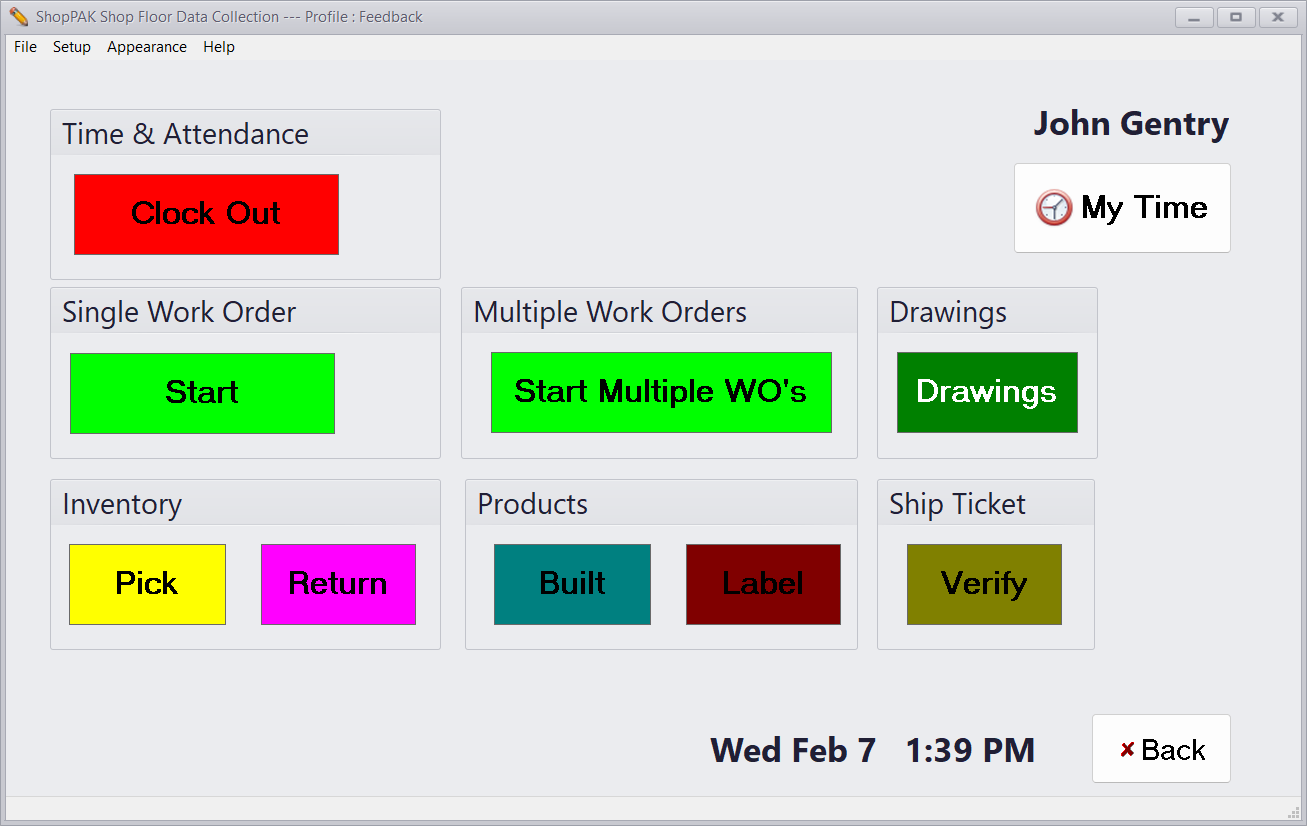
2. Touch or click the green “Start” button to work on just one work order. Touch the “Start Multiple WO” button to work on several work orders at the same time.
The work order selection list appears. Work orders are sorted sequentially into 5 columns. Use the up and down arrows to locate the work order you want to log on to, unless you have a bar code scanner. In this case, simply scan the work order’s barcode.
Option One: Selecting One Work Order
Option Two: Selecting Multiple Work Orders