
Stopping a Time Clock Transaction
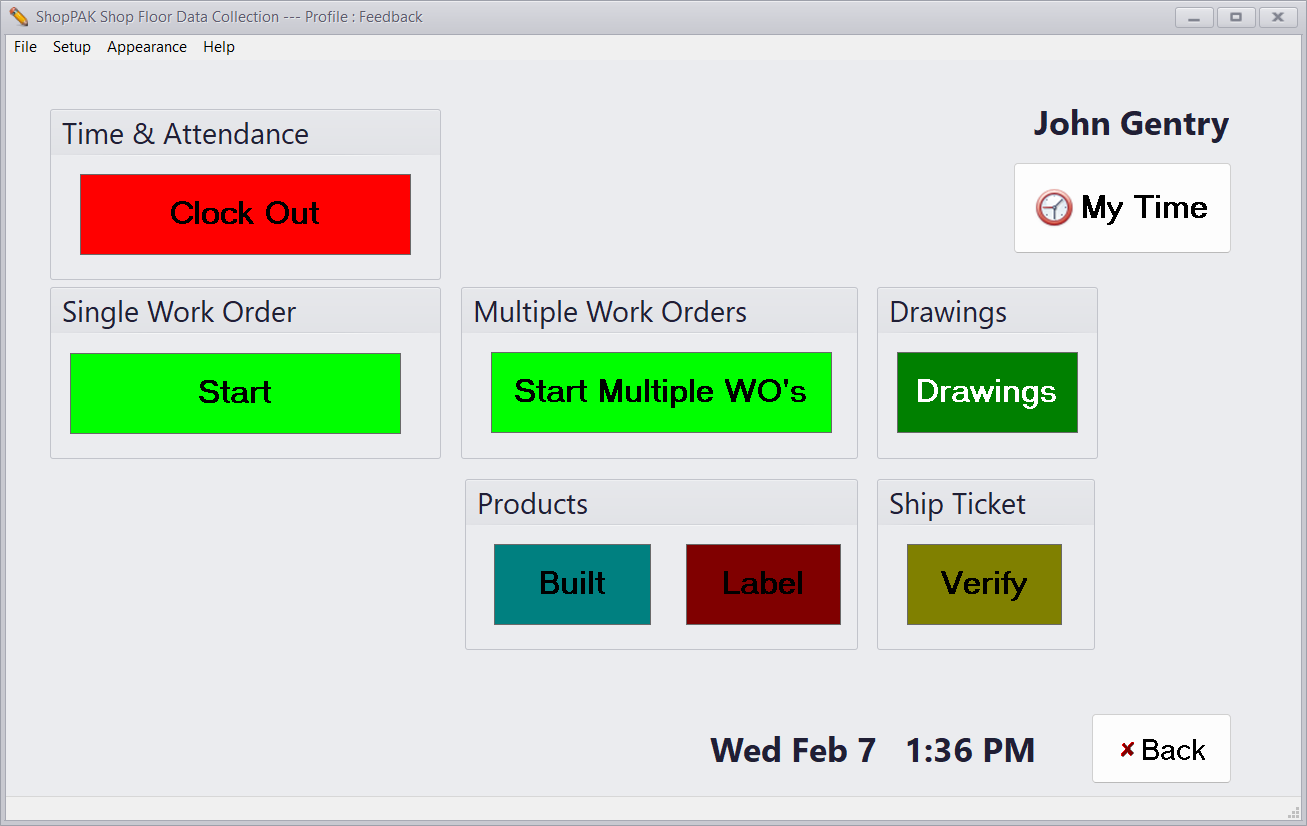
When you’re ready to clock out for lunch, or at the end of the day, follow these steps:
1. Identify yourself by selecting your name from the list of employees. Sets of buttons appear that are based not only on the PC profile, but the outstanding transactions that ShopPAK finds for the employee. For example, if we select Tim Boyll again, the system knows that Anthony is currently clocked in, so this time, it displays the red “Clock Out” button.
2. Touch or click the “Clock Out” button.
3. A black window appears for a couple of seconds. It displays the clock out time.
4. When the black message window disappears, the PC data collection window returns to its “waiting” state (the employee list), ready for the next transaction.