
Starting a Time Clock Transaction
The first thing every employee should do when they start their day is clock in. This is accomplished by clicking the “Clock In” button. ShopPAK not only captures job costing information, but it also collects “Time and Attendance” information. Even if you don’t plan on using the time and attendance data, let’s say for payroll, we still require that every employee clocks in and clocks out, especially if you are using the “Simple” form of collecting labor transactions. (Simple labor transactions were explained earlier in this chapter when explaining PC Shop Floor Data Collection Profiles). Moreover, ShopPAK provides reports that compare the amount of time the employee is “on the clock” versus the amount of time they are working on jobs. This is a very important management control report and is only possible if shop employees clock in and out of the system.
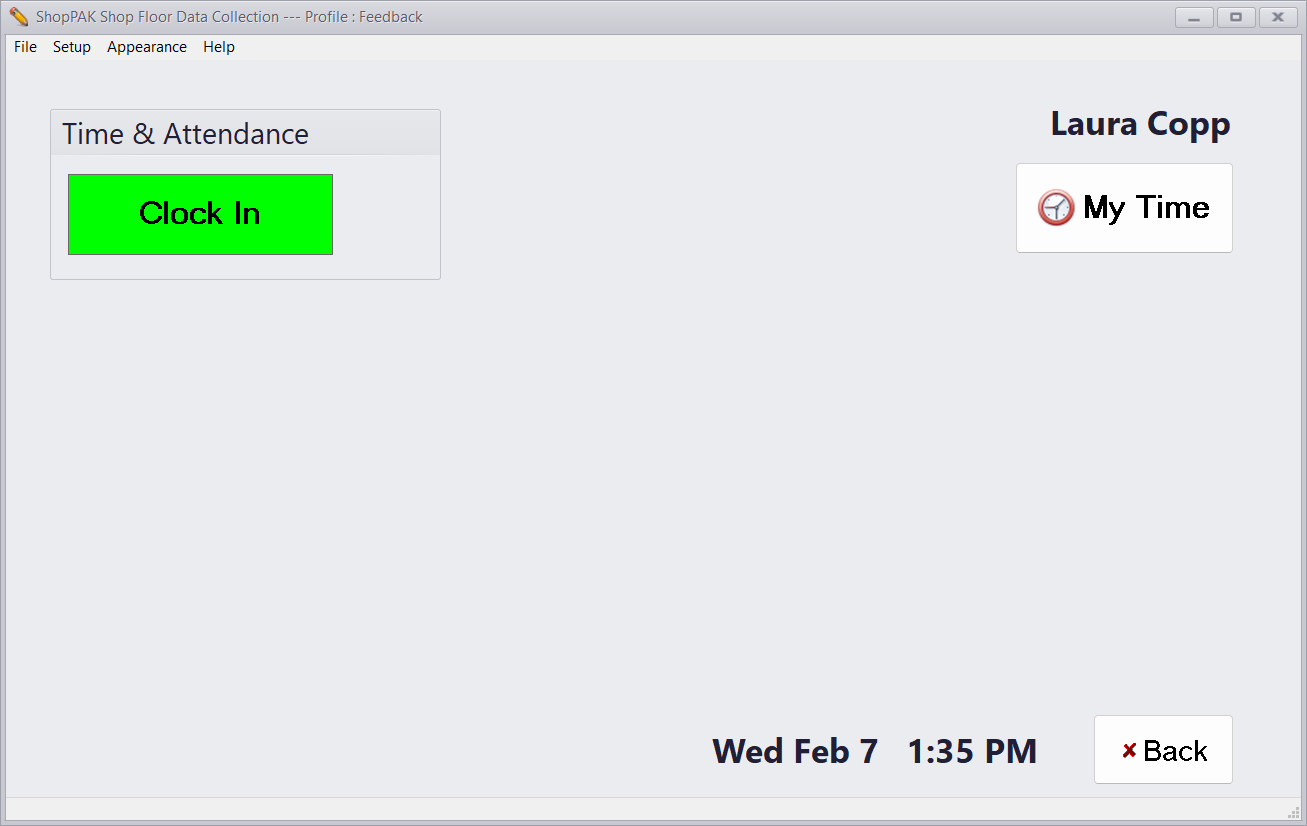
To clock into the system:
1. Select name from list of employees. Touch or click the green “Clock In” button.
2. A black window appears for a couple of seconds, confirming the time that the person is clocking in at.
Note: The time stamp comes from the PC where the PC Data Collection Controller program is running. Using one central time stamp, as opposed to using a timestamp from each individual PC data collection workstation, ensures greater consistency across the entire shop.
|
3. Clocking in automatically brings up the work order screen, so the person can log on to the first work order they’ll be working on. If the employee doesn’t want to start a work order at this point, they should press the “Back” button two times, which cancels the work order transaction and returns to the employee list screen. See the section on “Starting a Labor Transaction” for more information on logging on to a work order.