
Employee Identification
The first step when using the PC Data Collection software is to identify the shop floor employee that is about to enter a transaction.
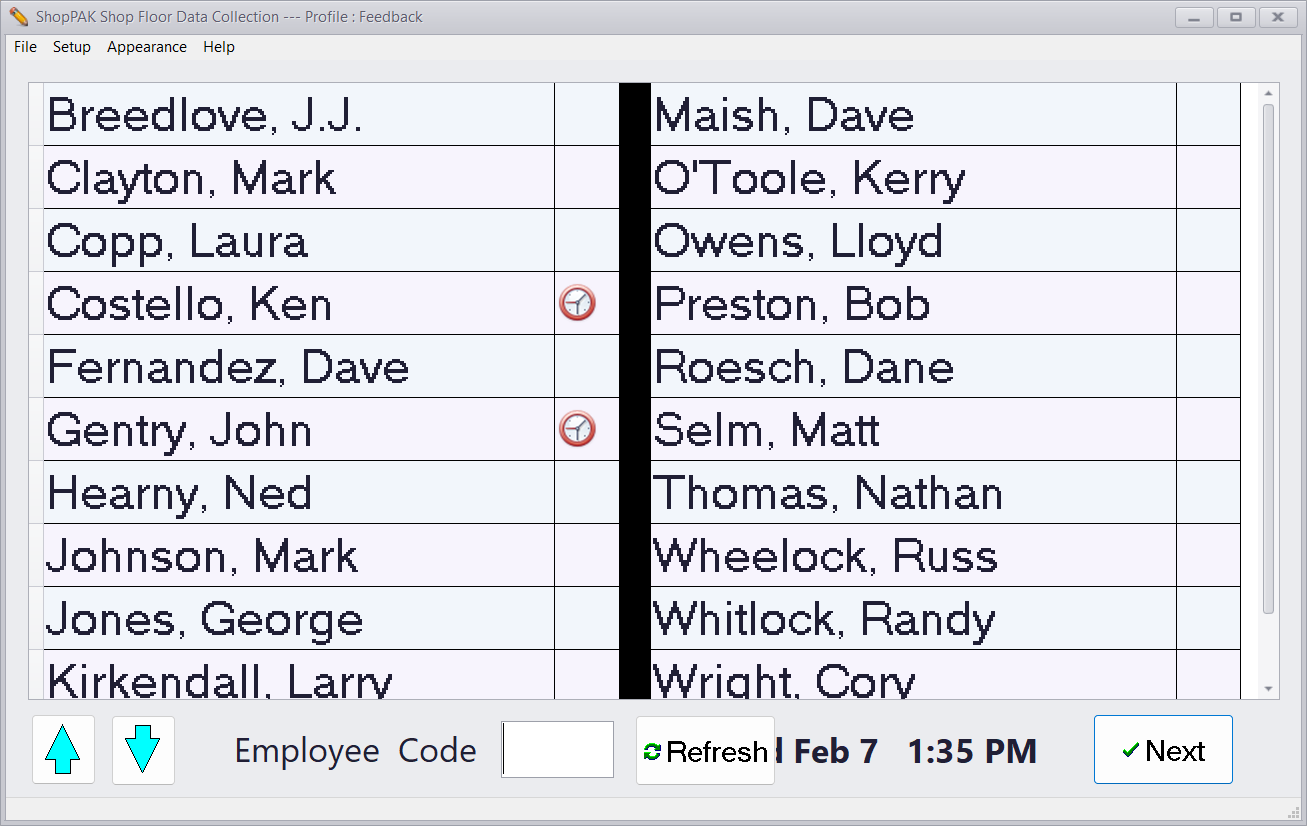
Touch Screen Monitor or Mouse
Select the correct name from the list of employees by touching with your finger or mouse.
Keyboard or Barcode Scanner
Scan the bar-coded Employee Code or type it into the “Employee Code” field and press enter.
The employee screen displays a clock  next to those employees that are currently clocked in. For example, 4 employees are currently clocked in. We don’t see what they’re working on from this screen. We just know they’re clocked in.
next to those employees that are currently clocked in. For example, 4 employees are currently clocked in. We don’t see what they’re working on from this screen. We just know they’re clocked in.Selecting a name from the employee list displays the employee’s dynamic transaction button choices. The buttons that the workstation displays depend on two things:
(1) PC Data Collection Profile
The Profile determines the types of transactions that are available to employees. For example, if the profile doesn’t support inventory transactions, the inventory buttons will not display.
(2) Employee’s Current System Status
Only the buttons that are applicable to the employee will be displayed. For example, if the employee hasn’t clocked into the system yet, he or she will only see the “Clock In” button and the “My Time” button.