
Show On Progress Billing
The structure of the job not only drives how jobs are organized for fabrication, tracking, and costing, but it can also influence how a progress billing application for payment is structured as well.
Below is a simple commercial job with three job items. The first job item is “Golf Country Club” with three work orders, and the second and third job items are “Change Order #1 and #2” … with a couple of work orders underneath. Obviously, this job has been structured by location. Each work order has a number of products that will be fabricated and shipped. One work order contains products going to the Room 101, 102, 103, 104, & 106. The second work order handles products going to Room 105 & 108, and the last work order handles all delivery and installation of all areas.
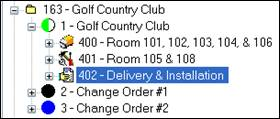
How you structure your job, in other words, how you determine the number of job items and work orders depend on many factors: size of the batch, common materials and/or processes, internal and/or external schedules, shop capacity, work flow, ability to get shop drawings and submittals approved, etc. Generally, we recommend users try to structure their jobs by focusing first on optimizing fabrication, and second, on gathering actuals that makes analyzing discrepancies between estimated and actuals easy and straightforward. If your job tree organization also makes sense for billing, you can automate the process of creating your application for payment line items.
Every job item and work order has a checkbox that tells ShopPAK whether or not the job item description or work order description should be included as a progress billing item. For example, work order #400 – Room 101, 102, 103, 104, & 106 is marked as being a progress billing item:
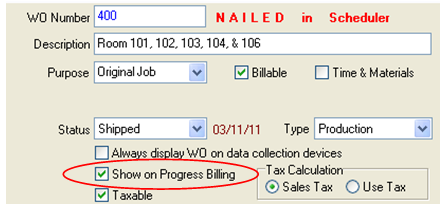
Placing a check in “Show on Progress Billing” tells ShopPAK to automatically include this work order description as a line item on a progress billing application. Furthermore, ShopPAK includes the work order sell price as the application line item’s scheduled value.
If job items and work orders match how you define progress billing application line items, placing a check in the appropriate job item and/or work order “Show on Progress Billing” checkbox saves time. However, if the structure of the job tree doesn’t match how you want to organize your progress billing applications, make sure “Show on Progress Billing” is left blank.