Purchase Orders
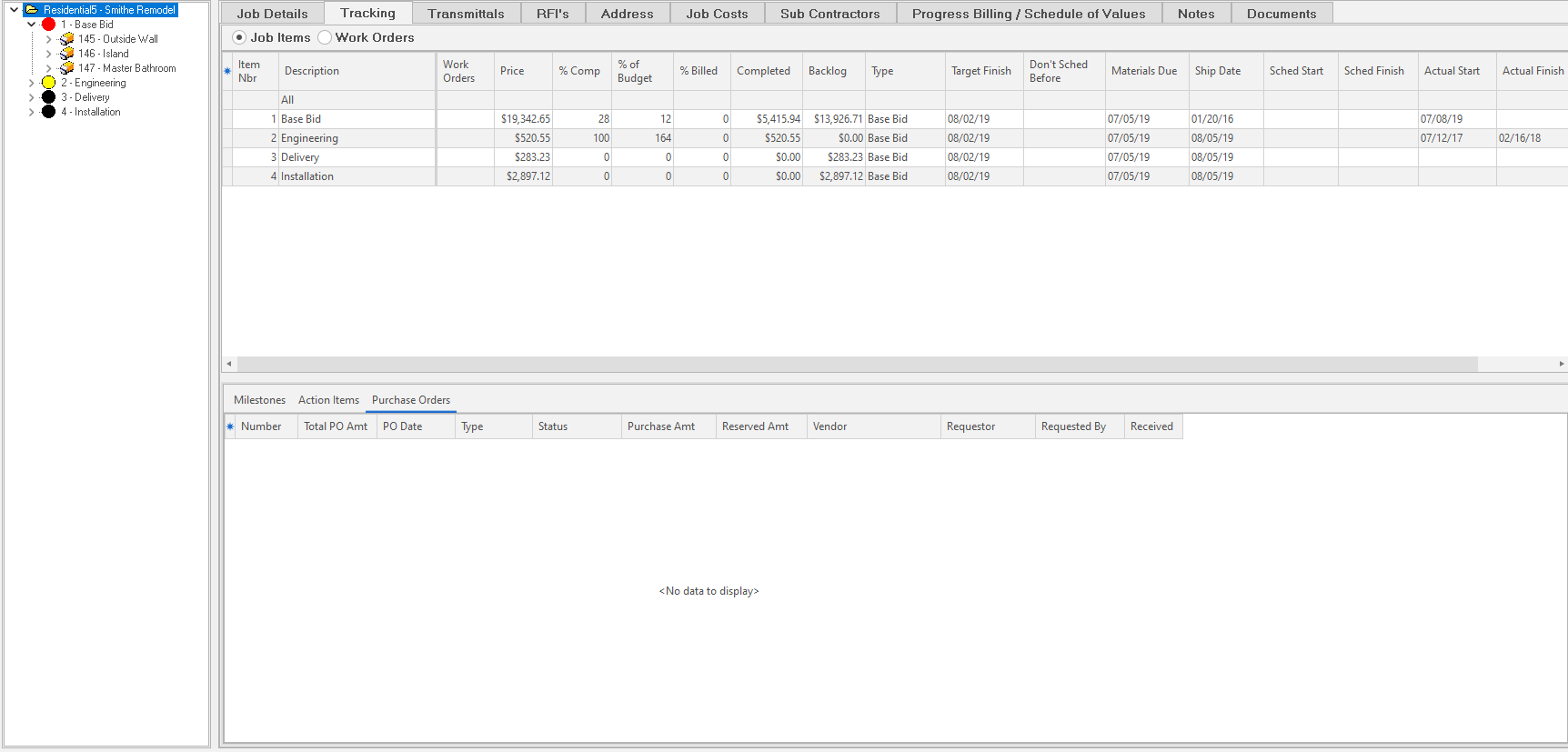
When you click a Job Item or Work Order, ShopPAK displays all related Purchase Orders that reference the selected item when Purchase Order is selected.
Automatically Open a Purchase Order
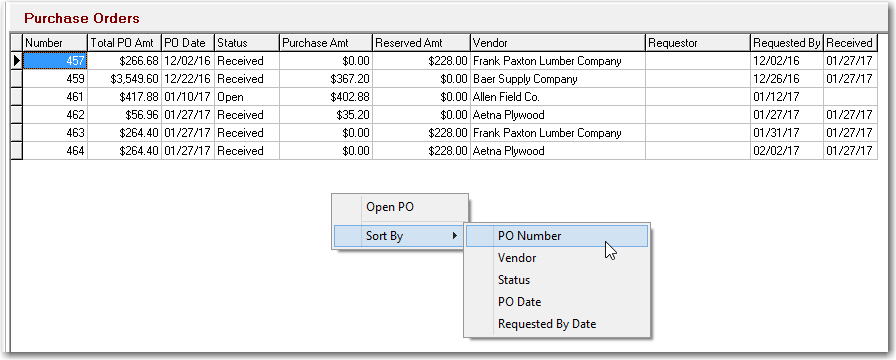
A handy feature is automatically opening a PO from this form. Right mouse click the Purchase Order grid and select “Open PO” from the pop up menu. ShopPAK navigates to the Purchase Order tab and opens the requested purchase order.
Sorting Purchase Orders
You can sequence purchase orders by right mouse clicking the Purchase Order grid and select Sort By. You can order by PO Number, Vendor, PO Status, PO Date, and Requested By Date.
Sort Button 
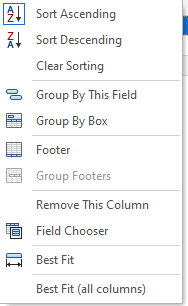
Click the “Sort” button to display the columns that you can sort the Item List grid upon.
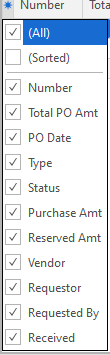
Select the column you wish to sort on and click the OK button. ShopPAK sorts the grid accordingly. Use the “ascending” and “descending” radio buttons to order the sorted column in ascending or descending sequence.