
Material Grid Column Explanations
Type
Includes ProjectPAK line types ‘Material’ and any user defined line types mapped as a ShopPAK material item.
Inventory Code
Read only. If the material is an inventory item, ShopPAK displays its inventory code.
Material Code
If you define ProjectPAK Library items with a code, and if the material is a ProjectPAK Library item, ShopPAK displays the material code.
Description
Material description. You can edit the description if you want to add specific information such as color, grade, size, etc. However, be aware that ShopPAK uses material description when it retrieves purchase history for a particular PO Item. If you edit the description to specify a particular occurrence of a ‘generic’ material, make sure you edit it the same way every time so you get ALL PO Items when you request purchase price history.
Notes
Place a check into the ‘Notes’ checkbox to add a row note to the material. To see a material note, select the material row and click the “Notes” button. 
Ppak Quantity
Read only. If you use the ProjectPAK Conversion Utility to build ShopPAK work orders, any material that was estimated will show up in the ‘Materials’ grid and will have a ProjectPAK quantity.
Quantity
Initially, ‘Quantity’ matches the ProjectPAK quantity. If the ProjectPAK quantity isn’t correct, change the ‘Quantity’ column to forward the right quantity to purchasing.
UOM
Unit of Measure. The list of user defined values comes from the ProjectPAK UOM definition.
Note: If you estimate in one unit of measure but purchase in another unit of measure, define ProjectPAK Conversion Utility unit of measure conversion formulas. See “Chapter 5 – ProjectPAK Estimate Conversion”, page 11 for more information.
|
Ppak Unit Price / Ppak Ext Price
Read only. If you use the ProjectPAK Conversion Utility to build ShopPAK work orders, any material that was estimated will show up in the ‘Materials’ grid and will have a ProjectPAK unit price, as well as, extended price.
Unit Price
Initially, ‘Unit Price’ matches the ProjectPAK unit price. If the ProjectPAK unit price isn’t correct, change the ‘Unit Price’ column to forward the right unit price to purchasing.
Extended Price
Read only. Price of the material. ShopPAK multiplies ‘Quantity’ times ‘Unit Price’.
Material Due Date
Date that the material needs to be delivered in order to start fabrication and meet ship dates. This field is sensitive to Job, Job Item, and Work Order ‘Material Due Date’ changes. If the material’s due date matches a higher level object’s material due date, changes to the higher level automatically ‘trickle down’ to the material level.
Requisition Date
If you need to track the difference between material requests (Requisition Date) and when the material was actually purchased (PO Date), fill in Requisition Date.
In House
Read only. ShopPAK checks the checkbox if the material has been received or exists in inventory with a reservation for this work order.
PO Material Status
Read only. If the row has a material that has been purchased, and the PO Item has a user PO Material Status note, the note is duplicated on the material grid.
PO / Ship Ticket Number
Read only. ShopPAK automatically fills in PO Number that the material was part of. If the material is a ‘Ship’ item (as opposed to a fabrication item), the Shipping Ticket number is also displayed.
Material Status
Read only. ShopPAK generates status information on each material that has been purchased or reserved.
Print on Work Order Checkbox
If you request materials be included when printing work orders, placing a check into a material row’s checkbox tells ShopPAK to include the material when printing.
PO Builder Ready Checkbox
Tells ShopPAK to consider the material and its quantity on the PO Builder tab. Only place a check in the checkbox when the material’s type, quantity, and cost are verified…….and, you are ready to purchase the material.
A common strategy our customers use is to have their engineers and/or material detailers focus on validating ‘long lead’ items first, and mark these materials as ready for PO Builder for addressing materials with shorter lead times.
Note: When you change work order status to ‘Purchasing’, ShopPAK can automatically change all PO Builder Ready checkboxes to checked. See "Setup Options" for requesting this option.
|
Force PO Builder Checkbox
Tells ShopPAK to always include a material in the PO Builder material tree, regardless of other criteria such as work order status, material type, or material due date.
Difference Between the 2 PO Builder Checkboxes
The PO Builder Ready checkbox simply flags a material row as being eligible to be included in the PO Builder material tree. There are other criteria that ShopPAK uses to decide if the material actually is included in the PO Builder material tree. For example, if the Work Order status is different than the work order status values that drive PO Builder, materials on those work orders will not be included in the material tree – regardless of their PO Builder Ready flag. Force PO Builder checkbox , on the other hand, trumps all other PO Builder edits. If a material has a check in Force PO Builder checkbox, that material will always be included in the PO Builder material tree. The only reason it won’t be included in the material tree is if that material has already been processed via a purchase order or inventory reservation.
Ship Item Checkbox
By default, materials listed on the ‘Materials’ grid are considered ‘Fabrication’ items. In other words, the items are the raw materials that will be turned into higher value products. However, you may also have ‘Shipping’ items. These are materials and hardware that are not included in the fabrication process, but instead, are shipped to the job site as loose hardware and/or materials and used during installation. If a material is a ‘Shipping’ item, then make sure you place a check into its ‘Ship Item’ checkbox.
Note: Only items on the ‘Products’ sub tab are visible on the “Shipping” tab. See “Create Product Row(s)” in this chapter for information on automatically populating the ‘Products’ sub tab with shipping items while on the Materials sub tab.
|
Overhead Markup Percentage
The overhead markup percentage associated with the material. This percentage defaults to the value you’ve entered into ShopPAK Options on the Job Costing tab:
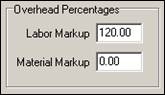
If the material is an inventory item, ShopPAK checks to see if you’ve entered a specific overhead percentage. If so, it overrides the default material markup with the specific inventory item material markup percentage. Overhead markups help recoup ‘fixed’ burden and are used on various job costing reports when calculating net margins.
ProjectPAK Custom Columns
ShopPAK shares ProjectPAK custom columns so custom material information defined in ProjectPAK flows through to ShopPAK when converting a ProjectPAK estimate into a first-cut ShopPAK job.
ProjectPAK Work Group Columns
ShopPAK shares ProjectPAK work group columns so information defined in ProjectPAK flows through to ShopPAK when converting a ProjectPAK estimate into a first-cut ShopPAK job.
Work Order Number
If you have combined several work order material needs on to one work order, but you still wish to see which materials belong with specific work orders, enter the correct work order number for each material. Some customers want to organize their material pick reports by work order that originally called for the material. If this is the case, make sure you enter the correct work order for each material.
Room Number
Room number that the material is associated with. Some customers want to organize their material pick reports by the room number that the material will be routed to. If this is the case, make sure you enter the correct room number for applicable materials.
Elevation
Elevation that the material is associated with. Some customers want to organize their material pick reports by the elevation that the material will be routed to. If this is the case, make sure you enter the correct elevation for applicable materials.
Vendor Name
Name of the vendor that supplies the material.
Stock Number
Vendor stock item number of the material.
GL Account Code
Expense GL Account code that the material belongs with.
Requestor
Every time you make a change to a specific material row, ShopPAK identifies you as the ‘requestor’.
Department
Name of the department that the material is associated with. Some customers want to organize their material pick reports by the department that needs the material. If this is the case, make sure you enter the correct department for applicable materials.