
Invoice Grid Pop Up Menu Commands
Right mouse click the ‘Invoice’ grid to display the “Invoice Item” pop up menu:
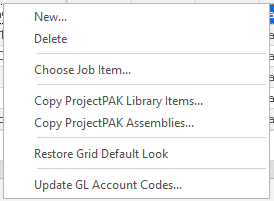
New
Creates a new invoice item row so you can manually add a new billing item. ShopPAK creates the row at the bottom of the grid.
Delete
Select the row you want to delete by clicking the invoice item row button (located on the far left of the grid). ShopPAK warns you if you want to continue with the deletion request. Choose “Yes” to delete the selected row. Choose “No” to cancel the delete request.
Choose Job Item
Every billing item needs to have at least a Job Item level reference in order to properly update ‘Percent Billed’ back on the Job and Job Item forms. If you create a new billing item via the “Billing” form, you’ll need to assign a Job Item before you can close the form. Select “Choose Job Item” from the pop up menu. ShopPAK displays the job tree. Pick the Job Item you want assigned to the billing item row.
Copy ProjectPAK Library Items
Creates a new invoice item row(s) based on a ProjectPAK library item(s). Select one or more library items from the Library Item Selection dialog box. ShopPAK copies selected library items to the bottom of the invoice grid.
Copy ProjectPAK Assemblies
Creates a new invoice item row(s) based on a ProjectPAK assembly(s). Select one or more assemblies from the Assembly Selection dialog box. ShopPAK copies selected library items to the bottom of the invoice grid.

Choose the correct filter so ShopPAK knows which assembly rows to copy into the ship item grid.
Restore Grid Default Look
Automatically restores the default column positions that ShopPAK ships with.
Update GL Account Codes
Select the Invoice Item(s) you want to update Revenue / Sales GL Account Code on by clicking the Invoice Item row buttons (located on the far left of the grid) or by holding down your left mouse button and dragging across several Invoice Item row buttons. If you want to change non-contiguous rows, hold down the CTRL button so you don’t lose previous row selections. Choose “Update GL Account Codes” from the menu. ShopPAK displays a dialog box where you choose the revenue/sales GL Account code you want to copy to all selected PO Item rows. Click OK. ShopPAK updates GL Account Code accordingly.
Column Moving (Not listed in the Invoice grid pop up menu)
The Invoice Item grid supports column moving. If you want to change the position of one or more columns, simply select the column you want to move by clicking your left mouse button in the header portion of the column. Move your mouse into the column header of the selected column, and holding down your left mouse button, slide the column left or right and release your left mouse button when it is at the new position.
ShopPAK remembers new column positions between sessions for individual users.