
Inventory
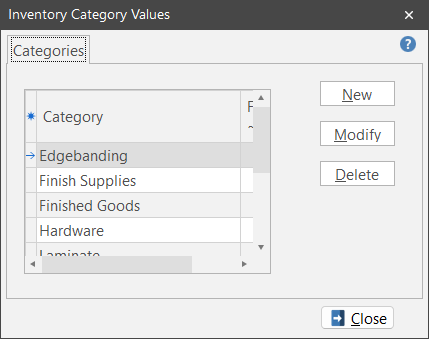
Category
Inventory Category allows you to group similar inventory items together for management and asset valuation purposes. ShopPAK ships three pre-defined list values: Raw Materials, Finished Goods, and Supplies. Feel free to change or delete these items, as well as, add new inventory category values.
If you add a category that contains “Finished Goods”, make sure you mark the new list value accordingly.
Location
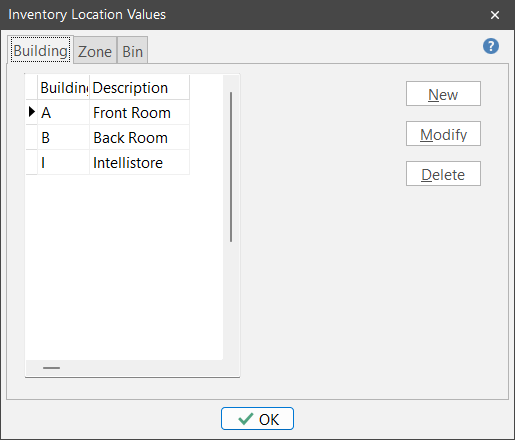
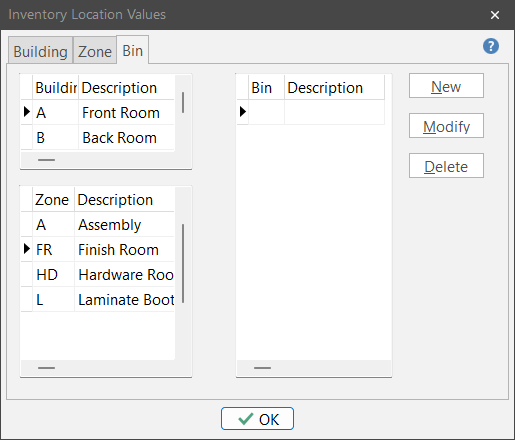
Inventory Location contains the physical shop locations where inventory is stored. Each ShopPAK Inventory item must be tied to a default Inventory Location. This default Location is used when receiving inventory with a destination of ‘Stock’ on Purchase Orders as well issuing material from stock to jobs.
Location is broken down into three hierarchical levels: ‘Building’, ‘Zone’, and ‘Bin’. Building is mandatory. Zone and Bin are optional. Each location component consists of a code and a description. Building has a one character, alpha code (“A”,”B”,”C”, etc.). Zone and Bin have 1 or 2 alphanumeric characters (“3”, “3A”, “F1”, “02”, etc.). Since location codes are short and a bit cryptic, use “Description” to clarify the exact location.
User Defined Pick Box Values
The Inventory Form has two user-defined pick boxes that you can define. The values you set up here will be available in a pick list for all inventory items under the Inventory Details tab. The use of pick lists ensures consistency in key areas for all Inventory Items.
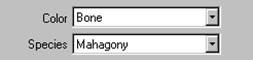
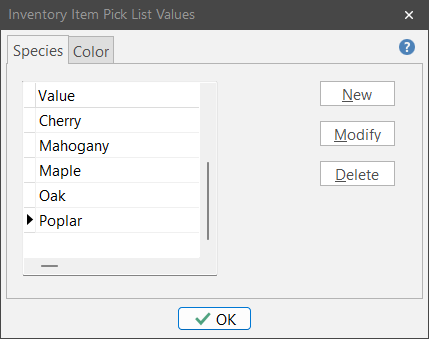
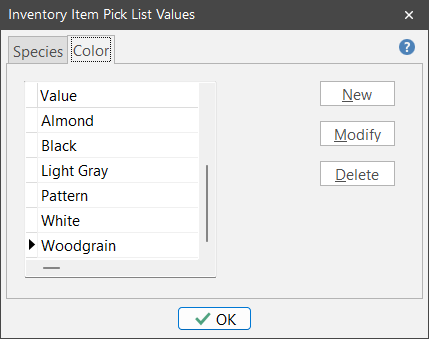
If you decide to set up a user-defined pick box, use this dialog box to define the list values. In the example below, we’ve defined two inventory item characteristics Color and Species. We’ve added values that correspond with these characteristics.
NOTE: Before you can add list values for the user-defined pick box items, you first have to create the inventory user-defined pick box labels. The tab labels available here, Color and Species, have been defined in ShopPAK Options under the Define | ShopPAK Options | Misc | User Defined Pick Box Values discussed in "ShopPAK Options" in this Chapter.
|
Individual Piece Type
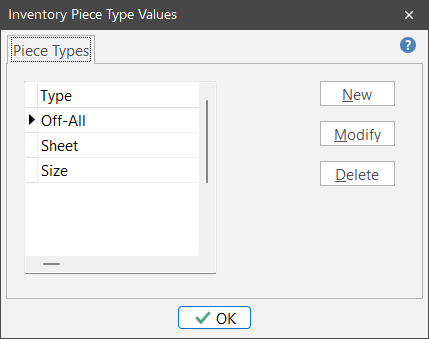
You can manage an inventory item by the batch or by the individual piece of inventory. If you have inventory that you want to manage by the individual piece, we recommend that you define the different “Types” of inventory pieces. This makes reporting and filtering easier.
Purchase / Stock (UOM) Unit of Measure Conversion
Inventory can be purchased using one UOM and stocked with another UOM. If your inventory item’s purchasing and stock UOM’s differ, you need to create/assign a UOM conversion formula so ShopPAK can derive stock UOM quantity and cost from the purchasing UOM quantity and cost.
The UOM Conversion formula dialog box works just like the ProjectPAK / ShopPAK UOM conversion formulas discussed in “ProjectPAK Estimate Conversion”.
Note: The same UOM conversion formula can be used by any number of inventory items.
|
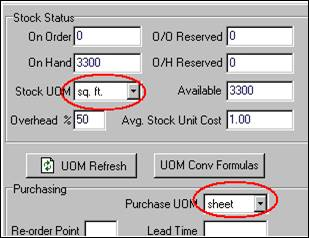
In this example, the material is purchased in sheets but maintained in inventory by the sq. ft. The Stock UOM communicates to SPAK how material is issued (pulled/picked) to the shop floor.
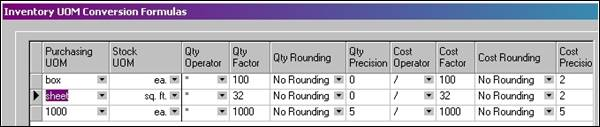
In the above image, we find an example UOM Conversion Formula that would be used when converting sheet to sq. ft. UOM is defined in ProjectPAK. Please refer to “Chapter 8 – Estimate Window”, in the ProjectPAK User Guide for details on defining a UOM.