
Miscellaneous
The last tab is used to group miscellaneous ShopPAK options.
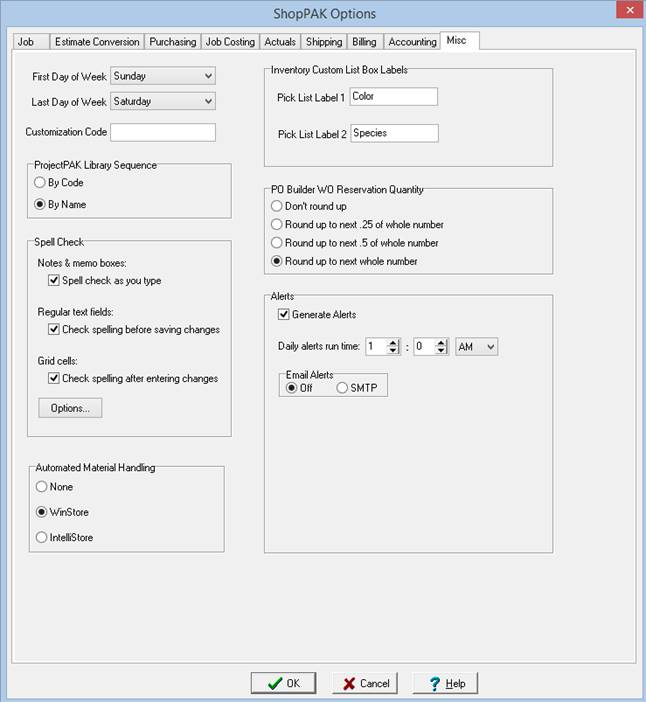
First Day of Week / Last Day of Week
Select the first/last day of the workweek. Several ShopPAK forms and weekly reports will group information based on the first and last day of the week. The “Apply Overtime Rules” tool will also use these values when determining weekly overtime thresholds. See “Chapter 20 – ShopPAK Tools”, page 9 for detailed information about “Apply Overtime”.
Customization Code
If TradeSoft has done custom software development for you, enter your company customization code to ‘unlock’ your software customizations.
ProjectPAK Library Sequence
Default ProjectPAK Library ‘Pick’ dialog box sequence. Either order by inventory code or description.
Spell Checker Settings
Notes and Memo Boxes
Notes and memo boxes support ‘as you type spell checking’. ShopPAK draws a red line under a misspelled word as you type characters into a memo field. Right mouse clicking the misspelled word pops up a list of suggested spellings. If you want spellchecking turned on for notes and memo boxes, place a check into the checkbox.
Regular Text Fields
ShopPAK can check a number of regular text fields for misspelled words. These are checked when you close a given dialog box or window. If you want spellchecking turned on for regular text fields, place a check into the checkbox.
Grid Cells
If you want ShopPAK to check grid cells that have strings, place a check into the main checkbox.
Spelling Options
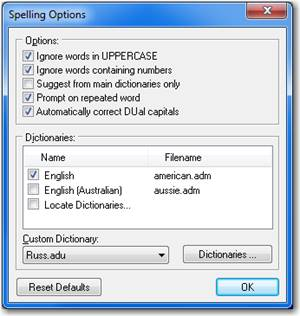
Clicking the Options button displays the Spelling Options dialog box. Use options to configure spell checking behavior and dictionaries you wish to use.
Automated Material Handling
If you use WinStore or IntelliStore to automate material handling, and you are using a custom TradeSoft interface to automatically keep information in sync between ShopPAK and the material handling system, choose the product you are using. This informs ShopPAK on how to interface transferred data.
Inventory Custom List Box Labels
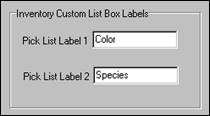
The Inventory Form has 2 user-defined pick boxes that you can create. If you decide to set up a user-defined pick box, identify the label name of the pick box here.
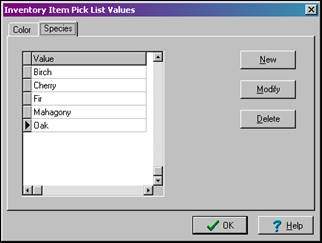
These are the labels you will see on the tabs under the Define | ShopPAK Options | Misc | User Defined Pick Box Values screen. In the image above, we have defined 2 labels, Color and Species.
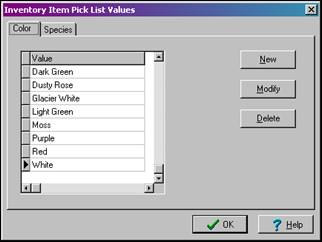
These values result in the following on the User Defined Pick Box Values screen:
PO Builder Work Order Reservation Quantity
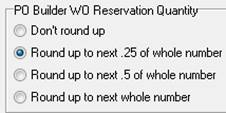
One of the functions of PO Builder is placing reservations against stock items. Tell ShopPAK how you want to handle the reservation quantity. Four choices are available:
Alerts
Alerts is a powerful ShopPAK project management tool. Refer to Chapter 22 - Alerts for information on setting up alert defaults and options.