Miscellaneous
Ship Via
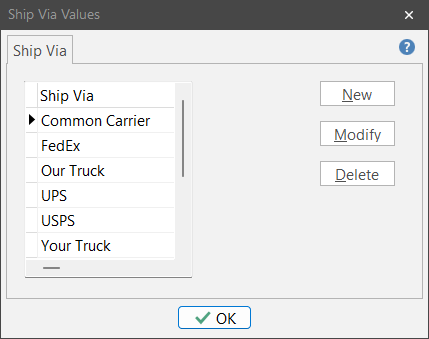
Define the “Ship Via” values that you typically use. When creating purchase orders and packing slips, you’ll be able to choose often used phrases from a pre-populated list to save time and increase consistency.
TIP: You can set up your default Ship Via in ShopPAK Options. To do this go to Define | ShopPAK Options | Shipping / Billing.
|
Tax Agencies
QuickBooks (export) and QuickBooks (integrated)
If you use QuickBooks, you must supply a ‘Tax Agency Name’ if invoices have tax. Select Define | Tax Agencies from the ShopPAK menu to define your tax agency names:
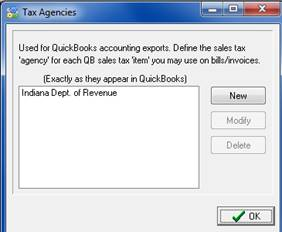
We recommend identifying the tax agency you want as your new job default on the ShopPAK Option’s ‘Accounting’ tab. This flows into every new job (it can be changed if needed).

Sage 50 (Peachtree)
Peachtree allows users to set up different sales tax authorities. Typically this would include a State, County, and City taxing authority. In Peachtree, the user enters the tax percentages and other applicable parameters for each tax authority. If you use Peachtree, you must supply a ‘Tax Authority Name’ at the state level via the ProjectPAK customer form’s “More Fields” dialog box. (or place in the customer’s project form “More Fields” dialog box to override customer level).
Create a customer “More Field” called -> StateAuth (It must be entered exactly as shown here). You can use any custom field, just make sure you define the field tag exactly as shown here -> StateAuth.
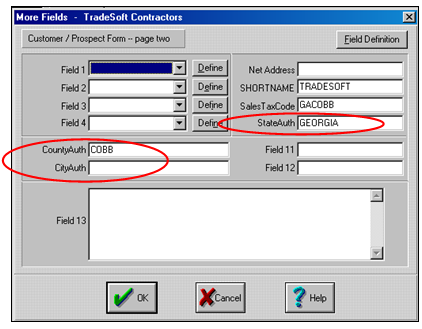
If you want to identify additional tax authorities at the county and city levels, define them exactly as shown:
County Authority -> CountyAuth
City Authority -> CityAuth
It is the responsibility of the ProjectPAK/ShopPAK user to enter this information into every customer record (or project record) referenced in their invoices. If a customer doesn’t have a county and/or city taxing authority, leave these fields blank.
Rework Reasons
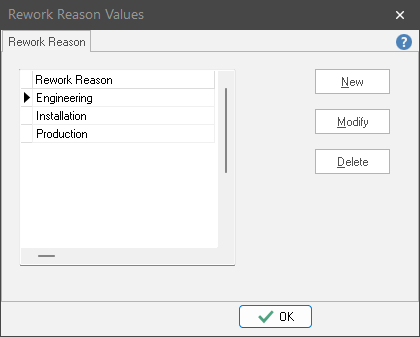
Define the “rework reasons” values that you typically use. Please refer to “Work Order Details" for details on creating rework reasons.