
Exporting Regular Invoices
1. Select File | Open on the Billings tab or click the Open Record icon  from the speed bar. Note: Clicking the down arrow shows recently opened invoices. Selecting an invoice from the list opens invoicee. Clicking the open folder icon displays the “Select Invoices to Open” dialog box.
from the speed bar. Note: Clicking the down arrow shows recently opened invoices. Selecting an invoice from the list opens invoicee. Clicking the open folder icon displays the “Select Invoices to Open” dialog box.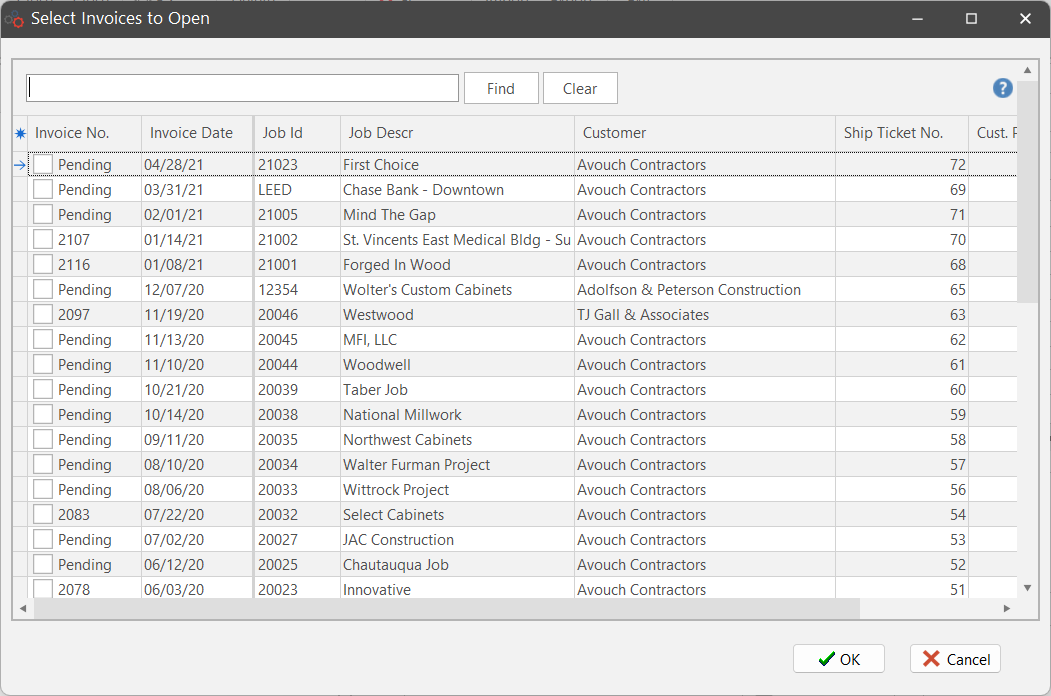
2. ShopPAK defaults to listing all invoices by Invoice Number. Choose a different column to change the sort order.
3. Enter an invoice number or description in the "Enter text to search" field. With each letter typed, ShopPAK finds all of the potential matches and displays them within Search Results.
4. Select one or more invoices to open by clicking a check in the box.
5. Click “OK” to copy all of the selected invoices into the Billing form’s “Working List” of invoices.
6. Right mouse click the working list area of the Billings List. This displays the pop up menu. Select “Export”  .
.
.7. ShopPAK checks to make sure all necessary export information is present. If not, it displays an error message and terminates the export request. If all necessary information is present, it displays an “Export File Name” dialog box.
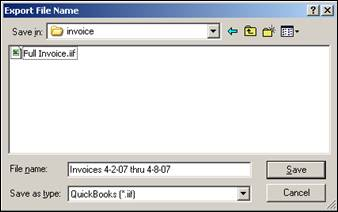
8. Choose a file name and location where ShopPAK should create the export file. ShopPAK displays a progress bar while building the file. When finished, the file is ready to be imported.