Stopping a Labor Transaction
There are two ways to stop the current labor transaction for an employee, depending on the PC data collection profile you’re using.
“Simple” Labor Approach
If you’re using a “Simple” labor approach, you don’t really need to stop the previously started labor transaction. Instead, the next labor transaction you initiate does it for you - It terminates the prior labor transaction and starts the new one.
What if the outstanding labor transaction is the last one before clocking out for lunch or going home? In this case, the “Clock Out” transaction the employee initiates not only provides the clock out time, it also applies the clock out time to the previously started labor transaction – thus giving it a stop time and terminating the labor transaction.
“Feedback” Labor Approach
The feedback approach requires that the employee explicitly stop the labor transaction they’ve been working upon. This gives the employee an opportunity to provide tracking information like percent complete, as well as, how many units were completed.
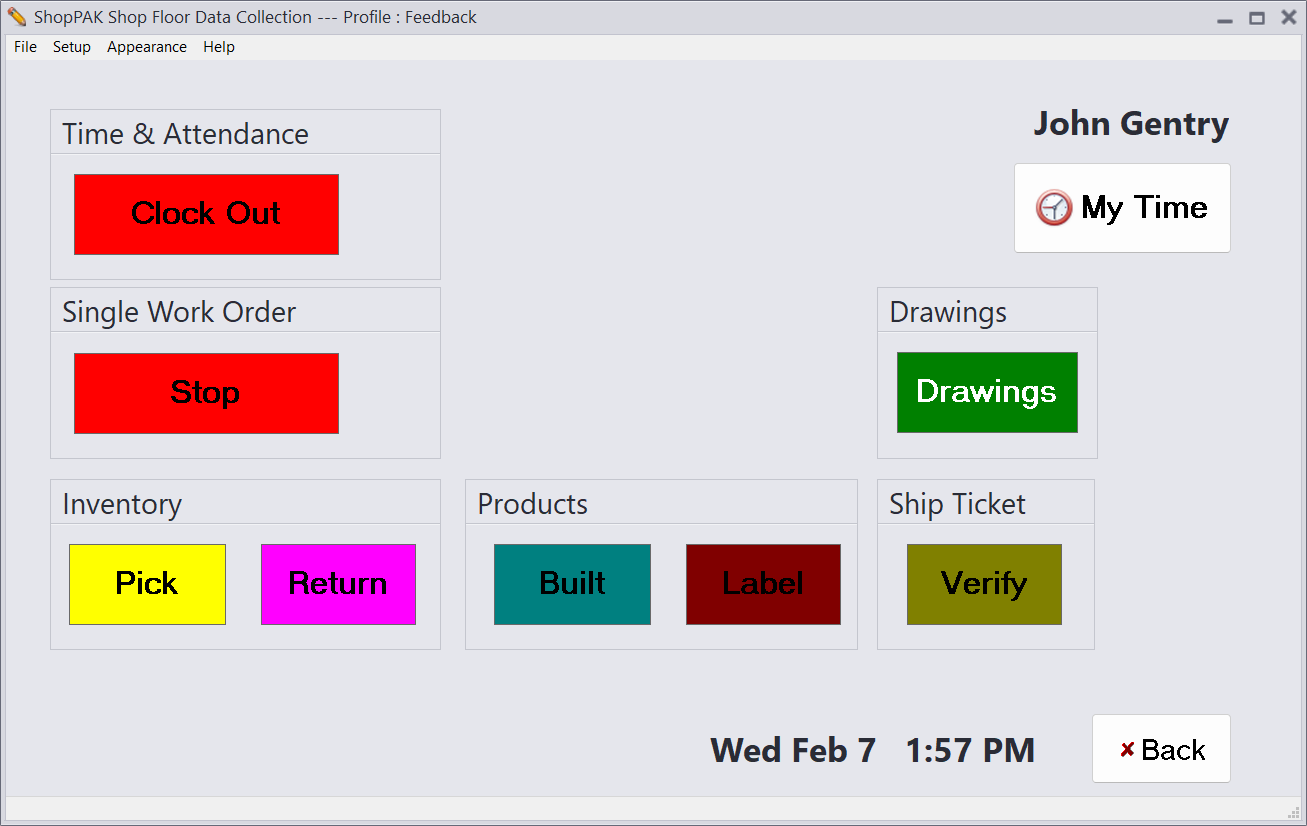
In the example below, we show the screen that displays when using the “Feedback” approach. When John Gentry selects his name from the “Employee List” window, ShopPAK looks to see if he has started a prior labor transaction. If so, a red labor button appears within the “Work Orders” group that says “Stop”. Tim can’t start a new work order until he has stopped the one he is currently working on.
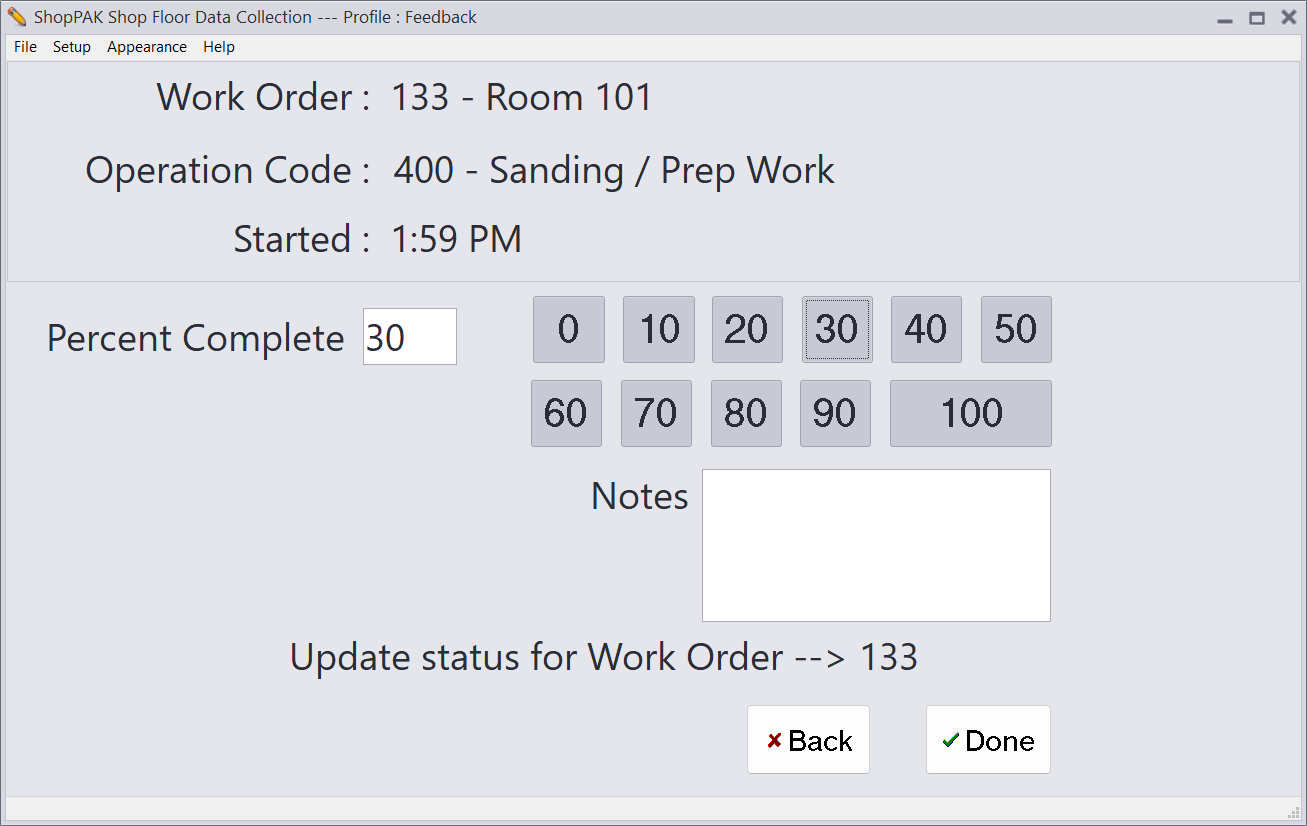
1. Click the “Stop” button. This displays the feedback screen.

Enter a percent complete, quantity finished, and any free form notes.
Note: If collecting operation time, the employee enters the “Percent Complete” for the Operation. If collecting just the work order time, the employee enters the “Percent Complete” for the work order.
|
The same is true when supplying the “Quantity Finished”.
2. Press “Done”. A black window appears for a couple of seconds. It identifies the work order number you selected, and if collecting operation, the op code you selected.
3. When the black message window disappears, the PC data collection window returns to its “waiting” state (the employee list), ready for the next transaction.
Providing Status When Logged on to Several Work Orders
In the example above, the employee had logged on to just one work order. If an employee logs on to multiple work orders, they need to update percent complete and/or finish quantity for each work order they’ve been working on.
For the work order identified at the top of the screen enter percent complete / finished quantity, and then click the “Next” button.

The next work order is shown at the top. Repeat the process for each work order and then click the "Done" button.