
Set Options Sub Tab
Options tell ShopPAK how you want to handle the import.
Note: ShopPAK saves setup options across sessions to save time when doing subsequent imports.
|
File Has Parts – Combine into Materials
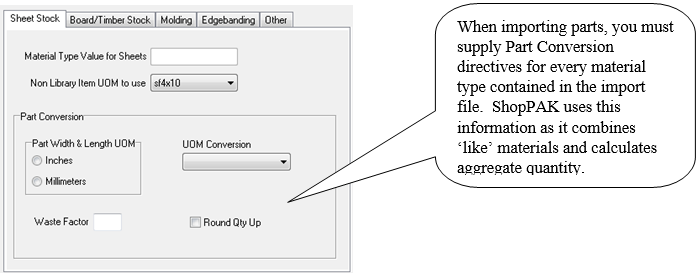
If the import file contains parts (for example, it was generated from a cut list), place a check into the check box. When parts are in the import file, you must supply Part Conversion directives for every material type in the import file. Conversion formulas determine how ‘like’ parts are combined into a material and drive aggregate quantity calculation.
ProjectPAK Library Item Link
If materials in the import file have corresponding ProjectPAK Library items, tell ShopPAK if it should use Item Code or Engineering Link Code when matching ProjectPAK library materials.
Note: If you often import materials, we recommend mapping them to ProjectPAK library items so you have greater consistency and take advantage of built-in ProjectPAK library pricing, UOM conversion formulas, vendor assignments, and inventory item identification.
|
Work Order Material Grid
Tells ShopPAK how you want to handle existing work order materials. You can either add import file materials to existing work order materials, or you can delete existing materials and replace them with materials from the import file.
Import File Contents
Tells ShopPAK if the import file contains just one type of material, or if it contains a mixture of materials.
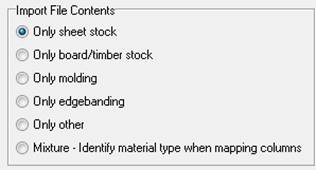
If the import file contains only one material type (e.g. only Stock or only edgebanding), select its material type. If the import file contains more than one material type, select the last option à Mixture. Remember to supply material options for every material type contained in the import file.
Sheet Stock Options
Material Type Value for Sheets
When the import file contains different material types, and one of the material types is sheet stock, enter the code that identifies sheet stock rows in the import file.
Non-Library Item UOM to Use
If an import file material doesn’t have a corresponding ProjectPAK library item, this directive tells ShopPAK the default unit of measure to use when creating a ShopPAK sheet stock material.
Part Width & Length UOM
Tells ShopPAK whether import file parts are measured in inches or millimeters.
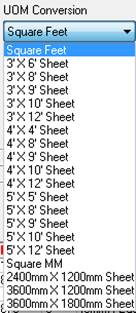
UOM Conversion
When converting parts into aggregate material, tells ShopPAK what the target material unit of measure should be.
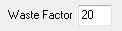
Waste Factor
When converting parts into material, if you want to add additional quantity to cover anticipated waste, enter a waste factor. For example, if you enter 20, ShopPAK will bump material quantity up by an additional 20% during conversion.
Round Qty Up
When converting parts into material, tells ShopPAK to round quantity up to the nearest whole number.
Board / Timber Stock Options
Material Type Value for Board/Timber
When the import file contains different material types, and one of the material types is board/timber stock, enter the code that identifies board/timber rows in the import file.
Non-Library Item UOM to Use
If an import file material doesn’t have a corresponding ProjectPAK library item, this directive tells ShopPAK the default unit of measure to use when creating a ShopPAK board/timber material.
Part Width & Length UOM
Tells ShopPAK whether import file parts are measured in inches or millimeters.
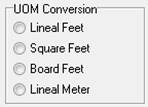
UOM Conversion
When converting parts into aggregate material, tells ShopPAK what the target material unit of measure should be.
Waste Factor
When converting parts into material, if you want to add additional quantity to cover anticipated waste, enter a waste factor. For example, if you enter 20, ShopPAK will bump material quantity up by an additional 20% during conversion.
Round Qty Up
When converting parts into material, tells ShopPAK to round quantity up to the nearest whole number.
Molding Options
Material Type Value for Molding
When the import file contains different material types, and one of the material types is molding, enter the code that identifies molding rows in the import file.
Non-Library Item UOM to Use
If an import file material doesn’t have a corresponding ProjectPAK library item, this directive tells ShopPAK the default unit of measure to use when creating a ShopPAK molding material.
Part Width & Length UOM
Tells ShopPAK whether import file parts are measured in inches, millimeters, or feet.
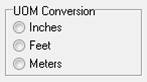
UOM Conversion
When converting parts into aggregate material, tells ShopPAK what the target material unit of measure should be.
Waste Factor
When converting parts into material, if you want to add additional quantity to cover anticipated waste, enter a waste factor. For example, if you enter 20, ShopPAK will bump material quantity up by an additional 20% during conversion.
Round Qty Up
When converting parts into material, tells ShopPAK to round quantity up to the nearest whole number.
Edgebanding Options
Material Type Value for Edgebanding
When the import file contains different material types, and one of the material types is edgebanding, enter the code that identifies edgebanding rows in the import file.
Non-Library Item UOM to Use
If an import file material doesn’t have a corresponding ProjectPAK library item, this directive tells ShopPAK the default unit of measure to use when creating a ShopPAK edgebanding material.
Part Width & Length UOM
Tells ShopPAK whether import file parts are measured in inches, millimeters, or feet.
UOM Conversion
When converting parts into aggregate material, tells ShopPAK what the target material unit of measure should be.
Waste Factor
When converting parts into material, if you want to add additional quantity to cover anticipated waste, enter a waste factor. For example, if you enter 20, ShopPAK will bump material quantity up by an additional 20% during conversion.
Round Qty Up
When converting parts into material, tells ShopPAK to round quantity up to the nearest whole number.
‘Other’ Material Options
When importing miscellaneous materials (e.g. ‘Other’), there are not any part conversion formulas. Miscellaneous materials are brought into ShopPAK as they are defined in the import file.
Material Type Value for Other
When the import file contains different material types, and one of the material types is ‘Other’, enter the code that identifies miscellaneous material rows in the import file.
Non-Library Item UOM to Use
If an import file ‘Other’ material doesn’t have a corresponding ProjectPAK library item, this directive tells ShopPAK the default unit of measure to use when creating a ShopPAK ‘Other’ material.