
Map Columns Sub Tab
The second sub tab is used to map import file columns to their corresponding Material grid column.
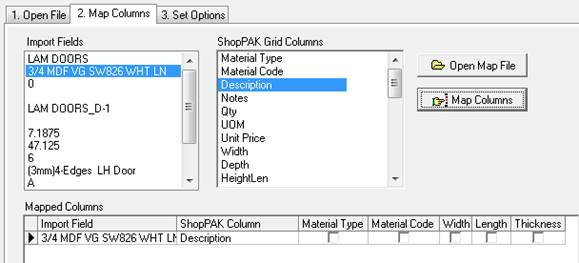
Map a New Column
1. Select import file column from the Import Fields list box you wish to map.
2. Select corresponding Material grid column.
3. Click the Map Columns button to map the selected columns. ShopPAK displayed currently mapped columns in the Mapped Columns grid.
Each time you map a column, ShopPAK colors the mapped columns red in both the import file grid and ShopPAK Grid column list. This makes it easier to see which columns you’ve mapped, and which columns remain.
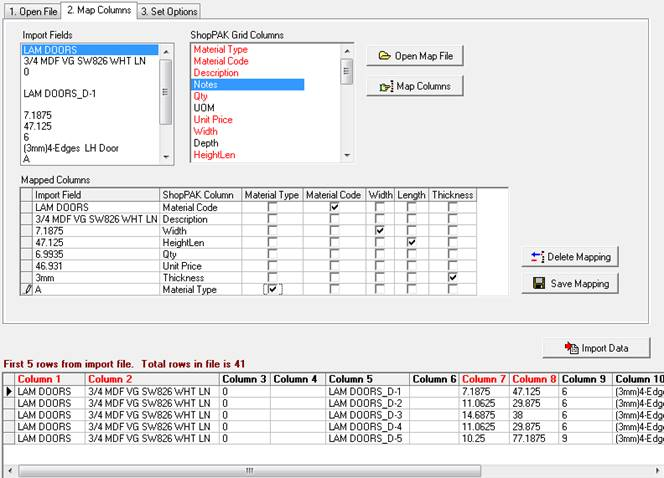
Special Control Mapping Columns
There are 5 special control columns on the Mapped Column grid:
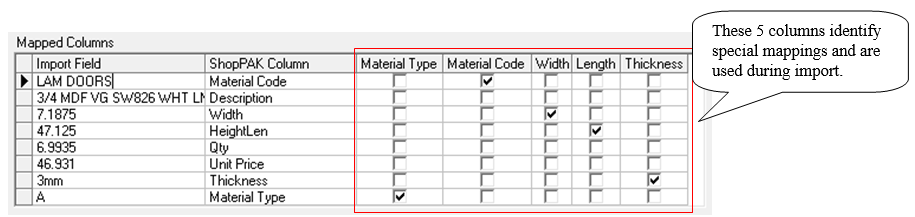
Material Type
Identifies import column that has material type. If the import file contains different kinds of materials, for example, it has both lumber and hardware, you must identify the column that has “Material Type” and map it to the ShopPAK Material Type column via the Material Type checkbox. If your import file only has one type of material, you don’t need to identify Material Type.
Material Code
A powerful feature when importing materials from an engineering package is linking them to their corresponding ProjectPAK library item. Material Code identifies the column that is used to synchronize materials. If the import file contains materials that have corresponding ProjectPAK library items, you must identify the import file column that has “Material Code” and map it to the ShopPAK Material Code column via the Material Code checkbox.
Width
When importing parts, conversion formulas that use part width need to know which import file column corresponds to width. Use the “Width” checkbox to identify the import file’s width column. If you are not importing parts, you don’t need to identify the Width column.
Length
When importing parts, conversion formulas that use part length need to know which import file column corresponds to length. Use the “Length” checkbox to identify the import file’s length column. If you are not importing parts, you don’t need to identify the Length column.
Thickness
When importing parts, conversion formulas that use part thickness need to know which import file column corresponds to thickness. Use the “Thickness” checkbox to identify the import file’s thickness column. If you are not importing parts, you don’t need to identify the Thickness column.
Remove a Mapped Column
1. Select the mapping you no longer want from the Mapped Columns grid.
2. Click the Delete Mapping button. Click Yes to confirm mapping deletion.
Save Column Mappings
A handy feature is saving column mappings between sessions. If you plan on importing materials often into ShopPAK, and you’ll use the same import file layout, save the mappings and reuse over and over.
1. Map all the columns from the import file to corresponding ShopPAK columns.
2. Click the Save Mapping button. This opens a standard Save dialog box. Navigate to the directory where you want to save the map. Give the map file a name (We recommend keeping the default file extension à .map).
3. Click the Save button.
Retrieve Column Mappings
If you want to re-apply a previously saved column mapping, follow these steps:
1. Click the Open Map File button. This opens a standard Open dialog box.
2. Navigate to the directory where the mapping file is located. Double click the file or select it and click the Open button. ShopPAK re-applies the mappings and updates grids accordingly.