
Report Generation Dialog Box
Most ShopPAK reports display a front-end dialog when the report is requested. Typically these front-end dialogs give you a number of options for filtering and sorting a report.
Filters
Filters allow you to limit a report to a subset of values. They contain choices relevant to a particular report. For example, job focused reports have filters relevant to a job such as Status, Bill To Customer, Project Manager, etc. Use “Filter One” and/or “Filter Two” to pinpoint the subset of rows you want returned on the report. If you use both filters, make sure you select the right matching value. Use ‘AND’ if you want to limit the report. Use ‘OR’ if you want to expand the report.
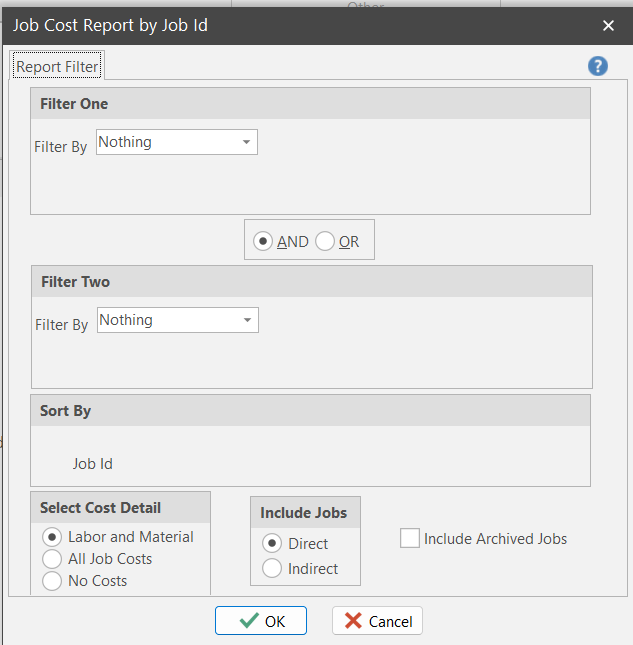
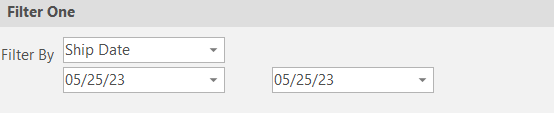
When you select a filter, ShopPAK displays appropriate controls so you can enter the value(s) you wish to filter on. For example, if you filter by date, ShopPAK displays 2 date controls so you can pinpoint a date range that you want to limit the report by.
If you filter on a ‘list’ field, ShopPAK displays the possible values in a drop down list:
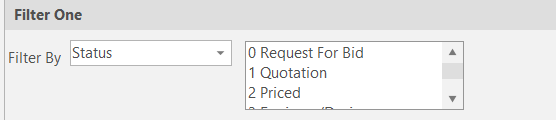
Note: Many lists allow you to pick more than one value to filter on. To select multiple values, hold down your CTRL key when picking additional items so you don’t lose previously selected items.
|
Options
Some report dialogs allow additional fine-tuning by presenting one or more options. For example, several job cost reports allow you to pinpoint which costs to include, as well as, the type of jobs you are interested in (Direct or Indirect).

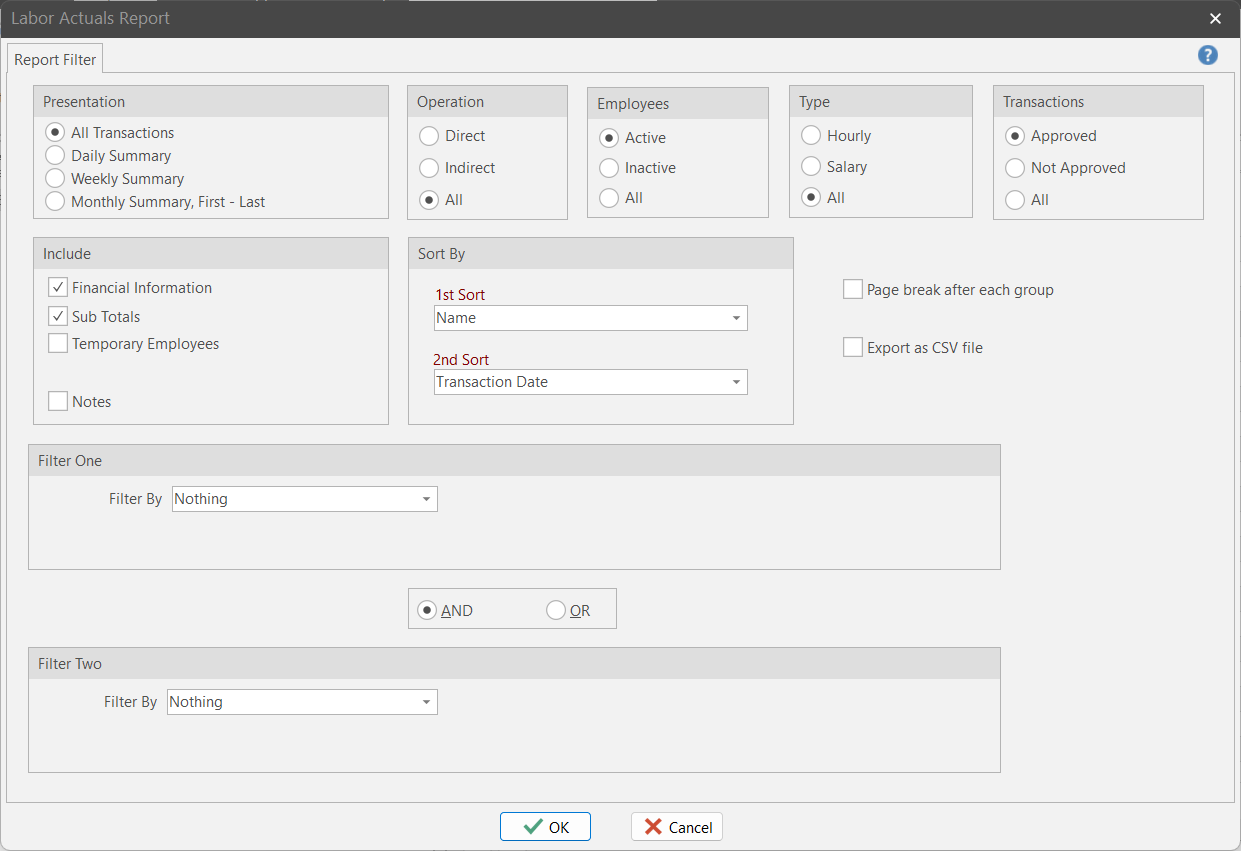
Because labor oriented reports need to sift through a large number of underlying transactions, they often give users a number of options for filtering and presentation. Data can be collated and presented in a summary format for weekly or monthly rollups. Many reports group information based on the Sort By criteria and provide page breaks after each group. This feature allows you to distribute sections of the report to the correct person. For example, each department manager can see labor information for just those employees within their department.
Sorting
Most reports let you sort the report by two breaks. For example, in the labor report dialog box above, we’ve asked ShopPAK to sort by employee name, and within employee, order labor transactions by date of the transaction.