Purchase Order
The second tab holds Purchase Order default document printing instructions.
Copies
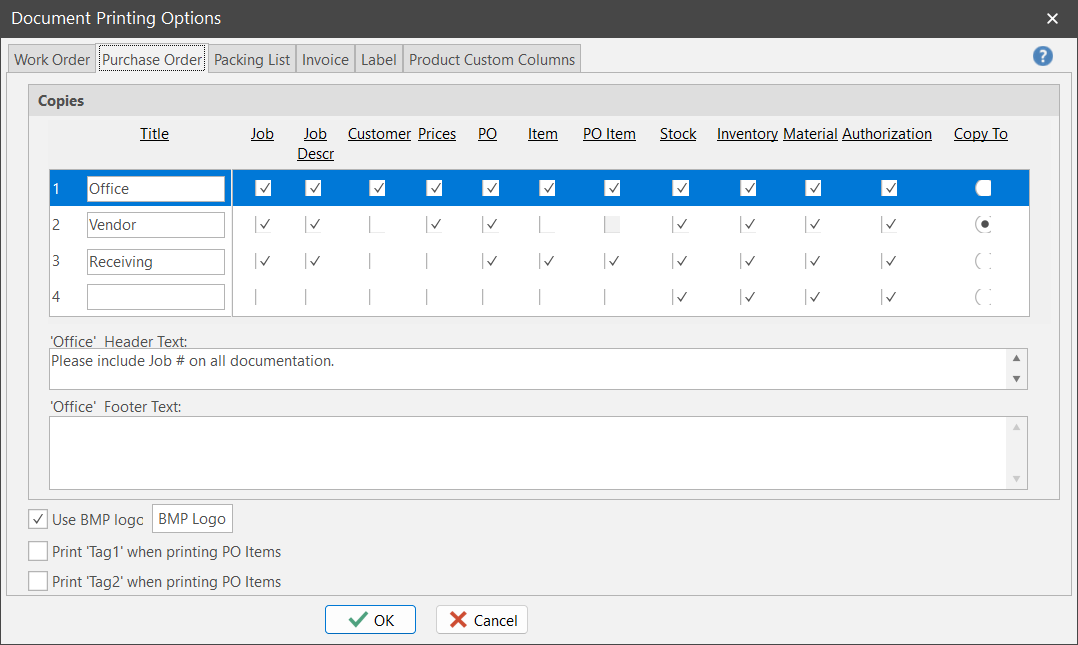
Print up to 4 copies of a given purchase order. Give each copy a unique title. There are several print directives per copy. Thus, each copy can be configured based on who they'll be sent to.
Job ID
Tells ShopPAK to print the Job ID associated with the PO on the Purchase Order copy.
Job Description
Tells ShopPAK to print the Job Description associated with the PO on the Purchase Order copy.
Customer Name
Tells ShopPAK to print the Customer associated with the PO on the Purchase Order copy.
Prices
Tells ShopPAK to include pricing information on the document
PO Notes
Tells ShopPAK to print the Purchase Order level notes on the document.
Item Notes
Tells ShopPAK to print the individual PO Item level notes on the document.
PO Item Job Info
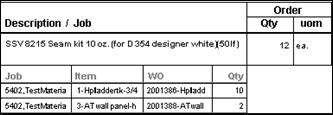
Include information about the specific Job(s) the material is being purchased for. Job information can assist Receiving with where to stage received material.
Stock Number
Tells ShopPAK to include the stock number if PO Item is based on inventory item.
Inventory Code
Tells ShopPAK to include the inventory code if PO Item is based on inventory item.
Material Code
Tells ShopPAK to include the material code if PO Item has a material code.
Authorization Signature Line
Tells ShopPAK if you want to include an authorization signature line at bottom of PO.
Header Text
Free form boilerplate text that you want printed towards the top of the purchase order copy.
Footer Text
Free form boilerplate text that you want printed towards the bottom of the purchase order copy.
Include Inventory and Material Codes on PO
Tells ShopPAK if you want to print PO Item inventory and material codes on PO.
Global Options
Use BMP Logo
If you want to print your company logo at the top of the purchase order, click the checkbox. ShopPAK reads BMP file format. Use the “BMP Logo” button to identify the BMP file that contains your business logo, and the position you want to print the logo.
.
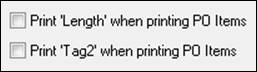
Print ‘Tag1’ / ‘Tag2’ when printing PO Items
If you’ve defined PO Item Extended descriptions (see Define | Purchasing), tell ShopPAK if you want the extended description(s) included when printing a PO Line Item.