
Progress Billing Setup
Before using progress billing, make sure you’ve correctly set up your progress billing defaults. These are located in the ShopPAK Options dialog box on the Billing” tab.
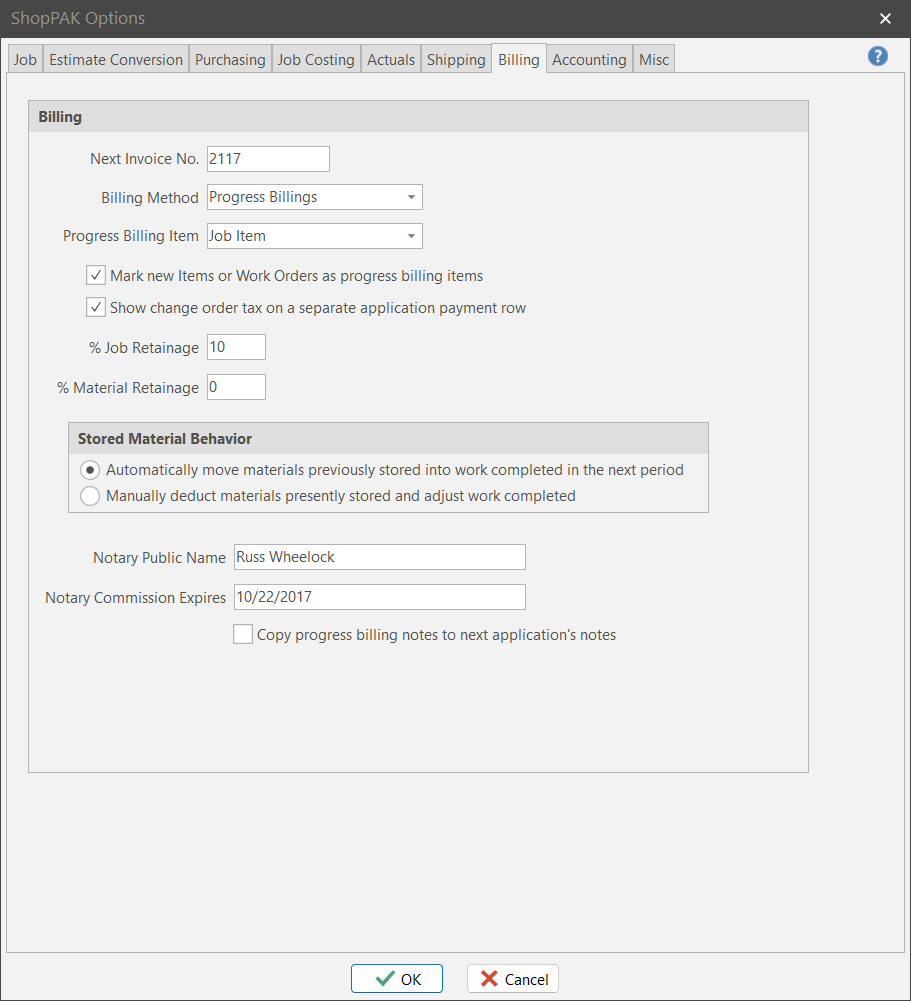
Next Invoice No.
The starting number ShopPAK should use when generating the very next AIA style progress billing or regular invoice from the “Billing” main tab.
Billing Method
Default billing method that flows into every new ShopPAK job you create. If you most often generate progress billings, choose “Progress billings” as the default new job value:
Note: Even if you choose ‘Progress’, you can still create ‘Regular’ invoices via the “Billing” main tab.
|
Progress Billing Item
If you’re using ‘Progress’ as your default billing method, choose the default progress billing level: Job Item or Work Order.
If you have a check in “Mark New Items or Work Orders as progress billing items”, ShopPAK will mark a new Work Order OR a new Job Item as being a ‘progress billing item’.
Mark new Items or Work Orders as progress billing items
Tells ShopPAK to mark newly created Job Items or Work Orders as being progress billing items when generating a new progress billing application.
Show Change Order Tax on Separate Application Payment Row
If most of your GC's like change order tax broken out into their own billing application item, place a check into the checkbox. Else, leave it blank. Note, you can override the default behavior on individual jobs.
% Job Retainage
Default job retainage percentage that flows into a new progress billing application for payment.
% Material Retainage
Default material retainage percentage that flows into a new progress billing application for payment.
Stored Material Behavior
Automatically move materials previously stored into work completed in the next period
If you seek payment for materials that have not yet been used in production, and you don't want to back these materials out in future application periods as they get used in fabricating products, choose this option.
Manually deduct materials presently stored and adjust work completed
Choose this option when you want to back out previously billed stored materials and put them into Completed This Period (used to bill finished product). This option is more work than the first option, however, it gives users the most flexibility.
Notary Public Name
If you use the same notary on all your progress billings, enter the notary and ShopPAK will automatically fill in the Notary Public field on the generated AIA Progress Billing document.
Notary Commission Expires
If you use the same notary on all your progress billings, enter the notary commission expiration date and ShopPAK will automatically fill in this field on the generated AIA Progress Billing document.
Copy progress billing notes to next application's notes
Tells ShopPAK to automatically copy the previous billing application's notes into a new bill application.