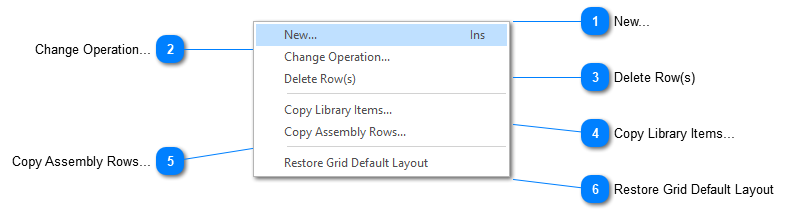
Right mouse click the Operations’ grid to display the Operations grid’s pop up menu:
New...
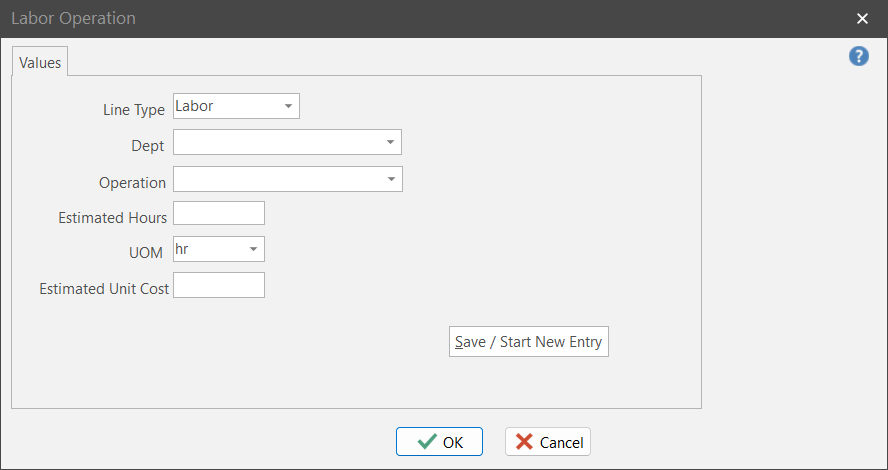
Select New from the pop up menu. This displays the Labor Operation dialog box.
Field
Purpose
Line Type
Choose line type: Labor or Fixed. Labor is most often associated with direct labor, whereas Fixed is associated with setup labor. If you’ve defined ProjectPAK custom line types and mapped them as Labor items, they too will be in the drop down list of values.
Department
Choose the department that the operation is associated with.
Operation
Choose the operation you want to add to the product.
Estimated Hours
Enter estimated labor hours required to complete operation. Make sure you estimate in “effort” hours.
UOM
Choose the Unit of Measure that you’ve created that corresponds with hours. ShopPAK collects actual hours and compares them against estimated hours.
Est. Unit Cost
Estimated direct cost for one hour of labor. Corresponds to the ShopPAK Undeveloped cost. See “Setup and Options” for more information.
If you don’t estimate discreet labor operations, the Conversion Utility doesn’t have the information it needs to automatically populate the Operations grid. If you still need to see labor operations listed on products, and/or you want to create variance reports that compare estimated to actuals at the operational level, you can always add new operations manually as described above.
A faster approach, however, is to copy labor operations from the ProjectPAK library or assemblies. Once copied, edit each operation and give it the correct estimated hours of effort.
1. Right mouse click the Operations grid. Select Copy Library Items from the pop up menu.
2. This displays the Select Library Items dialog box. This dialog box works the same way the ProjectPAK library selection dialog box works. Choose the labor operations you want to place on the product’s operations grid and click OK.
3. The labor operations you selected from the ProjectPAK Library will be visible in the Operations grid. Enter the estimated hours of “effort” needed for each operation.
1. Right mouse click the Operations grid. Select Copy Assembly Rows from the pop up menu.
2. This displays the Copy ProjectPAK Assembly dialog box. This dialog box works the same way the ProjectPAK assembly selection dialog box works. Choose the assembly that houses a list of labor operations you want to place on the product’s operation grid and click OK.
3. The labor operations you selected from the ProjectPAK assembly will be visible in the Operations grid. Enter the estimated hours of “effort” needed for each operation.