Mobile Data Collection
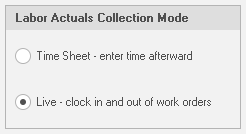
ShopPAK Mobile ships with two sample mobile profiles: 'Live' and 'Time Sheet'. Use these as templates to get started. As you'll discover, each sample profile represents the different collection modes ShopPAK Mobile provides.
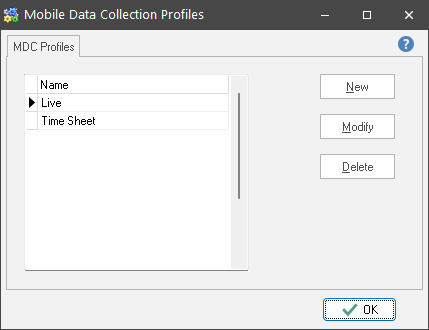
Open an existing profile by selecting it and clicking the Modify button, or by double clicking the profile row. Either action displays the Mobile Data Collection Profile dialog box.
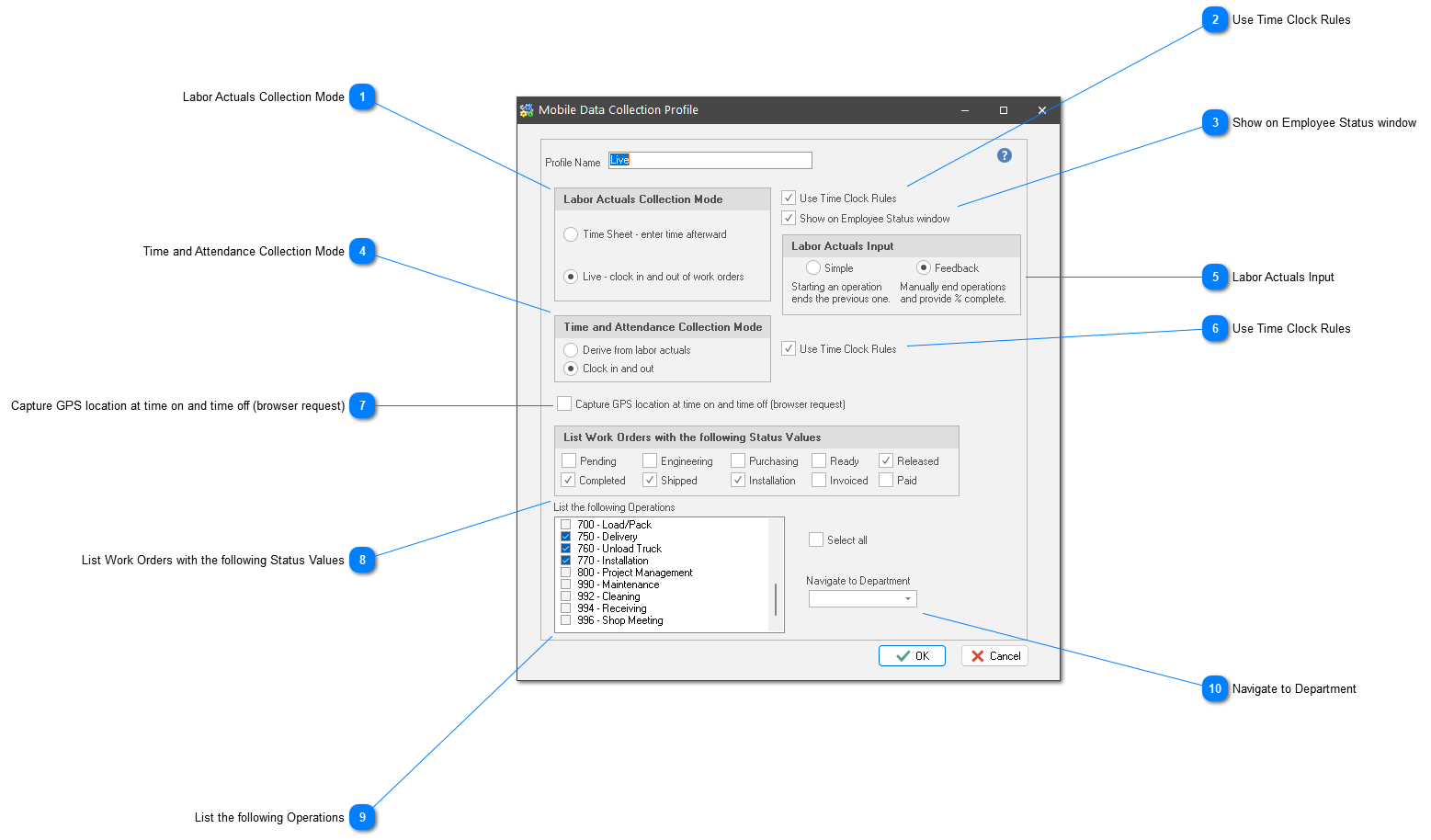

 Use Time Clock Rules Time Clock rules allow you to standardize start, lunch, and quit times. Moreover, they can provide automatic subtraction of lunch time without requiring the remote user to log out for lunch. See "Time Clock Rules" for further information.
|
 Show on Employee Status window A powerful feature in ShopPAK is the ability to see who is currently logged into the shop floor data collection system, what they are currently working on, and their punches for the day. Place a check into the checkbox if you want to add ShopPAK Mobile remote users to the ShopPAK Employee Status window.
|
 Time and Attendance Collection Mode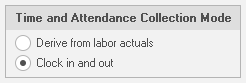 We give mobile employees an option with regard to collecting time and attendance (payroll) data.
Derive From Labor Actuals
If you want to reduce data entry, and you feel that captured labor actuals equate to the time that remote users are 'on the clock', choose this option.
Clock In and Out
Choose this option if you want to capture exactly when a remote user clocks in and out (this drives payroll). This options mirrors how the Shop Floor Data Collection system works.
|

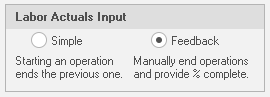
 Use Time Clock Rules If you choose 'Clock In and Out', you can decide if you want to use time clock rules to standardize time and attendance punches with regard to start, lunch, and quit times. Moreover, you can create time clock rules to have lunch time automatically subtracted from the user's time. See "Time Clock Rules" for further information.
|
 Capture GPS location at time on and time off (browser request) If you use a 'Live' Labor Actuals Collection Mode, you have the option of having ShopPAK Mobile capture GPS location when users punch into and off of a work order. GPS location information will then be available on the ShopPAK Time Card tab. Capturing GPS location is a powerful tool to make sure remote employees are where they are supposed to be when logging into and out of a work order.
| ||
 List Work Orders with the following Status Values Just like the shop floor data collection system, remote employees log into work orders. We recommend that you limit the potential work orders that remote users have to scroll through to only work orders that are relevant. A good way of limiting the number of work orders, is to select only those work orders that remote users need to see. Typically, these would be work orders with a status of 'Shipped' or 'Installation'.
Remember, remote users can only log into work orders that are listed on their smart device. It is imperative that you consistently keep work order status up to date, else remote users may not see the work order they need to log on to.
|
 List the following Operations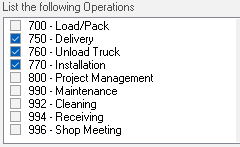 Just like the shop floor data collection system, ShopPAK mobile requires that remote employees not only choose the correct work order, but they also identify the operation that they are about to perform. To speed transactions and limit unnecessary transmission of data, we recommend that you ONLY choose the relevant operations that correspond with the tasks that remote employees will be performing.
|