
Time Clock Rules
If you’re using ShopPAK’s automated shop floor data collection system, you can set up time clock rules that are used to automatically edit employee time clock transactions.
NOTE: Time Clock Rules don’t adjust data collected from 3rd party shop floor data collection systems. The dialog box only works in conjunction with ShopPAK’s data collection system.
|
Select Define | Time Clock Rules from the menu. This displays the “Time Clock Rules” dialog box.
Clock In Rules
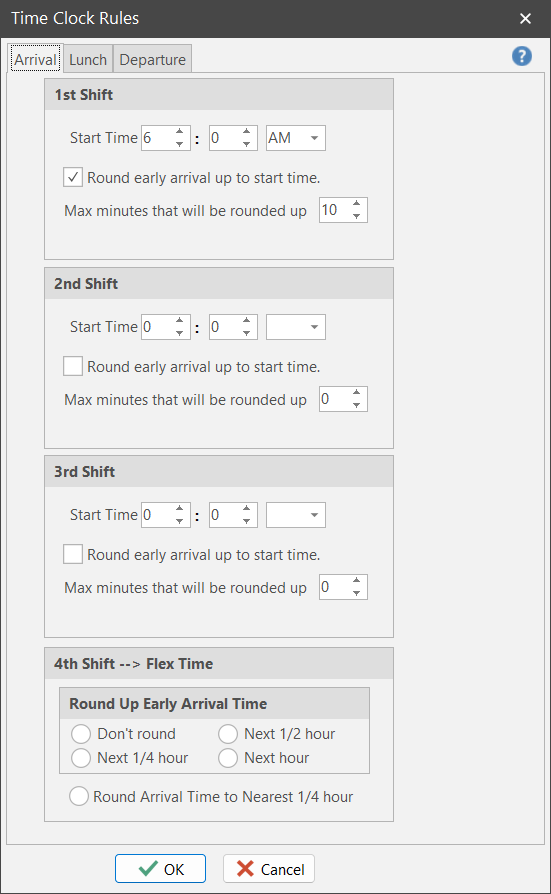
The first tab addresses employee “Clock In” rules. Use this tab to have ShopPAK automatically round an employee’s “clock in” time up to the official start time. By taking advantage of this feature, all of your employees will show a “clock in” time that matches the correct time, provided they don’t “clock in” too early.
Start Time
Enter the time that the shift starts.
Round early arrivals up to start time
Place a check here if you want ShopPAK to round up early employee arrival times.
Max minutes that will be rounded up
Enter the maximum number of minutes ShopPAK will consider rounding up. In the example above, we’ll round “clock in” times up to 7:00am for any employee clocking in from 6:30am to 6:59am.
Flex Time
Shift number 4 on the “Time Clock Rules” setup dialog box is for flextime. Use flex time when your employees don’t work a repeatable shift (e.g. they don’t work 7am – 3 pm, etc.). If you are using Automated Shop Floor Data Collection, ShopPAK will adjust time and attendance and job cost transactions accordingly. Flex time settings enable you to round up employee arrival times based on the selected increments.
Round Arrival Time To Nearest 1/4 Hour
This option rounds arrival time either up or down to the nearest quarter hour.
Lunch Rules
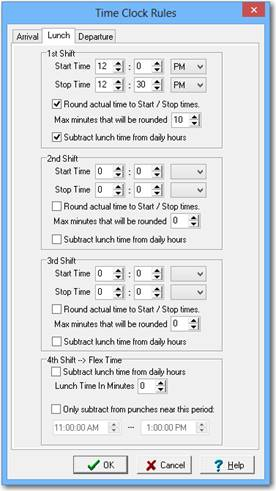
The second tab addresses employee lunchtime rules. Use this tab to have ShopPAK automatically round an employee’s lunch time “clock out” and “clock in” times to match the official start and stop lunch times. By taking advantage of this feature, all of your employees will show a lunch “clock out” time that matches the official starting lunchtime, and a lunch “clock in” time that matches the official ending lunchtime. However, ShopPAK will only override employee clock transactions that don’t exceed the threshold value, ‘Max minutes that will be rounded’.
Start Time / Stop Time
Enter the time that the lunch break begins and ends.
Round actual time to Start / Stop times
Place a check here if you want ShopPAK to use the official lunch break times, overriding the employee time clock punches.
Max minutes that will be rounded
Enter the threshold time that ShopPAK will consider when overriding actual employee lunchtime punches.
For example, if you entered 10 into the edit box, ShopPAK will round a lunch “clock out” time back to the official starting time, as long as the user clocked out 10 minutes or less after the official start of lunch. ShopPAK will use the official lunch break ending time if the employee clocked back into work 10 minutes or less after the official end of lunch.
Subtract lunch time from daily hours
ShopPAK automatically subtracts lunchtime from the employee’s production time transactions. Use this option if you don’t want employees clocking out and then back in during lunch. The work order the employee was working on prior to lunch will have its time adjusted accordingly.
Flex Time
Because flex time works differently than Shift 1-3 lunch rules, the controls are a little different.
Subtract lunch time from daily hours
Since flex time doesn't have a repeatable lunch period, enter the number of minutes that you want automatically removed from the flex employee's daily punches.
Only subtract From punches near this period
If a flex employee punches in and out multiple times a day, you can indicate the approximate lunch time period that ShopPAK will use to find a punch that is nearest to the lunch period. If you don't place a check in the checkbox, ShopPAK will subtract the lunch minutes from the first punch of the day.
Departure Rules
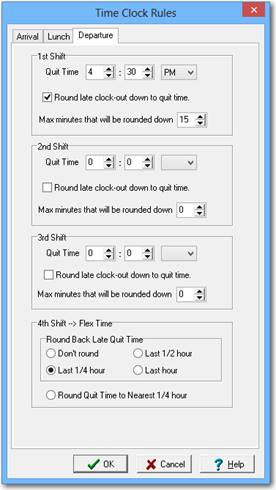
The third tab addresses employee “Departure” rules. Use this tab to have ShopPAK automatically round the employee’s “clock out” time down to the official quitting time. By taking advantage of this feature, all of your employees will show a “clock out” time that matches the correct time, provided they don’t “clock out” too late.
Quit Time
Enter the time that the shift ends.
Round late clock-out down to quit time
Place a check here if you want ShopPAK to round an employee’s quit time back to the official quit time.
Max minutes that will be rounded down
Enter the maximum number of minutes ShopPAK will consider rounding down to the official quit time. In the example above, we’ll round “clock out” times down to 4:00pm for any employee clocking out between 4:01pm to 4:10pm.
Flex Time
Shift number 4 on the “Time Clock Rules” setup dialog box is for flextime. Use flex time when your employees don’t work a repeatable shift (e.g. they don’t work 7am – 3 pm, etc.). Flex time settings enable you to round down employee departure times based on the selected increments.
Round Quit Time To Nearest 1/4 Hour
This option rounds departure time either up or down to the nearest quarter hour.