Materials Management
Purchase Orders
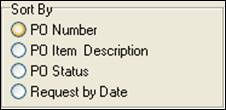
Shows all purchase orders and their underlying PO Item information that have been created for the job. Includes PO Number, PO Item description, order quantity, received quantity, back order quantity, status, reconciliation status and date, amounts, etc. When choosing this report, ShopPAK displays sorting options so you can order and sub-total purchase orders different ways:
Inventory Pick List
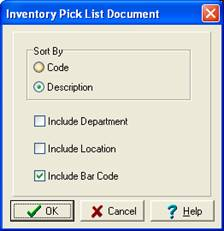
Work Orders contain an area where you can list all of the materials required to fabricate and/or ship the work order. Materials are made up of inventory ‘stock’ items that need to be picked from inventory and speciality items that are purchased directly for the job. The inventory pick list report generates the inventory ‘pick list’ that employees use to pick necessary items from inventory for the entire job. When printing this report, ShopPAK displays the following dialog box to customize how the report looks.
Hardware / Material Pick List
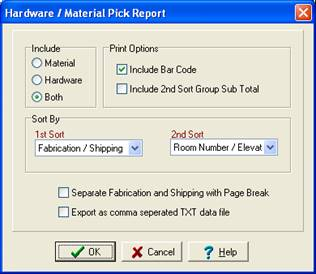
Similar to the Inventory Pick report, but this report also includes non-stock material items and separates material needs into two groups: Fabrication and Shipping.
Inventory Reservations
This report lists all of the reservations that have been placed against inventory for this job. Unlike the Inventory Pick List report, which simply lists all stock materials identified as being needed by the job, the Inventory Reservation report focuses on reserved inventory items. The report shows which inventory items are reserved and the quantity reserved, quantity used, and the balance that are still reserved but not yet used.
PO Builder Material Status
Material Status Summary
Material Status Detail
The Material Status reports are designed to report all material related activity linked to a Job. They reveal the entire material history for a Job including inventory reservations, shipments, inventory picks/returns and purchasing activity.
Material transactions are organized by ‘transaction type’ and are driven primarily from the Work Order ‘Materials’ sub tab (we often refer to this area of ShopPAK as the material requisition sheet or the ‘bill of materials’). Transaction types include:
PO Purchasing
Rsv Reservation
Txn Inventory Pick/Return/Ship
Material activity against the Job that cannot be linked to a specific item on the Work Order ‘Materials’ sub-tab is included at the end of each report under the heading à Other Activity.
Other Activity is a powerful tool in reconciling a Job where material costs are over budget and/or unexplained.
The Material Status Summary report prints cumulative totals for each type of material activity. When more than one transaction type exists, ShopPAK prints terminology such as ‘Multiple’ and ‘Mixed’ to represent a potential variety of transactions included in the total summary row for each material item.
. .

The Material Status Detail report will print individual transactions and include circumstances surrounding the transaction. Transaction dates, quantities, work order/purchase order/ship ticket numbers are included for applicable transaction types.
The Detail format will also include inventory status information for any material item that is also an Inventory Item. This information is designed to assist material managers when building material requirement strategies.

If more than one material item is linked to the same Inventory Item, required quantity will reflect combined requirements. PO Builder status will be Yes, No, or Mixed, depending on if all or none or a combination of the requirements are tagged as PO Builder items.
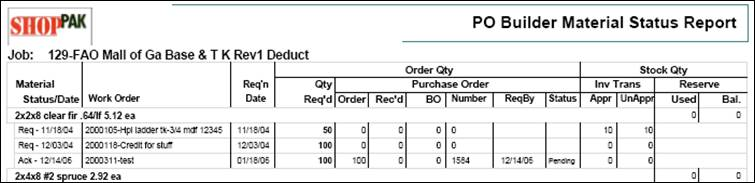
The PO Builder Material report reports on PO Builder specific material items. Only material items that have been ‘marked’ as PO Builder items on the work order ‘Materials’ sub-tab are included in the report.

The activity for PO Builder items is reported in a summary format with cumulative totals, based on ‘transaction type’ and grouped by material items.
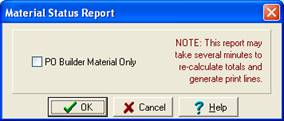
Note: The ‘PO Builder Material Only’ dialog box will prompt for both the Summary and Detail report formats. Generating the Material Status Summary and selecting the PO Builder Material Only box will net the same result as selecting the PO Builder Material Status report option.
 |