
Job Tree Icon Key
To access the Job Tree Icon Key, right mouse click the Job Tree area. This displays the Job Tree pop up menu. Select "Job Tree Icon Descriptions".

Job Item Icons
The Job Item icon shown on the Job Tree depends on the status of the Job Item’s work order(s). A Job Item that doesn’t have work orders, as in the example below, has a closed book icon. Once work orders are created under the Job Item, the icon changes to a variety of colored circles, depending on the status of the work order(s) underneath the job item.
If a Job Item has work orders with different status values, ShopPAK paints the icon accordingly. For example, if the Job Item has Pending work orders and also Released work orders (as shown in the example below “1 - Fixtures – mens”), the Job Item icon is painted with two colors: ½ of the circle is painted black (indicating at least one pending work order exists), and ½ of the circle is painted green (indicating at least one released work order exists).
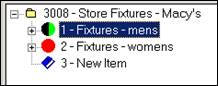 |
Once you learn the icon colors, painting job item icons based on the underlying work order status / stage makes it easy to see where all of the job’s sections are at.
|
Work Order Status Icons
The work order icon shown on the Job Tree depends on work order status. 10 pre-defined status values exist that correspond with the stages that a work order goes through.
Product Icons
Product Tracking