
Documents
The last Job tab is “Documents”. This is where you manage pertinent job documents.
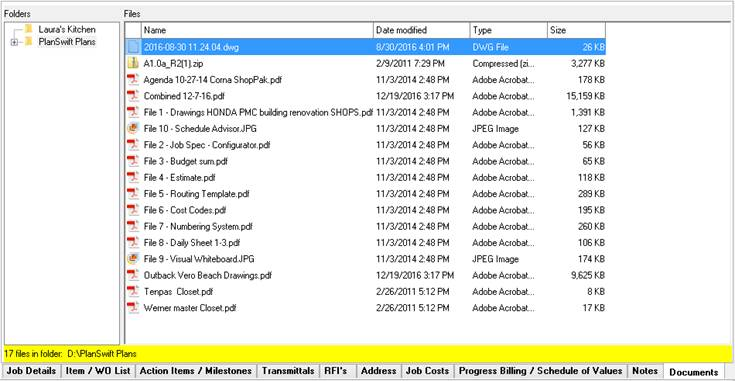
Selecting a folder, displays all of the files contained in the folder. To open the document, either double click the document, or select it, right mouse click the document area, and select Open in the pop up menu. ShopPAK doesn't store the documents in its database, nor does it browse document contents with its own browswers.
When you open a document, ShopPAK simple invokes the program associated with the file extension of the document.
Folders
Select the folders you want to link to your job in the folders panel. If you choose a folder that contains sub folders, the sub-folders will also be brought in and be available to select.
Add New Folder
Right mouse click the Folders area and select Add Folder to add a new folder to your list.
Remove Folder
Right mouse click the Folders area and select Remove Folder to remove a folder from the list.
Refresh Folders
Right mouse click the Folders area and select Refresh Folders refresh folders. Note, ShopPAK automatically keeps up with changes to target folders. Whenever you open a job, ShopPAK brings in the refreshed list of files within a given folder.