How to do Make to Stock Finished Goods
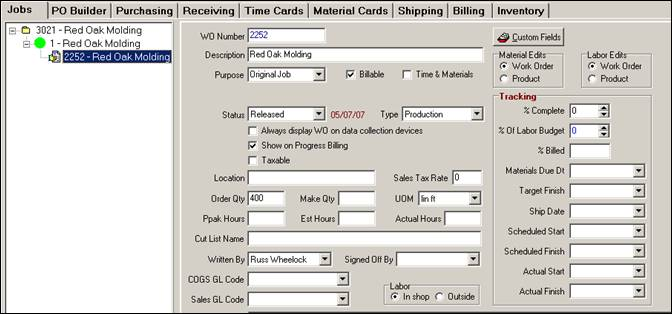
1. Create a Job, Job Item, and Work Order for the internal job of producing a Finished Product or sub-assembly. Both sub-assemblies and completed products must start with an internal fabrication work order. This is how we capture costs associated with producing the finished goods.


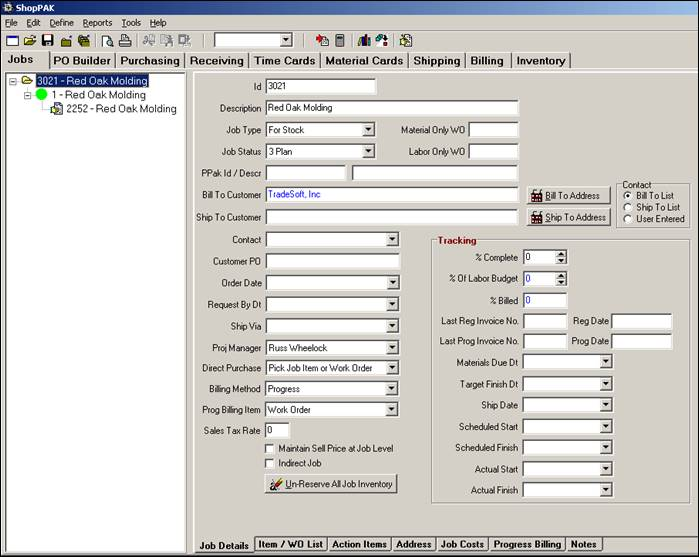
We recommend defining a Job Type of “For Stock” to make it easier to find jobs and filter reports on “Make to Stock” jobs.
2. Make sure that the work order has an “Order Quantity”.

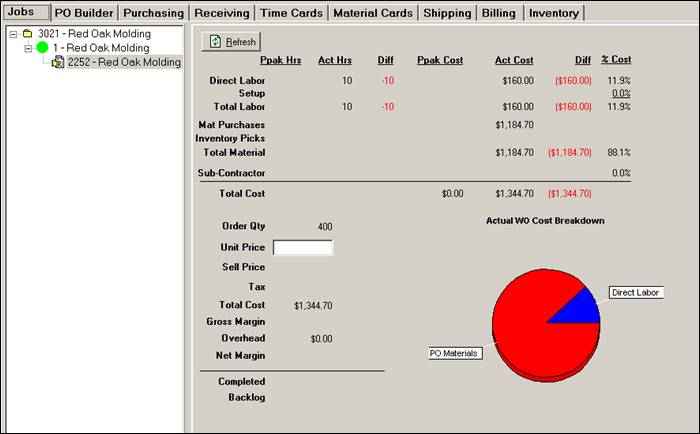
3. Use the work order to capture labor and material costs associated with fabricating the ‘Make to Stock’ finished product or sub-assembly.


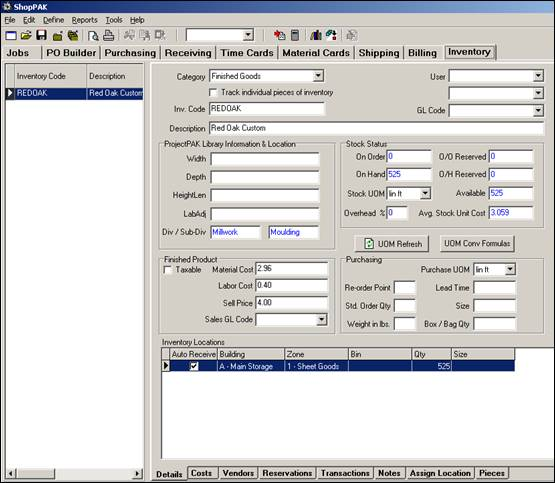
4. When the finished product or sub-assembly is completed, open the Finished Goods inventory item via the ‘Inventory Tab’. Select the inventory item location you want to add the new batch of products into, and right mouse click the location grid. Select “Adjustment” from the popup menu. This displays the “Inventory Adjustment” dialog box. Select “Finished product being added to inventory” from the “Type” pick box. This displays the “Fin. Goods Work Order costs” button.


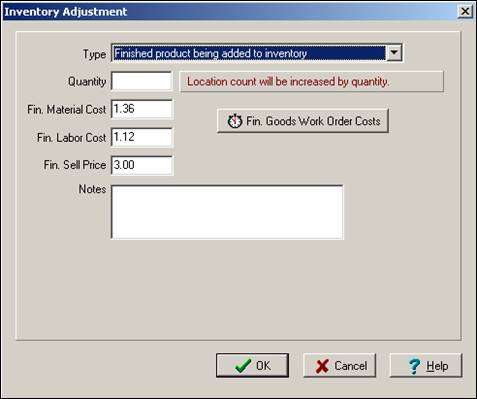
Note: The last finished material cost, labor cost and sell price are displayed as default values.
|
5. Click the “Fin. Goods Work Order Costs” button. This displays the “Open Jobs” dialog box shown on the next page:
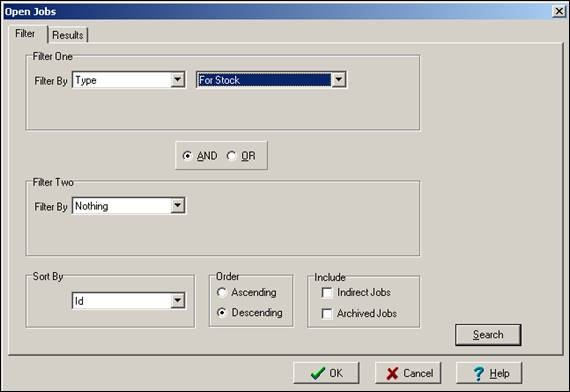
Find the job that has the work order used for creating the finished goods. If you define a job type of “For Stock”, it’s easy to find the target work order that has the new batch of finished goods to add to inventory.
Once you select the ‘Make to Stock’ job, ShopPAK displays a job tree. Select the target work order that has the collected material and labor costs associated with fabricating this next batch of finished goods.
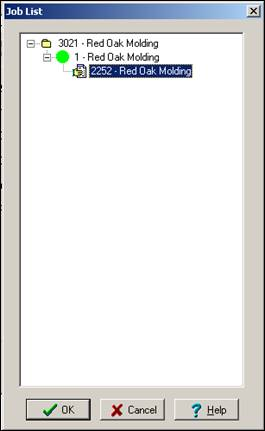
6. Selecting the target work order returns you to the “Inventory Adjustment” screen.
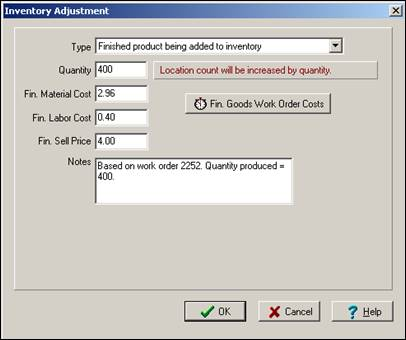
ShopPAK automatically populates ‘Quantity’ from the work order ‘Order Quantity’ field and calculates the new unit Material and Labor costs by dividing total labor and material by quantity. It also creates a note that documents the work order number and quantity produced (this note will be used on the inventory transaction record that is automatically written to the database).
Click the OK button. ShopPAK updates the inventory item finished material and labor cost, finished sell price, new on hand counts, and the new calculated average stock unit price.


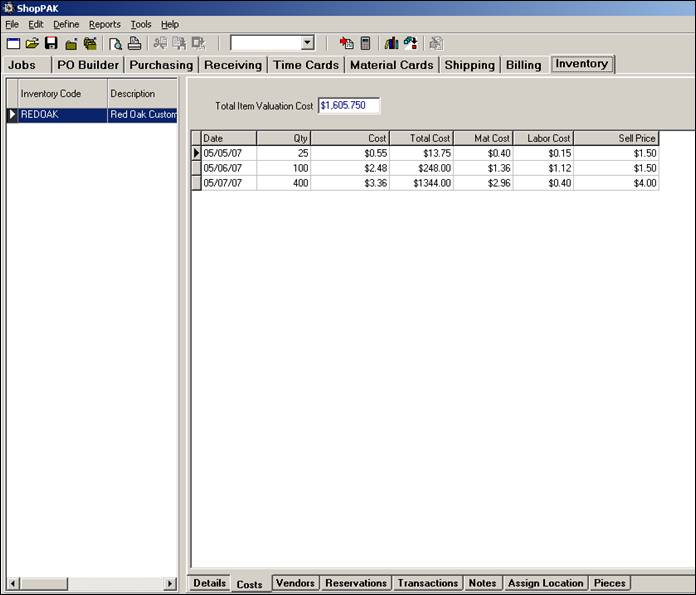
ShopPAK also creates the next purchase costing group on the ‘Costs’ sub tab.