
Generating a Work Order
ShopPAK generates work orders that contain information from the Work Order form. The information that is printed on the work order, and whether or not information is bar coded, depends on how you’ve defined your work order printing instructions.
Note: See “Setup and Options” for instructions on setting Work Order default document printing options.
|
If you don’t override the default work order printing instructions, the generated work order will print according to the default instructions. This will be the situation most of the time.
However, if you ever need to override the printing instructions for a particular work order, follow these steps:
1. Find the Work Order you want to print in the Job Tree. Select it by clicking it with your mouse. The Work Order information displays in the Work Order form just to the right of the Job Tree.
2. Click "Customize This Document" from the Tools speed bar. This displays the “Work Order Printing Options” dialog box.
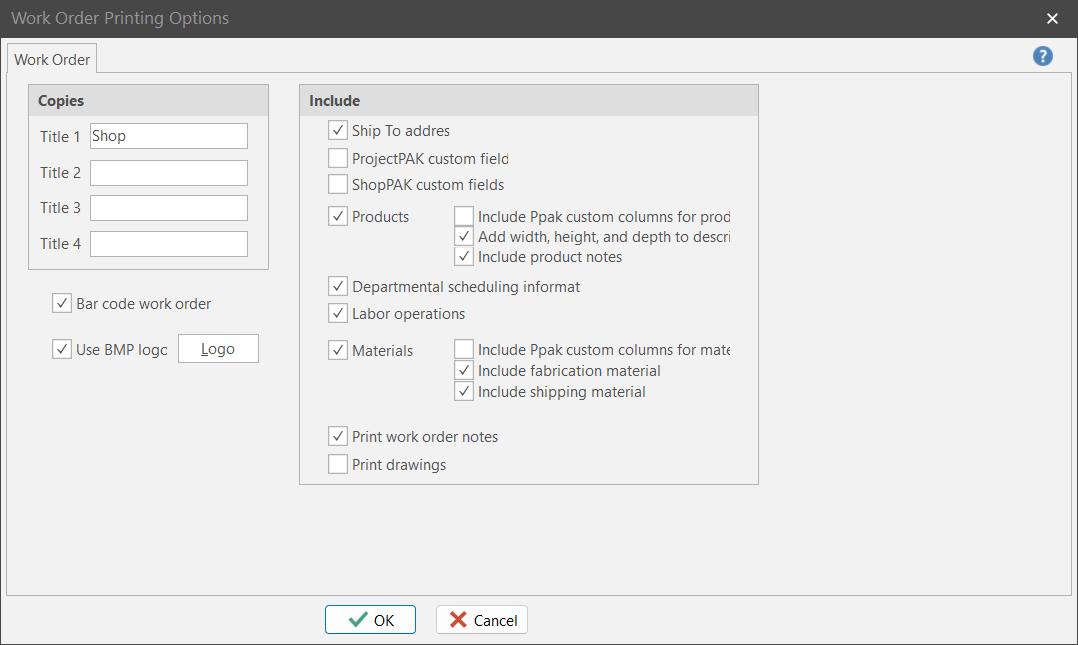
Change the printing instructions as needed for this work order and click OK. (Note: Printing directives are explained in “Setup and Options”.
NOTE: ShopPAK remembers printing instruction changes for a work order between sessions. If you reprint the work order, you don’t need to modify the default printing instructions again.
|