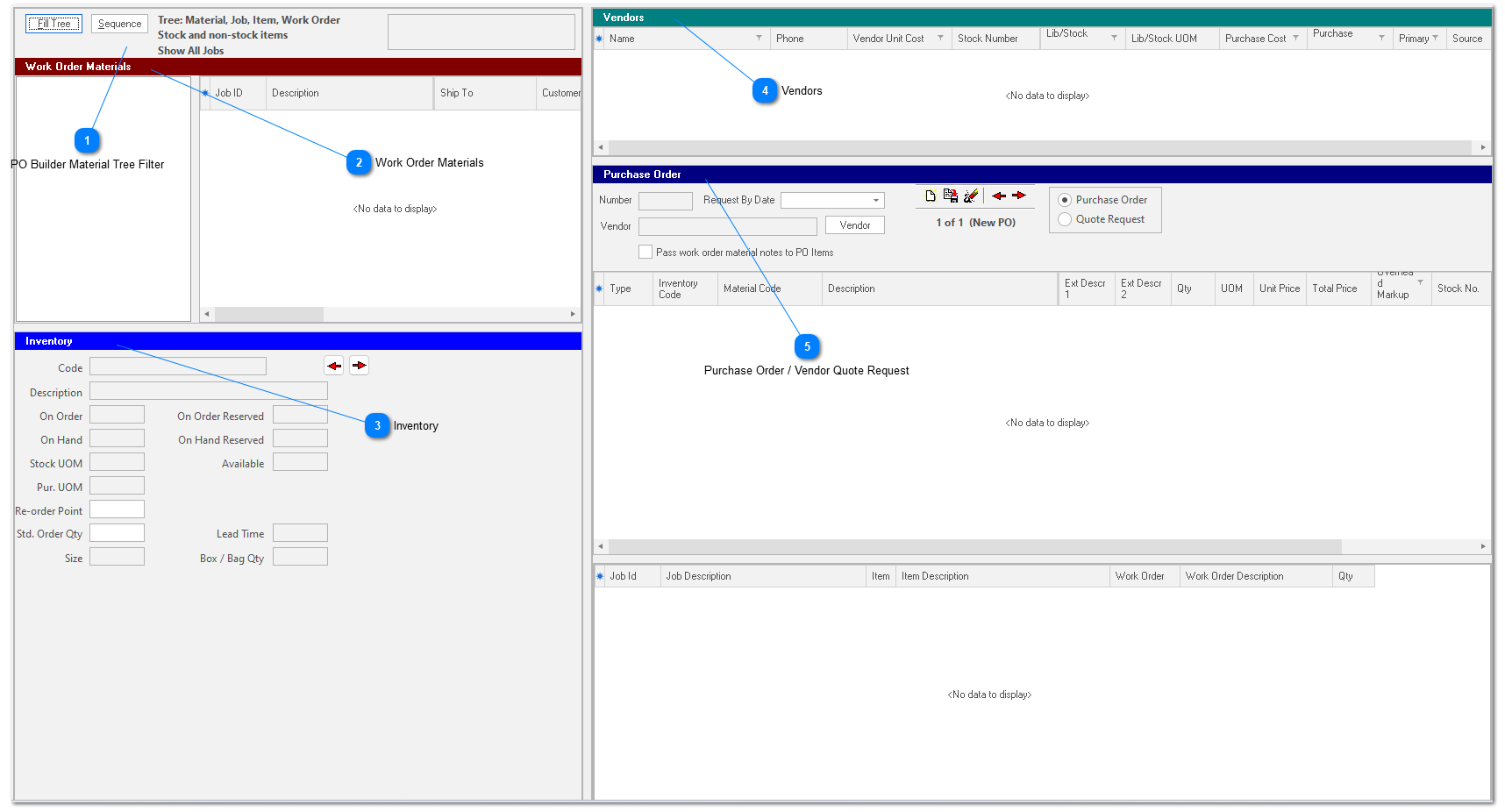
Make sure the “PO Builder” tab is active by clicking it with your mouse. All of the actions in this chapter require that the “PO Builder” tab remains selected.
PO Builder consists of 4 window panes:
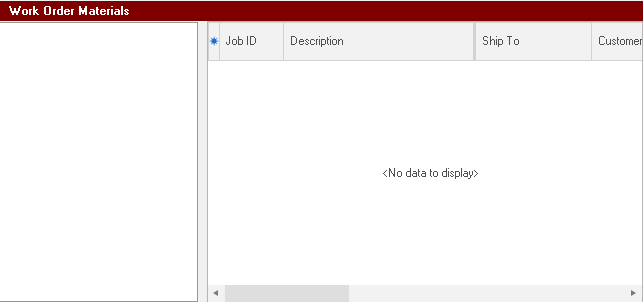
Work Order Materials
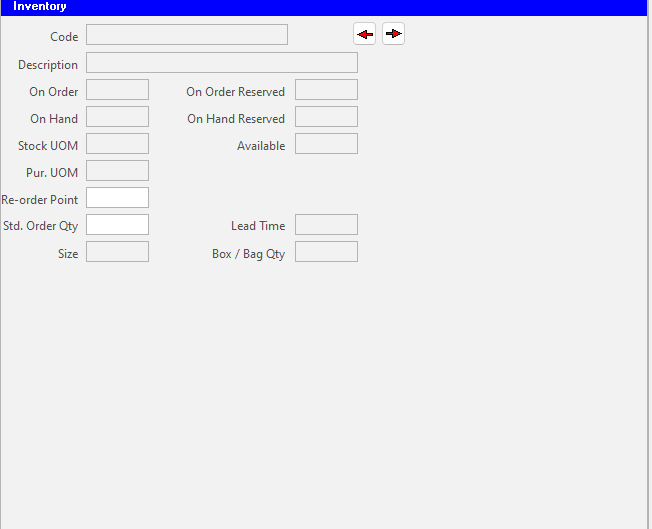
Inventory
Vendor
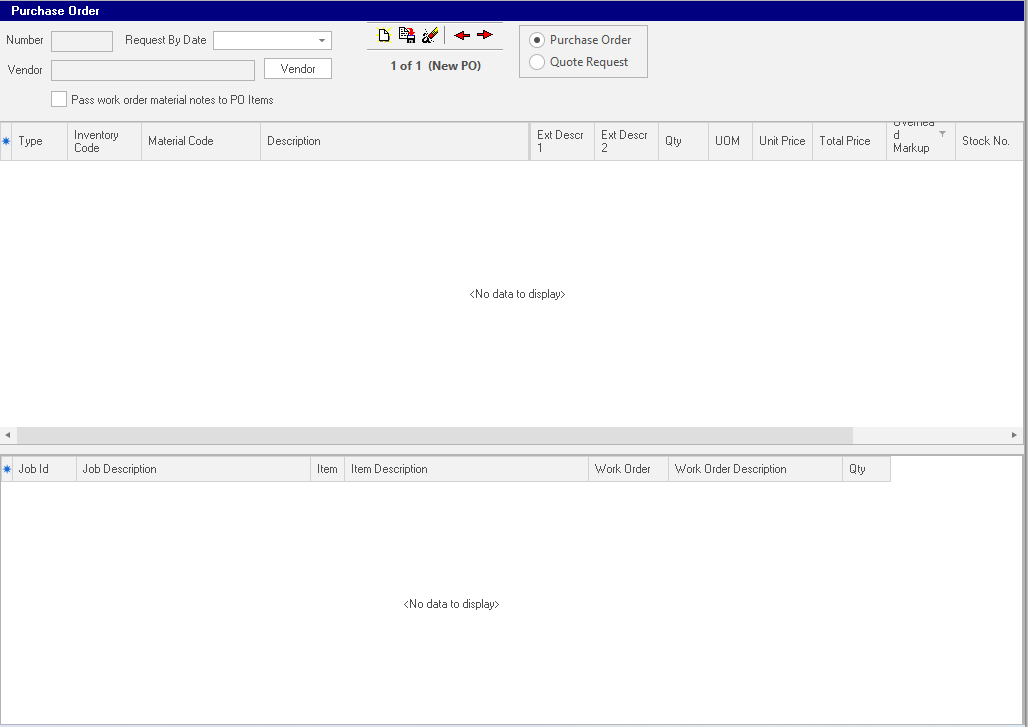
Purchase Order / Vendor Quote Request
Each window pane is re-sizable via the vertical and horizontal splitters that border the window pane. To change the size of a window pane, simply move the vertical and/or horizontal splitter accordingly.
Purchase Order: Lists the PO Items of the active purchase order. For each PO Item, it lists job assignments. Allows the user to navigate through the purchase orders created via the PO Builder Form.
Vendor Quote Request: Lists the materials in the active quote request. For each quote request item, it lists vendors that supply the material.