Fill Tree Button
Click the “Fill Tree” button to build a ‘refreshed’ materials tree. ShopPAK displays the “PO Builder Material Tree Filter” dialog box. You have two ways to further filter materials.
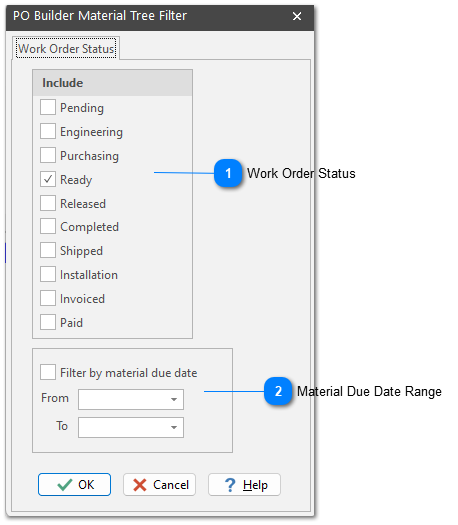


Note: ShopPAK remembers your choices across sessions.
Click the OK button to refresh and fill the materials tree. Only materials that meet the following selection criteria are displayed in the materials tree:
1. The material is identified on a work order materials sub-tab. (see “Chapter 8 - Work Order Form” pages 34 – 47). IMPORTANT: Work order material sub-tab drives PO Builder.
2. The material’s ‘PO Builder Ready’ checkbox is checked. (see Chapter 8 - Work Order Form” pages 38). Only material flagged as ‘ready for PO Builder’ will be considered for inclusion in the materials tree.
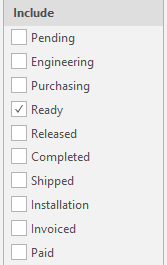
3. The material is located underneath a work order that has a status that matches a selected status value listed on the “PO Builder Material Tree Filter” dialog box.
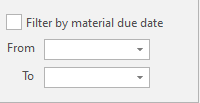
4. If filtering by material due date, only those materials with a due date that falls within the date range are considered for inclusion in the materials tree.
5. The material has not yet been dragged to a purchase order via PO Builder, or reserved against inventory via PO Builder. In other words, it has not been purchased or reserved.
Force PO Builder Checkbox
On the work order material grid there is a ‘Force PO Builder’ checkbox. Place a check in the checkbox if you want the material included in the materials tree, regardless of #2, #3, #4, and #5 above. ‘Force PO Builder’ is a handy tool when you want a material sent to PO Builder.
PO Builder reads the database and builds the materials tree based on your selection and filtering instructions. Below is an example of a material tree sequenced by “Material, Job, Item, Work Order”. The list of materials is presented in ascending material description sequence.
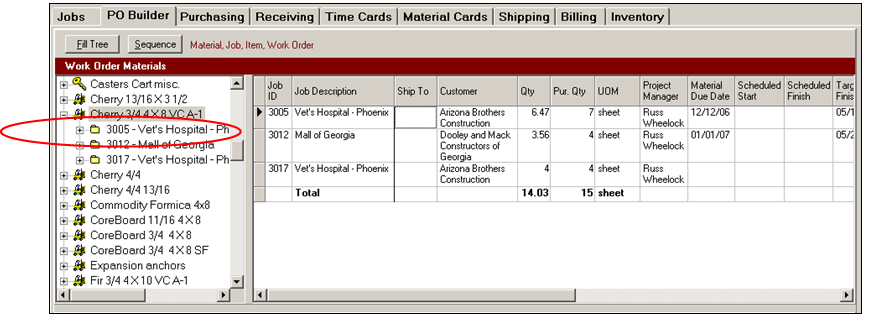
Clicking on “Cherry 3/4 4 X 8 VC A-1” shows that 3 jobs (3005, 3012, and 3017) all need the material; 14.03 sheets to be exact. Each row of the grid contains specific information about each job.
Clicking job ‘3005’, changes its icon to a selected job and shows the Job Items underneath the job. The job information grid changes accordingly, showing specific information about each Job Item.
and shows the Job Items underneath the job. The job information grid changes accordingly, showing specific information about each Job Item. 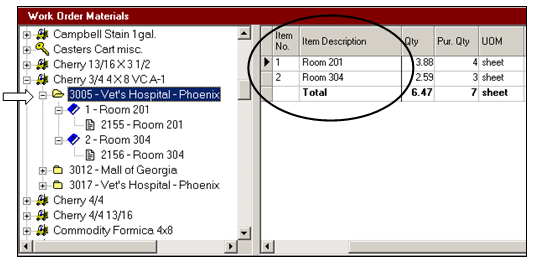
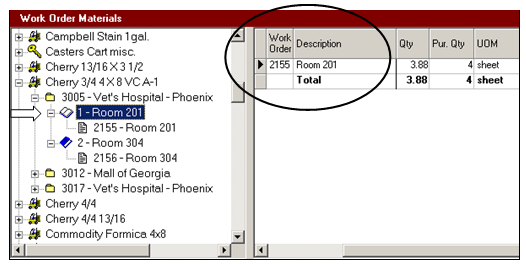
Clicking a Job Item or Work Order shows the elements beneath the selected node, as well as, changes the job information grid accordingly so it now shows work order level information.