Creating the Payroll Hours Export File
1. Select File | Export | Time and Attendance from the ShopPAK menu. This displays the “Export Employee Time & Attendance Hours” dialog box.
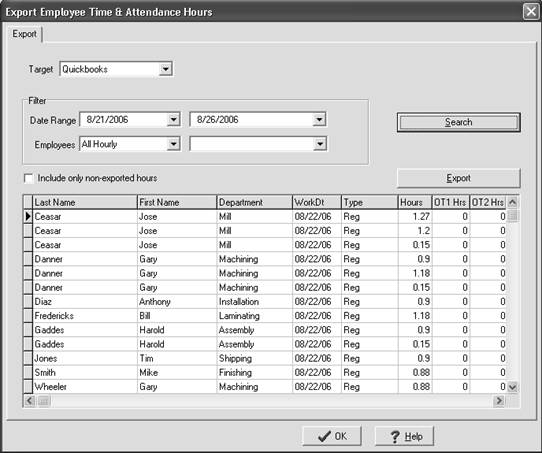
2. Select the export target: (QuickBooks (integrated), ADP, etc.).
3. Select the “Time and Attendance” transaction date range that you want included in the export file.
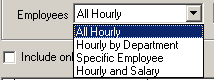
4. Determine the scope of employees to include in the export:
5. Place a check in “Only Include Non-Exported Hours” to ensure you don’t re-send previously exported ‘Time and Attendance’ payroll hours.
ADP Export
When building an ADP export file, ShopPAK displays two additional controls:

Batch Name
Enter a unique ADP ‘Batch Name’
Add vacation, sick, holiday, and comp time into regular hours
If you want to add non work time into regular hours, check this option. If you don’t, only regular ‘straight time’ working hours will be included in the regular hours bucket.
6. Click “Search” button. This fills the grid with the employee records that match your selection filters. ShopPAK also enables the “Export” button.
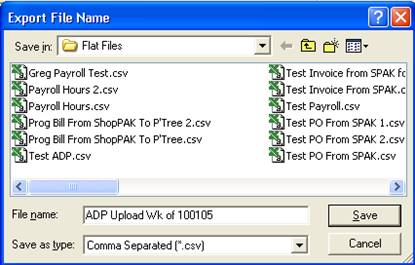
7. Click the “Export” button. Navigate to the folder you want to write the payroll export file to and give it a file name. Click “Save” to start the process of creating the export file.
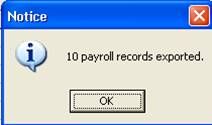
ShopPAK displays a progress bar showing the status of the export and at the end, displays a final dialog box with the number of payroll records ready to be imported.