
Creating a Query
Once you have chosen your data source you can now start selecting the table(s) you need to pull in the data you desire.
Note: For our purpose to show how to pull data from the database into Excel using Power Query we are going to use the example of needing to see how much quantity of each inventory item was used in a given time period, as well as the total dollar amount of each
|
Expand the ‘DBA’ folder, select the table(s) you need, and then click ‘Edit’:
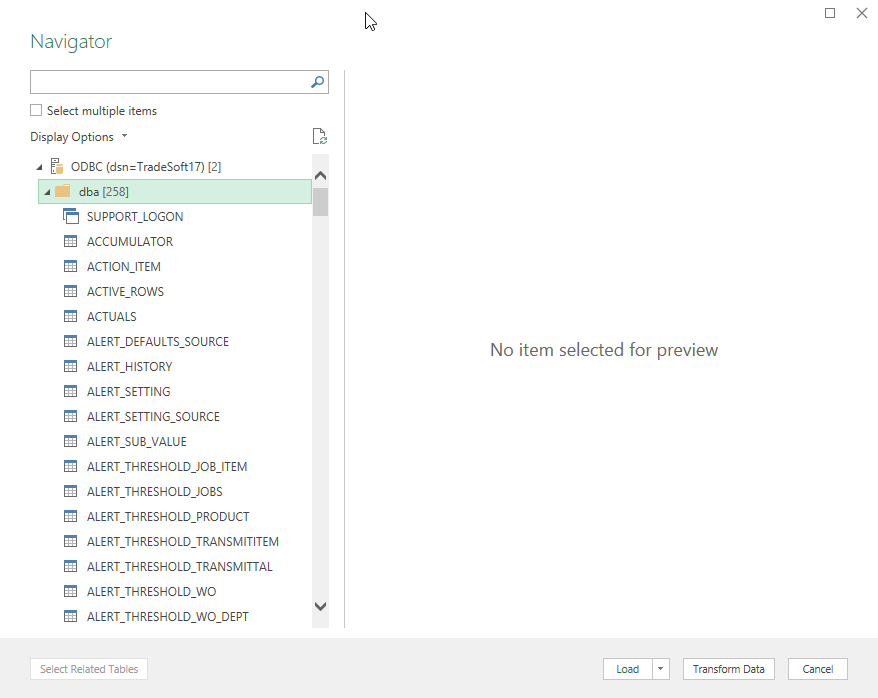
Preview
Clicking on a table in the list on the left will show a preview of actual data from that table in the right panel. It shows the first few rows of the data from the database, but you can see all of the columns to make sure it is the data you are after.
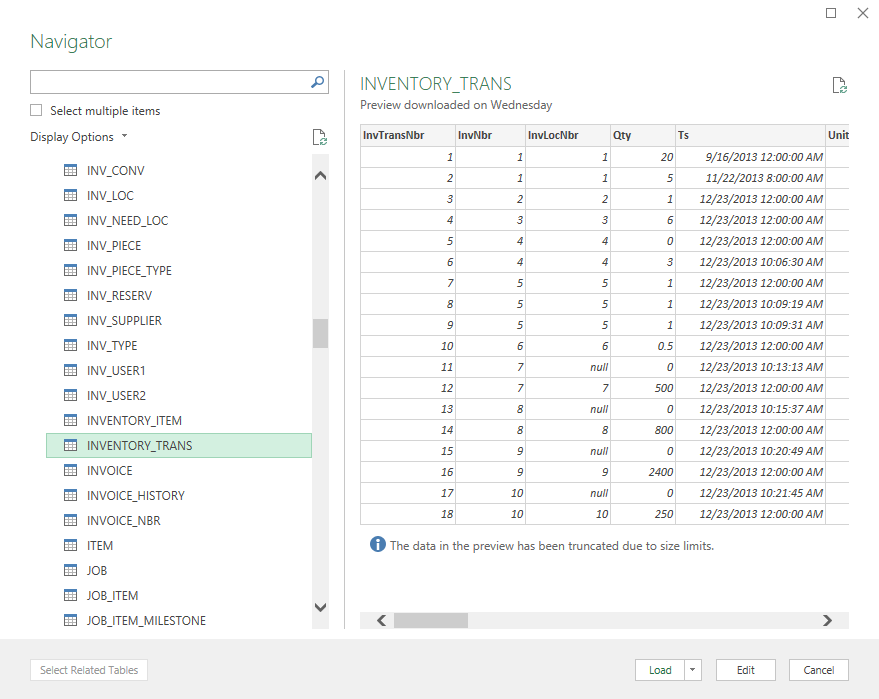
Multiple Tables
You can select more than one table of data if needed by checking the box above the list of tables on the left, and then selecting multiple tables from the list.
Note: Power Query is smart enough to pull in all of the related tables and their data automatically. The last columns you will see in the preview (the ones in all caps) are related tables, so you have easy access to related data without creating multiple queries. In most situations you will only need to select the main table since all related table data will be accessible.
|