Editing a Query
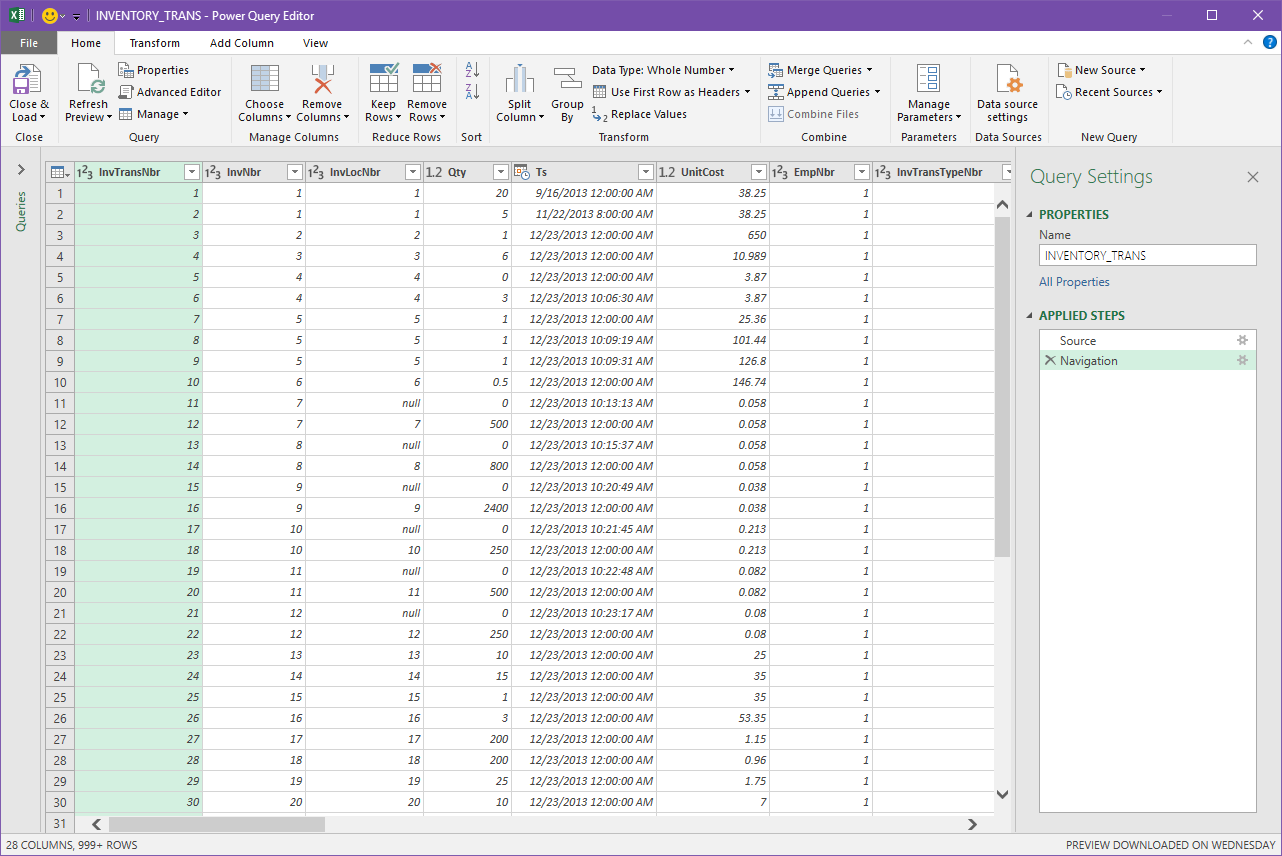
Inside the Query Editor window is where you can build your query and decide what information to return with it, and how to filter or sort it.
Column Types
Current Table Fields
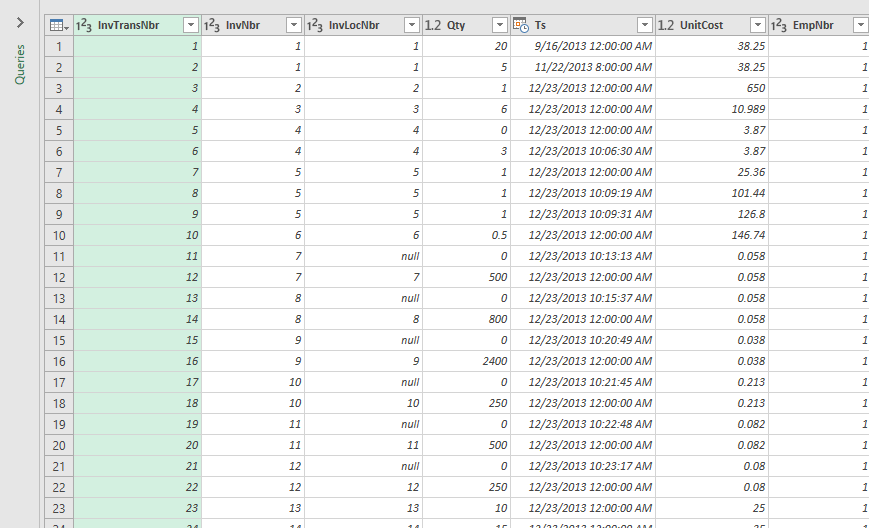
Listed first are all columns associated with the current table you selected when creating the query. To the left of the column title you will see a symbol that represents what type of data the column represents – integer, string, decimal number, date, etc.
Related Tables
Listed after the current table columns are tables related to the current table by way of foreign keys. To easily distinguish them from current table columns they have a table icon to the left of the name. Each column represents a single table.
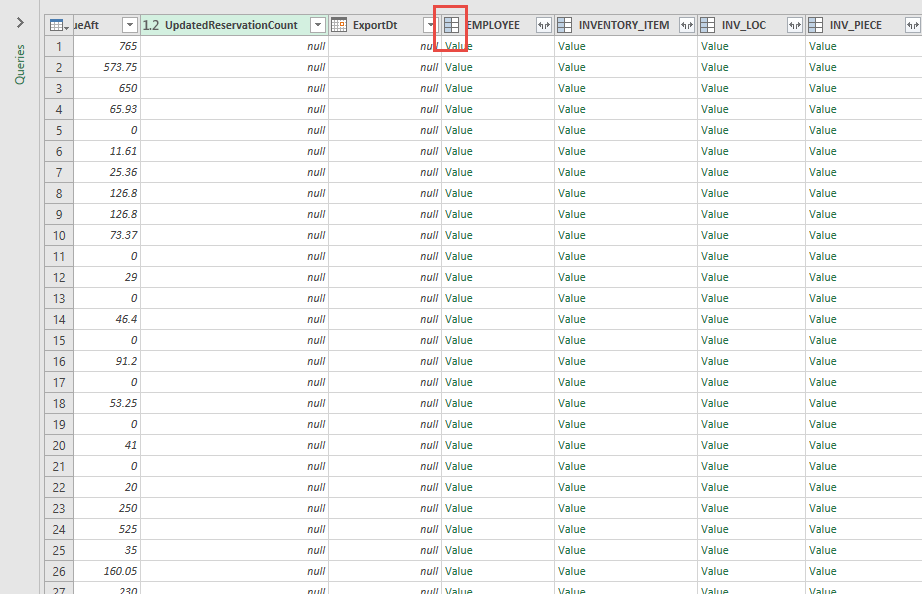
You can gain access to the individual columns of these tables by clicking the button to the right of the column name that looks like two arrows pointing in opposite directions:
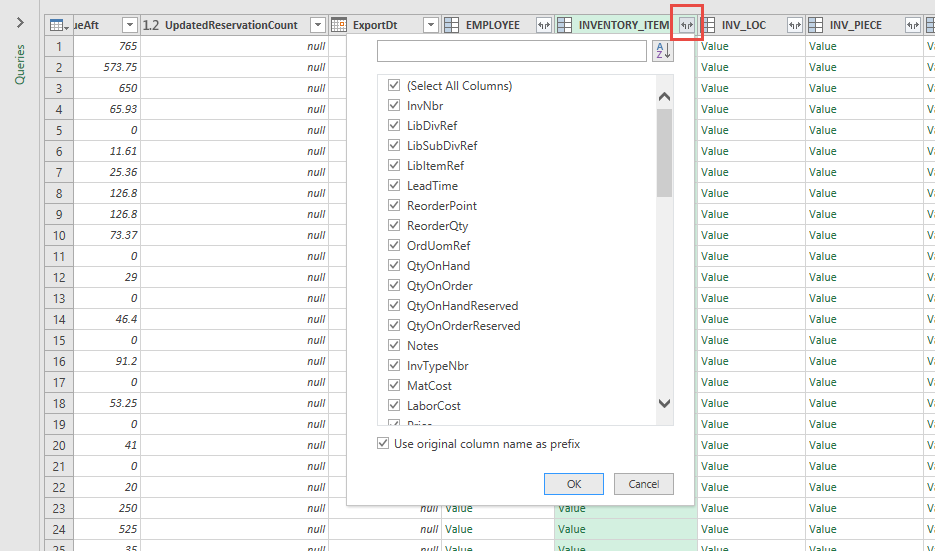
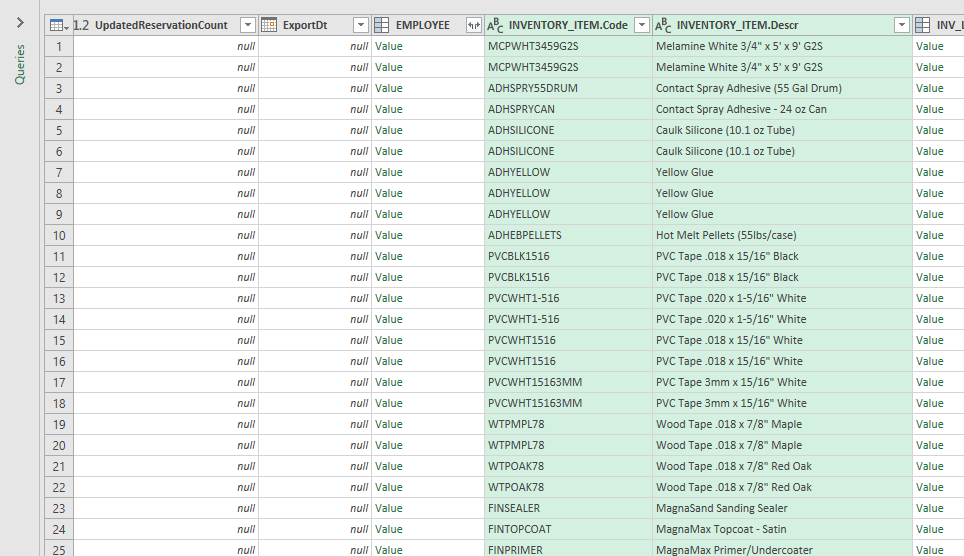
If you need individual columns from a related table select them in the dialog box and click OK. It will add them to the grid as individual columns, label the column with the table name followed by a period and the column name, and shade them green.
Manage Columns
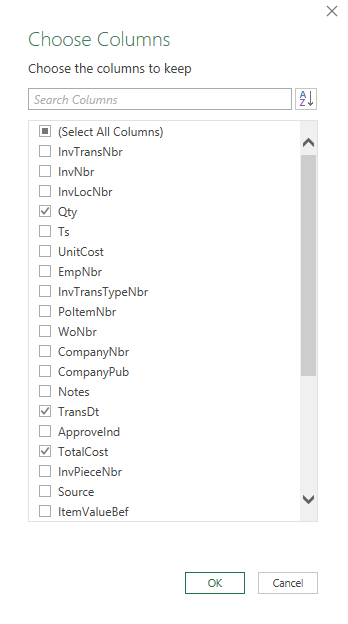
To make the query more focused you can select only the columns necessary for the query. Click Choose Columns | Choose Columns (or you can simply click the icon above it)
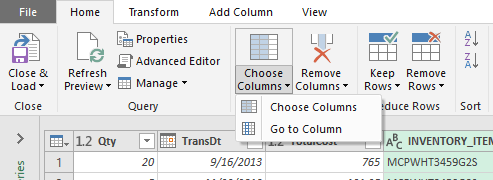
And then choose the columns
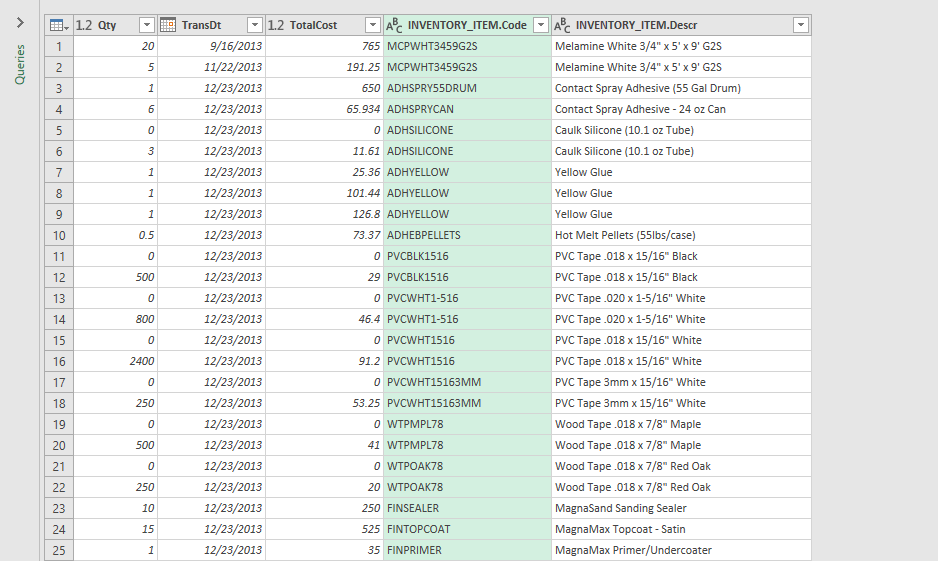
After clicking OK the grid will now only show those columns you selected
Reorder Columns
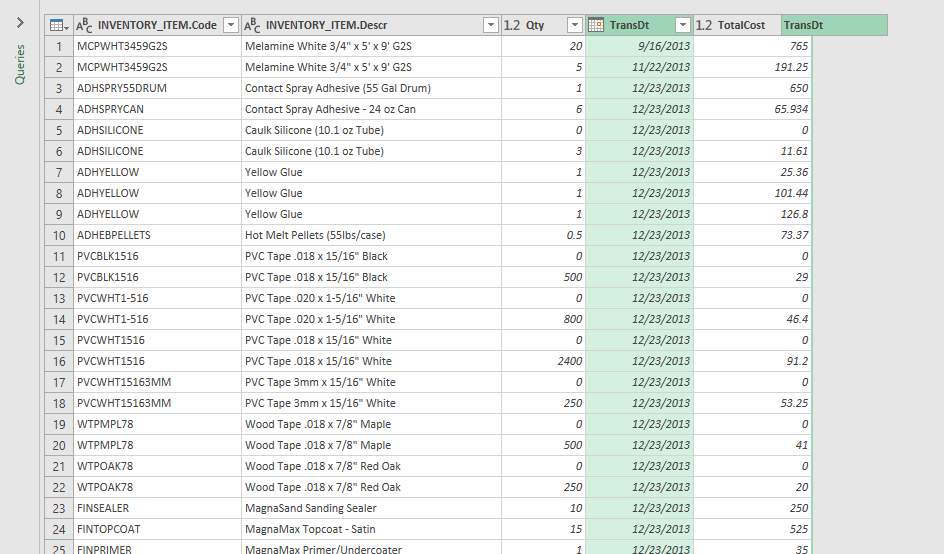
By default the columns are shown in the order they were created in the database. To make them more presentable grab the column by its name and drag and drop it to a new location.
Filter/Sort Columns
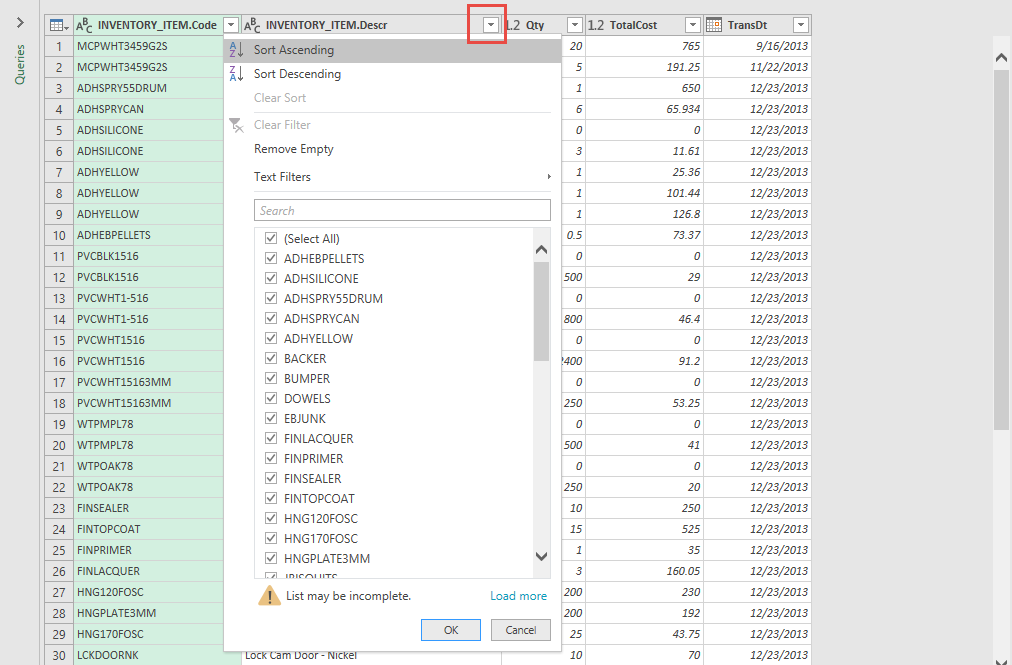
You can filter or sort a column by clicking the drop-down to the right of the column name
Group By
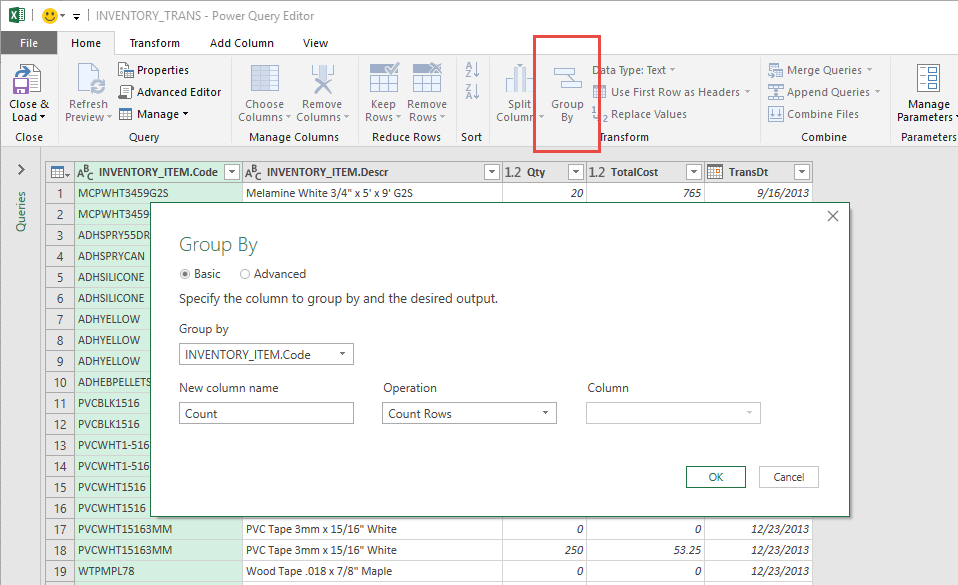
You can group the data together by using aggregate functions such as sum, average, count, etc. Click Group By and you will be able to add in one of these functionalities
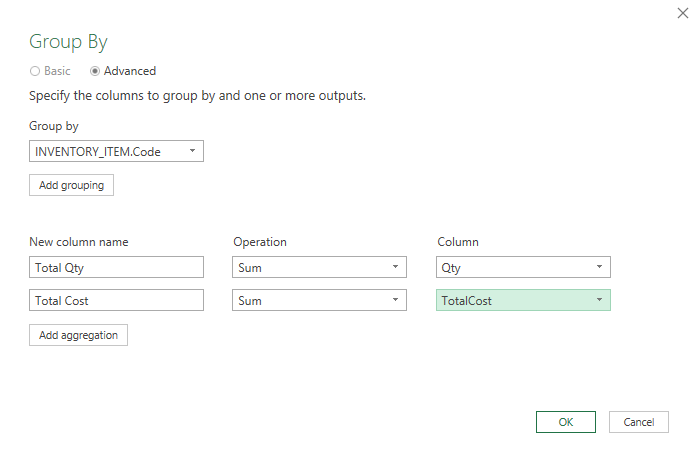
You can have more than one if desired
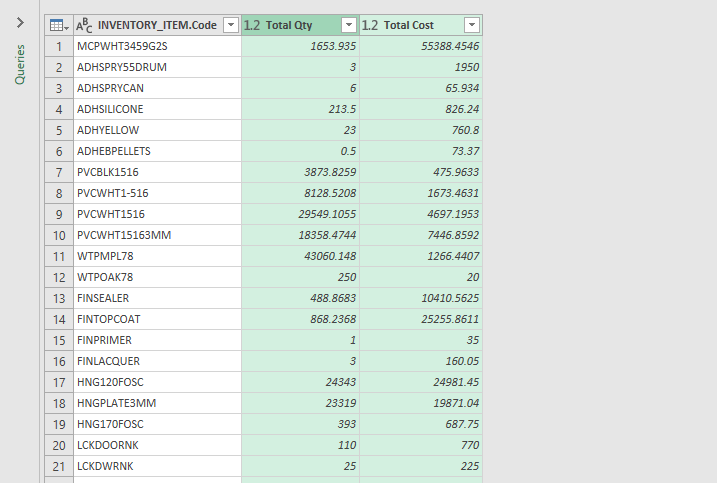
After clicking OK the grid is now updated with your aggregate functions
Applied Steps
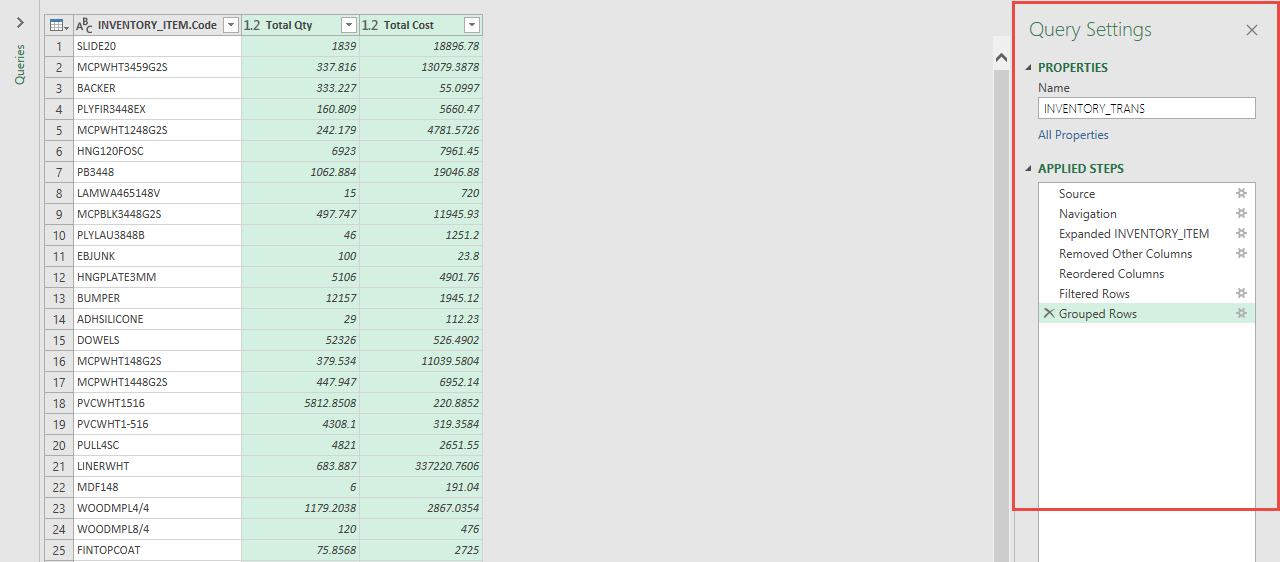
Every step you have done to create/edit your query has been recorded in the far right-hand panel labeled ‘Query Settings. Any step can be deleted or edited as desired.
Deletion
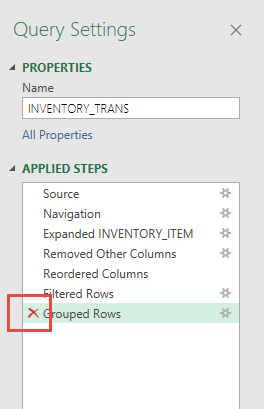
If you wish to delete a step hover over it and click the ‘X’ to the left of it. This can be handy if you realize the results are not what you expected, and you wish to try something different.
Edit
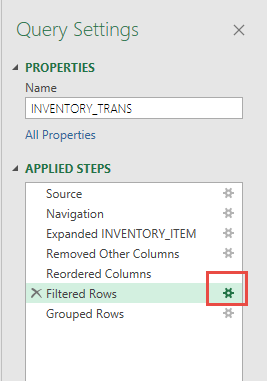
If you wish to edit a step hover over it and click the ‘Gear’ to the right of it. This can be handy if you realize the results are not what you expected, and you wish to change the step.
Change Name
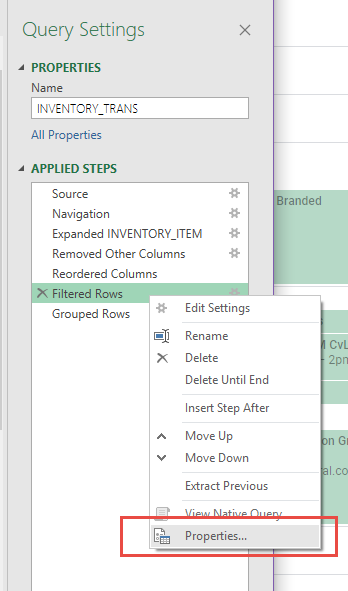
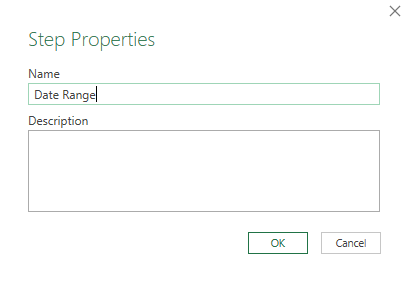
If you wish to change the name of the step to make it something more meaningful, right-click the name of the step and select ‘Properties’.