×

Product Details

 
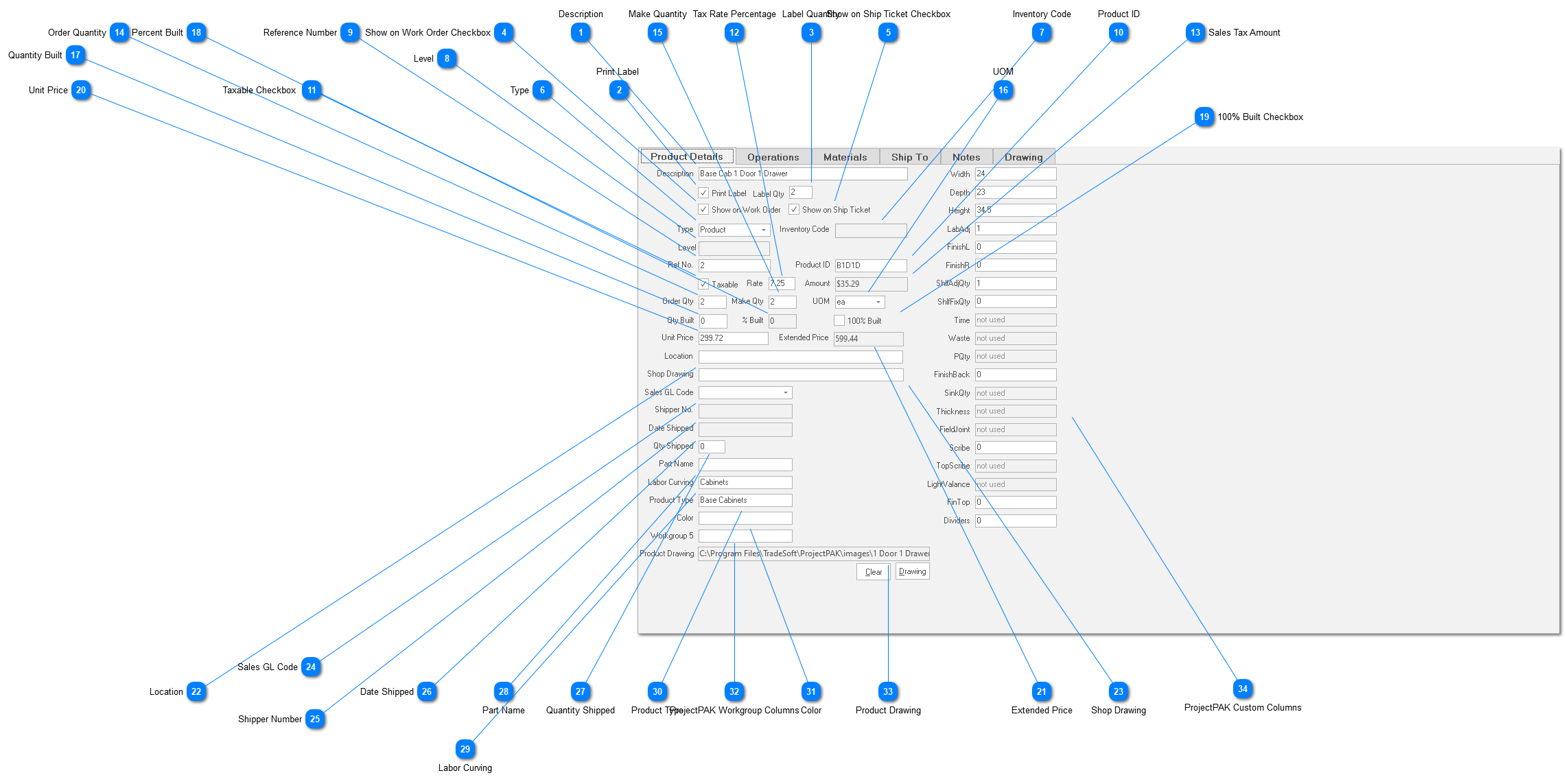
The first sub tab, Product Details, contains descriptive information about the Product.  Required fields include: Description, Type, and Order Quantity.
 
 
Product Details
1

Description

1. Description
60 character product description.
2

Print Label

2. Print Label
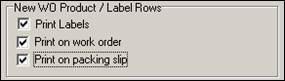
Indicates whether or not you want ShopPAK to generate a product label(s) for the product.  New products default to how you’ve set your ShopPAK Options  | Job tab’s Print Labels checkbox.
 
         
3

Label Quantity

3. Label Quantity
Number of product labels to generate.  Defaults to Order Qty, however, you can override if you need to print a different quantity.
4

Show on Work Order Checkbox

4. Show on Work Order Checkbox
Placing a check into the check box tells ShopPAK to include the product on a work order when printing product information.  New products default to how you’ve set your  ShopPAK Options  | Jobs tab’s Print on Product checkbox.
5

Show on Ship Ticket Checkbox

5. Show on Ship Ticket Checkbox
Placing a check into the check box tells ShopPAK to include the product when dragging products from a product on to a shipping ticket (this is done on the ShopPAK Shipping tab).  New products default to how you’ve set your  ShopPAK Options  | Jobs   tab’s Print on Packing Slip checkbox.
6

Type

6. Type
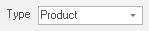
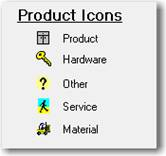
Identifies the type of product.  5 types are available from dropdown pick list:
 
       
7

Inventory Code

7. Inventory Code
Read only.  If the Product is based on a ShopPAK inventory item, the inventory code is displayed.
8

Level

8. Level
Read only.  Describes product role.  Blank means that it is a normal product.  Parent means it is a parent product – consisting of one or more child or sub-assembly products.  Child means it is a child product or a sub-assembly of a parent product.
9

Reference Number

9. Reference Number
Unique sequential number associated with the product.  If you use unique reference numbers in ProjectPAK to identify products, the ProjectPAK Estimate Conversion Utility sends the unique reference numbers over to ShopPAK.
10

Product ID

10. Product ID
Code that represents the product.  If you use product assembly codes / IDs in ProjectPAK to identify products, the ProjectPAK Estimate Conversion Utility sends the  unique codes over to ShopPAK.
11

Taxable Checkbox

11. Taxable Checkbox
Indicates if the product is taxable or not.
12

Tax Rate Percentage

12. Tax Rate Percentage
Tax rate percentage to use when calculating product tax.
13

Sales Tax Amount

13. Sales Tax Amount
Read only.  Dollar amount of any sales tax.
14

Order Quantity

14. Order Quantity
Quantity of the product to fabricate.
15

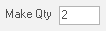
Make Quantity

15. Make Quantity
Automatically defaults to the Order Quantity, however, you can override when necessary if you wish to build more than the Order Quantity and store in stock as a finished good.
16

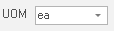
UOM

16. UOM
Unit of measure drop down pick list.  Uses the ProjectPAK user defined list of unit of measures.
17

Quantity Built

17. Quantity Built
Amount of the product that has been built up to that point.
18

Percent Built

18. Percent Built
Indicates if the amount of the product built has satisfied the requested order quantity.
19

100% Built Checkbox

19. 100% Built Checkbox
Indicates if the product is completely built
20

Unit Price

20. Unit Price
Product unit price.
21

Extended Price

21. Extended Price
Read only.  ShopPAK calculates Price by multiplying Order Quantity times Unit Price.  If maintaining sell price at the Product Level, changes to a product’s price ‘bubble up’ through the job tree.
22

Location

22. Location
Installation location (building, floor, room, elevation, etc.) of the product.
23

Shop Drawing

23. Shop Drawing
Name of the shop drawing file that describes the product.
24

Sales GL Code

24. Sales GL Code
Sales / Revenue GL Account Code to use when exporting a ‘regular’ invoice that includes the product row.
25

Shipper Number

25. Shipper Number
Read only field that identifies the Ship Ticket number that the product was shipping on.
26

Date Shipped

26. Date Shipped
Read only field that shows when the product was shipped.
27

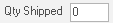
Quantity Shipped

27. Quantity Shipped
Read only field that identifies the quantity of the product that has been shipped.
28

Part Name

28. Part Name
 
29

Labor Curving

29. Labor Curving
 
30

Product Type

30. Product Type
 
31

Color

31. Color
 
32

ProjectPAK Workgroup Columns

32. ProjectPAK Workgroup Columns
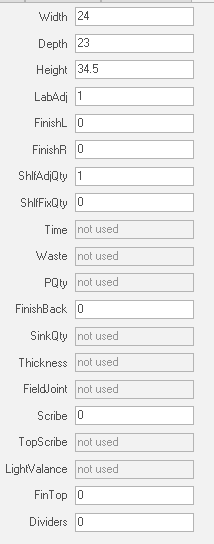
ShopPAK shares ProjectPAK work group columns so information defined in ProjectPAK flows through to ShopPAK when converting a ProjectPAK estimate into a first-cut ShopPAK job.

33

Product Drawing

33. Product Drawing
You can attach a drawing of the product that can be viewed in the Drawing tab. ShopPAK accepts a wide variety of formats such as dsf, dwg, dwt, gif, jpeg, pdf, etc.
34

ProjectPAK Custom Columns

34. ProjectPAK Custom Columns
ShopPAK shares ProjectPAK custom columns so custom product information defined in ProjectPAK flows through to ShopPAK when converting a ProjectPAK estimate into a first-cut ShopPAK job.