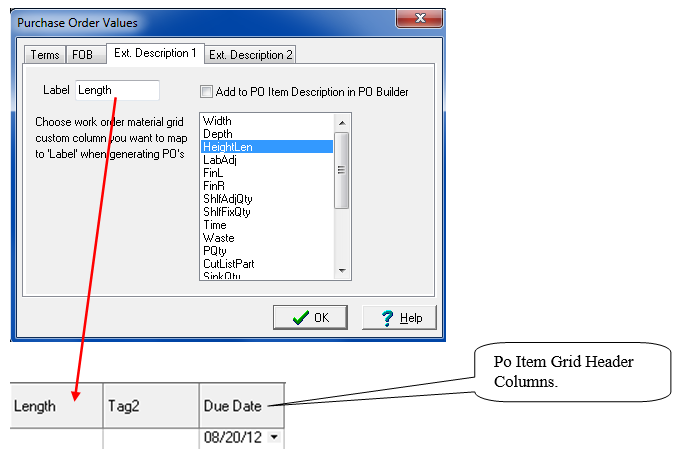
PO Item Grid Columns
Print Label
Place a check in checkbox if you want ShopPAK to generate a material label for this PO Item. Only allowed if the PO Type is ‘Stock’. For PO Type ‘Job’ and ‘Reserve’, use the Job Assignments grid. We cover material label generation on page 21 of this chapter.
Set your ‘print label’ defaults via the “ShopPAK Options” dialog box by selecting Define | ShopPAK Options | Purchasing from the menu. Check the PO Item Types that you want ShopPAK to automatically place a check into ‘Print Label’ checkbox.
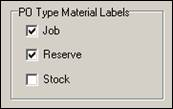
Label Quantity
If ‘Print Label’ is turned on, defaults to PO Item quantity. This can be overridden when needed. Contains the number of labels you want to generate for the PO Item.
Box / Bag Contains
Additional information that prints on a material label indicating how many items are contained in a box or bag.
Label Series
Use label series to tie related material labels together. For example, if two labels are related, you might enter “1 of 2” on one label and “2 of 2” on the other label.
Type
There are 4 types of PO Items: “Job”, “Stock”, “Reserve”, and “None”. The type tells ShopPAK how to process the PO item, and most importantly, how to handle job costing for the item.
Job
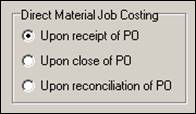
The PO Item is being ordered specifically for one or more jobs. Upon receipt of the material, reconciliation of the receiver, or close of the purchase order (depending on your direct job material option setting), ShopPAK automatically applies the cost of the material to the associated Job’s material job cost accumulator. Use “Job” when you want to purchase directly for a job, and the material you’re purchasing is not an inventory item.
Set your ‘Direct Material Job Costing’ default via the “ShopPAK Options” dialog box by selecting Define | ShopPAK Options | Purchasing from the menu. Choose the event that triggers direct material job costing.
Stock
The PO Item is being ordered for inventory, and consequently, the PO Item must be an inventory item. When the PO is posted, ShopPAK updates the “On Order” counts for the PO Item’s associated inventory item. Upon receipt, ShopPAK automatically decrements the “On Order” inventory count, and increments applicable “On Hand” and “Available” inventory counts.
Reserve
“Reserve” is a combination of the previous two PO Item types. Like “Job”, you assign the PO Item to one or more jobs, reserving it for the job(s). But unlike “Job”, the PO Item is placed into inventory upon receipt instead of being routed directly to the shop floor. Thus, no automatic job costing is done at receiving time. Instead, job costing works as it does for any inventory item – production employees “pick” material from inventory, and at that time, they must record which job they’re using the material for. These “pick” transactions are either uploaded to ShopPAK via Shop Floor Data Collection or manually entered into the “Material Cards” tab, and at that point, the material costs are applied to the correct job(s).
Use “Reserve” when you want to manage materials as inventory items, but you need to reserve certain amounts of inventory for a particular job.
None
Use “None” when you want to create a purchase order, but the PO Items you’re purchasing don’t have anything to do with job costing or inventory. For example, you might use an item type of “None” when you buy office furniture or computers. You’ll have a record of the purchase for tracking and accounting purposes, but the transaction has nothing to do with job costing or inventory management.
Note: If you create ‘internal’ or ‘administrative’ jobs in ShopPAK (e.g. Equipment, Office Furniture, etc.), instead of using PO Type ‘None’, you could use ‘Job’ and have ShopPAK automatically apply job costs to the administrative job just as it does when processing ‘real’ jobs.
|
Inventory Code
Displays the associated inventory code if the PO item type is “Stock” or “Reserve”. Protected.
Description
Describes the PO Item. Required Field.
Notes
Free form notes that can be added to a PO Item. Notes print on the generated Purchase Order immediately below the PO Item. To add a note, place a check into the checkbox -- or -- select the PO Item and click the “Item Notes” button. To delete a note, uncheck the Notes checkbox.
Qty
Quantity you’re ordering. Required Field.
UOM
Unit of Measure. You can tab into the cell and enter the first letter of the UOM or use the pick box.
Unit Price
Unit price of the PO Item. Required Field.
Extended Price
Protected. Quantity X Unit Price.
Freight Amount
Freight amount attributed the PO Item.
Overhead Markup
The percentage that the Po Item should be marked up to cover burden and/or overhead. Used when calculating gross costs.
Stock Number
The vendor’s unique stock number that identifies the PO Item
Destination
Tells the “Receiving” dock where this item should go upon receipt. When filled in at receiving time, tells production where the materials were stored.
Due Date
Defaults to the overall PO ‘Request By Date’, however, you can override a PO Item Due Date when it has a different anticipated arrival date. ShopPAK automatically highlights Material Due Date to be on time, late, in jeopordy of being late, etc. based on your date tracking color choices located via the Define | Date Tracking Colors menu item. We cover setting up date tracking colors in the milestone section in Chapter 6 - Job Form.
Date Received
Protected. Automatically populated via the “Receiving” tab when the order is received.
Quantity Received
Protected. Populated via the “Receiving” tab when the order is received.
Quantity Back Ordered
Protected. Populated via the “Receiving” tab when the order is received and a PO Item did not receive all of the ordered material.
Damaged
Protected. Indicates if the item was damaged during shipment. Populated via the “Receiving” tab when the order is received.
Taxable
Indicates if the PO Item is subject to sales tax.
GL Account
The expense GL Account associated with the material. Used when exporting purchase orders or reconciled vendor invoices to an accounting package.
Material Status Notes
Internal note tied to a PO Item. It doesn't print on a purchase order, however, it will print on a number of purchasing reports. Use it for material status, tracking dates, etc.
Custom Fields 1 and 2
Optionally add 2 custom PO Item fields to a PO line item. Select Define | Purchasing from the menu to define the field labels and map them to a ProjectPAK custom field.