
Logging Inventory Transactions
Inventory transactions record materials and supplies that are pulled from or returned to inventory.
Note: If you purchase materials directly for a job, employees should not record their material usage. ShopPAK automatically updates the job cost accumulators for the job when the materials are received. However, materials and supplies that are pulled from inventory or returned to inventory must be identified in order to update job cost accumulators. Moreover, these same transactions automatically adjust inventory counts.
|
To start an inventory transaction:
1. Identify yourself by selecting your name from the list of employees. A set of buttons appear that are based not only on the PC profile, but the outstanding transactions that ShopPAK finds for the employee.
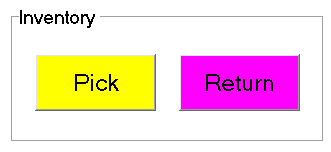
2. Touch or click the yellow “Pick” button if you are pulling material or supplies from inventory. Touch or click the purple “Return” button if you are returning unused material or supplies to inventory.
3. The work order list screen displays. Select the work order you are working on by:
-
Touching the work order number with your finger
-
Clicking the work order number with your mouse
-
Typing the work order number into the WO # field
-
Scanning the work order bar code with a bar code reader
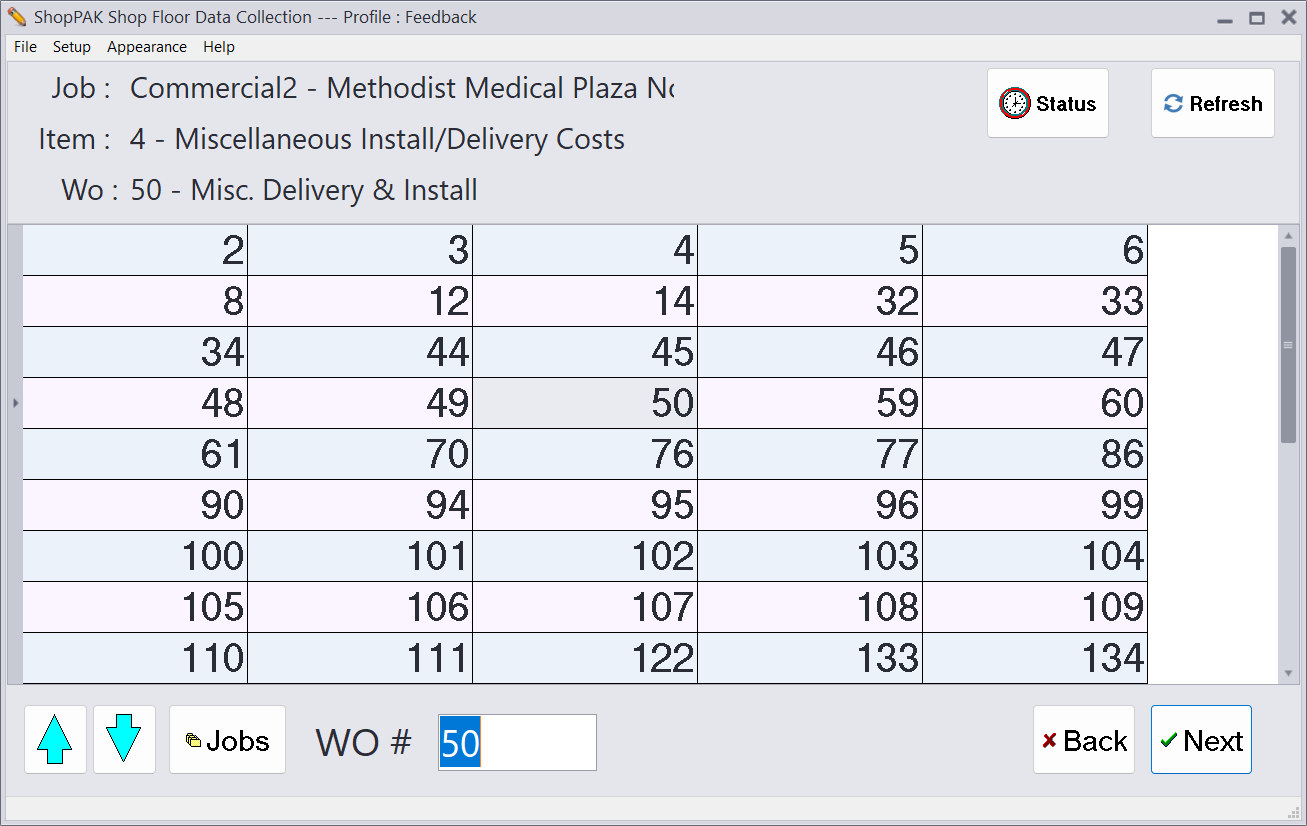
4. Once you select the work order, press the “Next” button
5. If you manage inventory items by the piece and by the batch, the following screen will display. Capturing inventory usage is different depending on how the inventory item is defined. If the inventory item is a batch item, you identify it by its inventory code. If the inventory item is managed by the piece, you identify it by its unique inventory piece number.
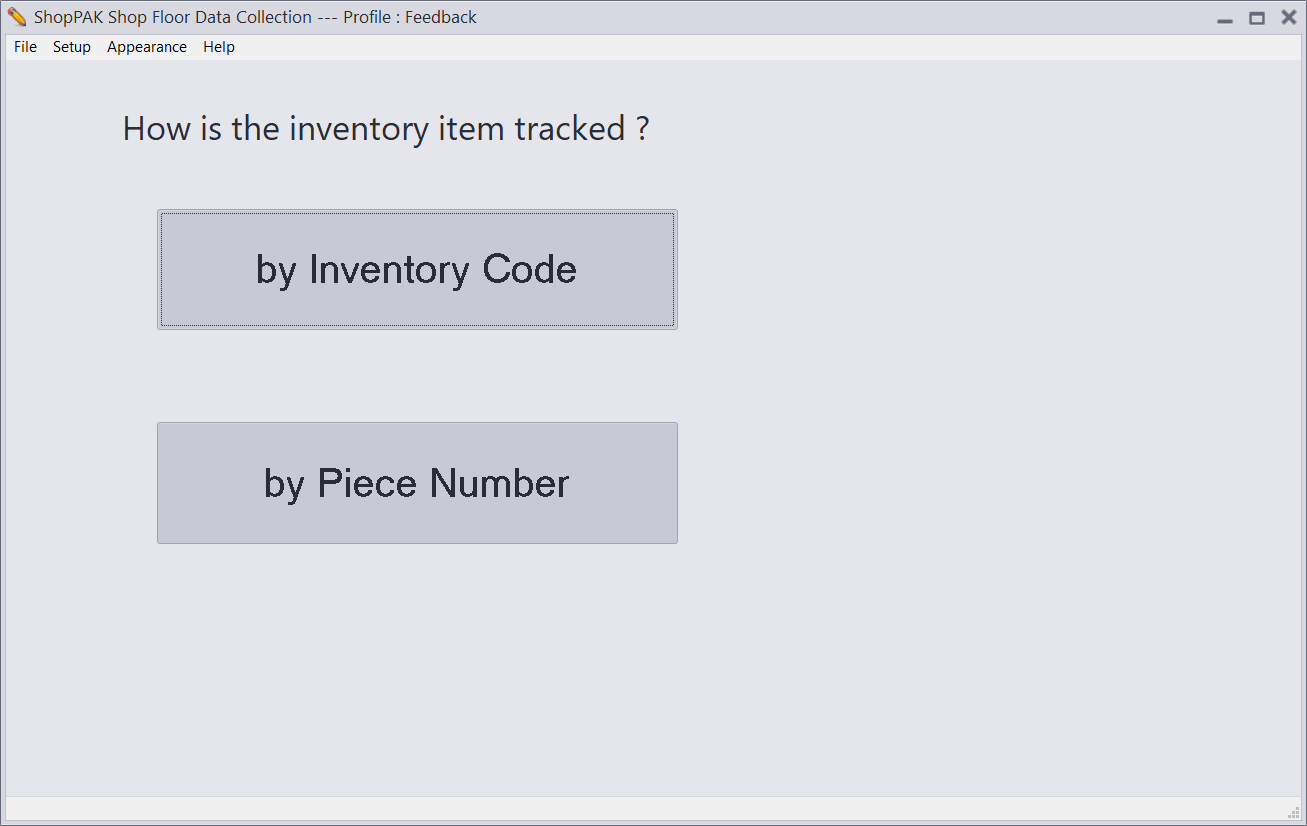
We first demonstrate the screens that display for “batch” inventory items.
6. Press the “by Inventory Code” button. This displays a list of inventory item codes. Select the inventory item by selecting the correct inventory item code by:
-
Touching the inventory code with your finger
-
Clicking the inventory code with your mouse
-
Typing the inventory code into the Code field
-
Scanning the inventory code with a bar code reader
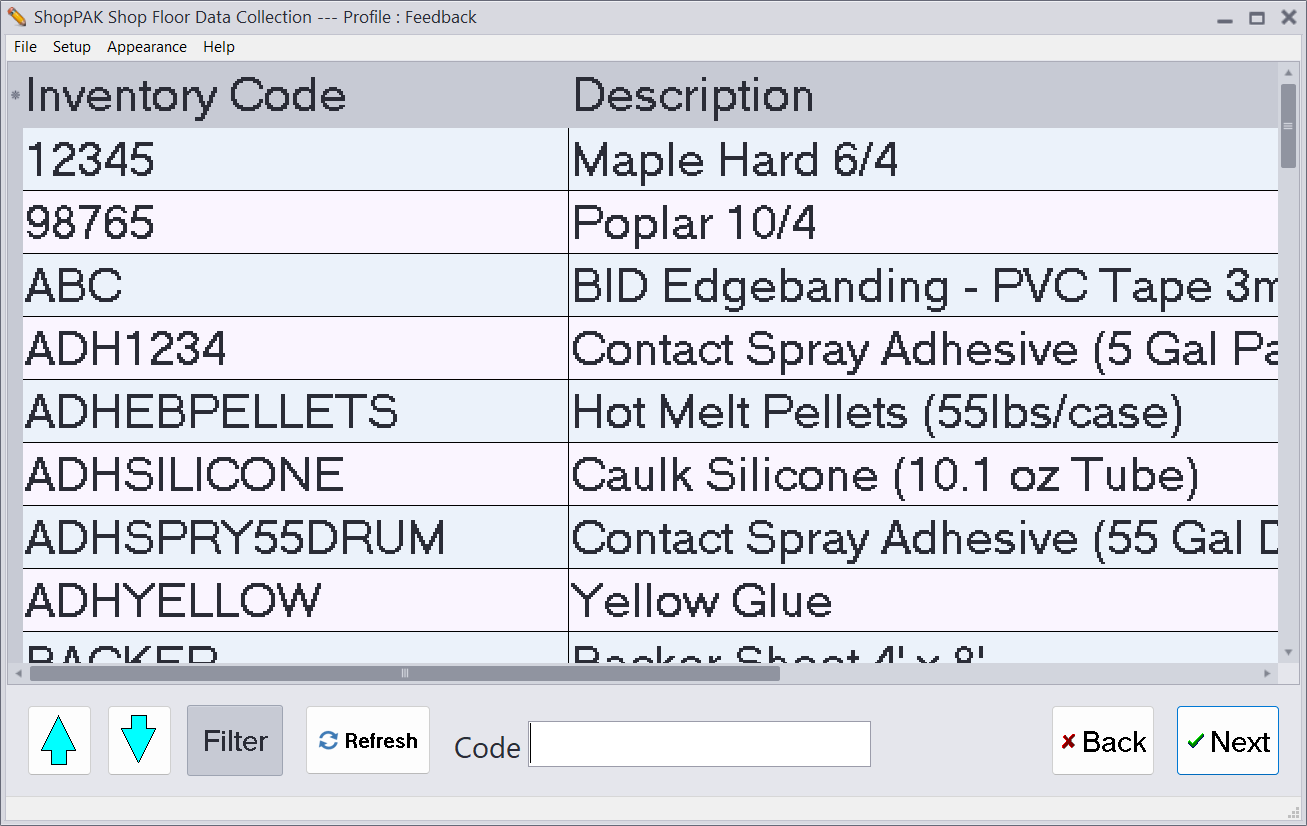
Touch or click the “Next” button.
Filtering the Inventory Item Code List
All of the ShopPAK inventory item codes are displayed in the list. To speed the process of selecting the correct inventory item, there is a “Filter” button you can use that limits the items displayed. To filter the items, click or touch the “Filter” button. This displays the “Filtering” screen.
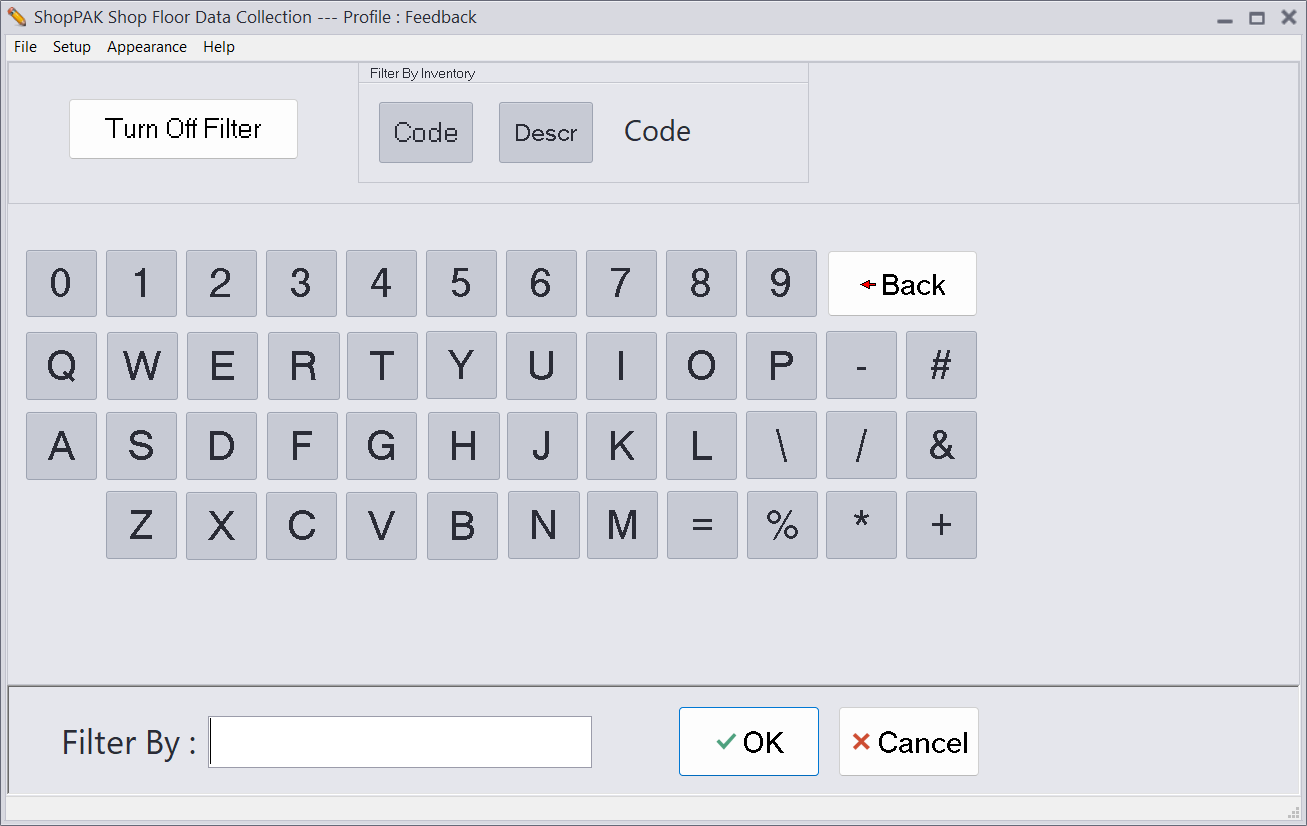
Using the letter and number keys, or a keyboard, enter one or more inventory item characters. In the example above, the list will be filtered to include only those inventory items that begin with the letters LCK. Click the OK button. This re-displays the inventory item list, filtered accordingly. In our example, we have 3 inventory items that had an inventory item code starting with “LCK.”
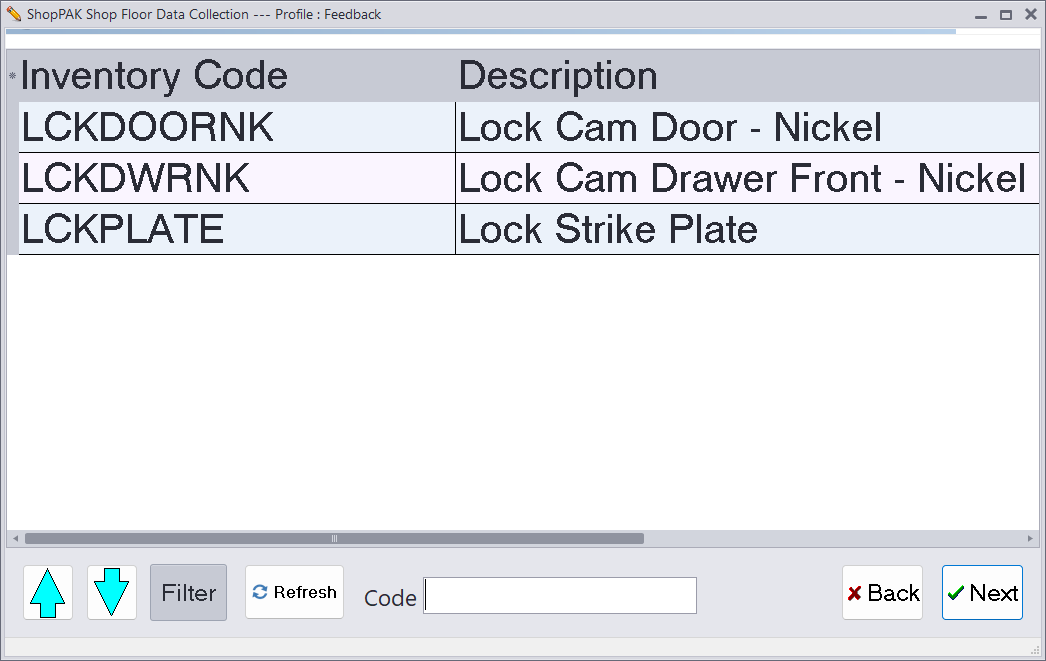
Note: Once you’ve turned on filtering and entered the filtering prefix, it stays on until you’ve turned off filtering. To turn off filtering, click the “Filter” button and then click the button named “Turn Off Filtering”.
|
7. The quantity screen appears next. Enter the quantity that you are pulling from inventory or returning to inventory by using the keyboard or touching the screen’s number pad. Click the “Next” button.
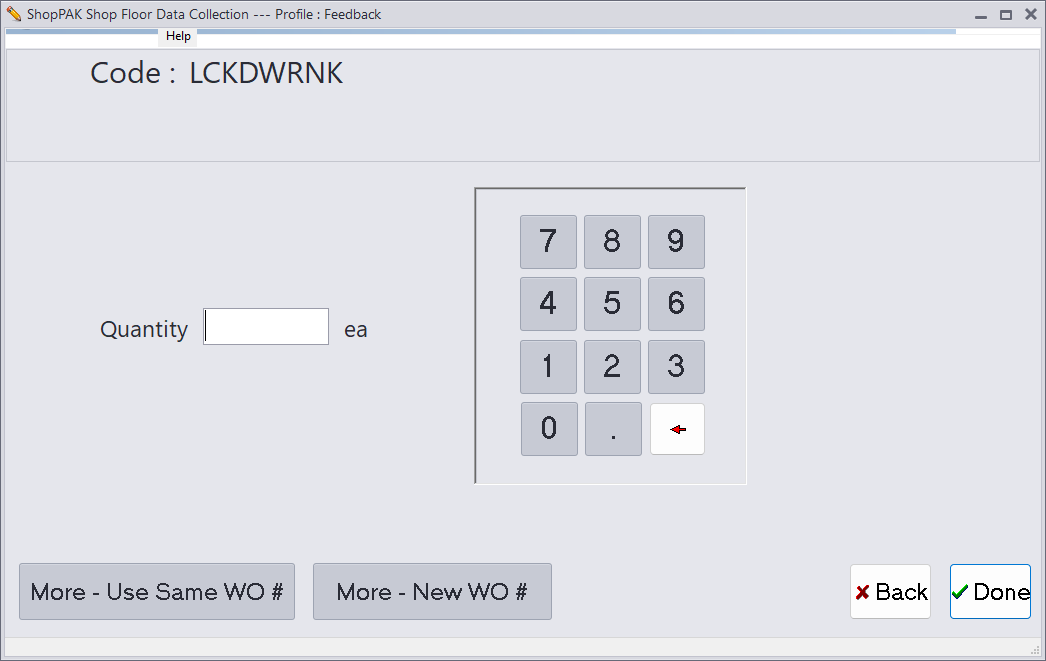
Note: If you make a mistake using the number pad, touch the arrow button to backspace over the incorrect character.
|
8. If the inventory item has multiple locations, the location screen appears. In order to update the correct inventory location’s item count, you must identify the location that the inventory stock is coming from (or is being returned to). The screen not only shows all of the inventory locations for the inventory item, it displays the current “Quantity On Hand”. Using your mouse or finger, select the correct location.
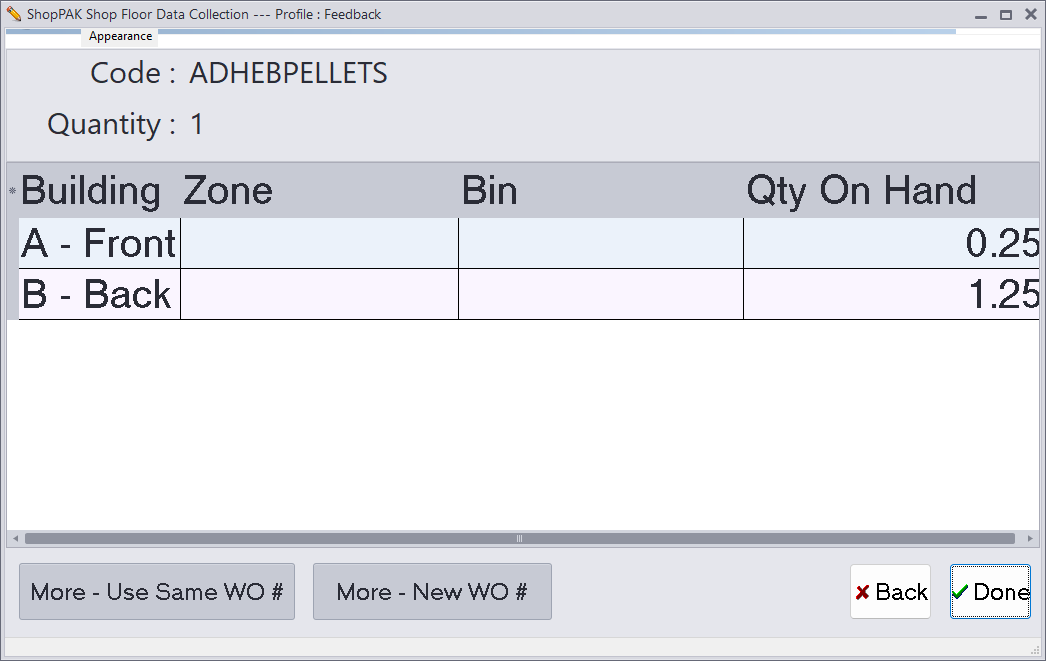
Note: If the inventory item only has one location, then the location screen doesn’t appear since ShopPAK will know the correct inventory location.
|