
Job Assignments Grid Columns
Print Label
Place a check in checkbox if you want ShopPAK to generate a material label for the selected job assignment. Only allowed if the PO Type is ‘Job’ or ‘Reserved’. For PO Type ‘Stock’, use the label columns in the PO Item grid. We cover material label generation on page 21 of this chapter..
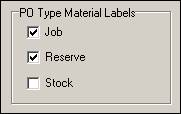
Set your ‘print label’ defaults via the “ShopPAK Options” dialog box by selecting Define | ShopPAK Options | Purchasing from the menu. Check the PO Item types that you want ShopPAK to automatically place a check into ‘Print Label’ checkbox.
Label Quantity
If ‘Print Label’ is turned on, defaults to job assignment ‘Quantity Ordered’. This can be overridden when needed. Contains the number of labels you want to generate for the job assignment.
Box / Bag Contains
Additional information that prints on a material label indicating how many items are contained in a box or bag.
Label Series
Use label series to tie related material labels together. For example, if two labels are related, you might enter “1 of 2” on one label and “2 of 2” on the other label.
Job Id
Protected. Job assignment’s job id.
Job Description
Protected. Job assignment’s job description.
Item Number
Protected. Job assignment’s job item number.
Item Description
Protected. Job assignment’s job item description.
Work Order / Work Order Description
Protected. Job assignment’s work order number and description.
Quantity Ordered
Quantity you’re ordering. Required Field.
Quantity Received
Protected. Populated via the “Receiving” tab when the order is received.
Unit Price
Protected. Unit price of the job assignment.
Extended Price
Protected. Quantity Ordered X Unit Price.
Freight Amount
Protected. Freight amount attributed the job assignment.