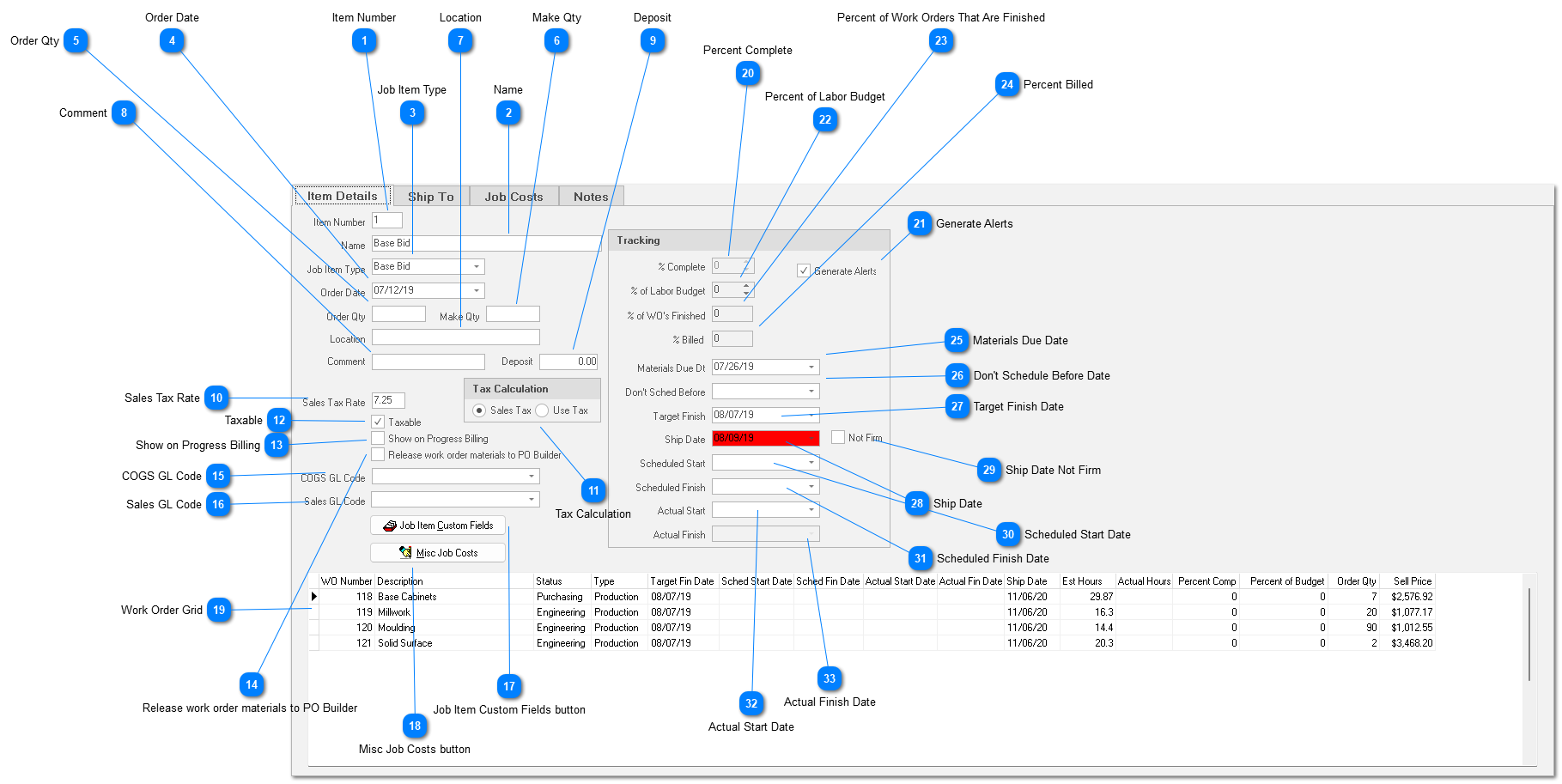
The first sub tab, Item Details, contains descriptive information about the Job Item, important dates, and tracking percentages. Required fields include: Item Number and Item Name.
Item Number
ShopPAK automatically provides the next sequential item number when you add a new job item. To change the position of a job item, edit the Item Number accordingly. The next time you open the job, ShopPAK will order the job items in their new ascending sequence.
Date the customer has confirmed the Job Item part of the job. The conversion utility defaults to the current date when populating this field. If you change Order Date at the job level, ShopPAK automatically keeps ‘like’ Job Item Order Date in sync.
Number of Job Items the customer has ordered. Whether this is a required field or not depends on how you’ve set up Sell Price & Percent Complete maintenance. If you are maintaining sell price at the Job or Job Item level, then yes, this becomes a required field. The total sell price for the Job Item is calculated by multiplying Order Qty times Unit Price (located on the Job Item Job Costs sub tab). Since a Job Item is a section of a job, as opposed to a specific product, Order Qty is usually 1.
If you maintain sell price at the Work Order or Product level, then Job Item order quantity is not required and can be left blank. Sell price is calculated lower in the job tree and the appropriate sell price is automatically calculated at the Job Item level and displayed on the Job Item Job Cost sub tab.
Usually is the same as Order Quantity, however, you can override if you are going to produce additional product and store in inventory against future orders for the same product.
Job Item sales tax rate. This field is pre-populated from the job level Sales Tax Rate, however, you can change it as needed at the job item level. This may be necessary in case different Job Items have different Ship To addresses and are subject to different taxing authorities with different rates. Changing the sales tax rate automatically recalculates sales tax amount on the Job Item Job Cost sub tab.
Defaults to how you’ve set up ShopPAK Billing Options. See “Chapter 6 – Job Form,” page 27 for more information. Placing a check in Show on Progress Billing tells ShopPAK to automatically include the Job Item description as a line item on a progress billing application. Furthermore, ShopPAK includes the Job Item’s sell price as the billing line item’s scheduled value.
If job items and work orders match how you define progress billing application line items, placing a check in the appropriate Job Item and/or Work Order Show on Progress Billing checkbox saves time. However, if the structure of the job tree doesn’t match how you want to organize your progress billing applications, make sure Show on Progress Billing is left blank.
See “Job Form”, for more information on AIA Progress Billing.
Placing a check into the checkbox automatically sets the Ready For PO Builder flag for every Work Order material under the Job Item. This is a rapid way of sending material needs to PO Builder. Although materials actually reside at the work order level, it is possible that you want to mark all work order material as being ready for PO Builder. The same thing happens when you change a work order status to Purchasing.
Drives the accounting oriented Cost of Goods Sold (COGS) report and the Work In Process (WIP) report. These reports are broken down into product type cost categories as defined by the COGS GL codes. For many customers, they like to use their actual COGS expense codes. However, you can define appropriate GL Account Codes any way you like to organize the COGS and WIP reports.
Choose the best GL Account Code from the user defined list of choices. Note: GL Account Codes are defined in ProjectPAK under the Define | GL Accounts menu item. For more information on defining GL Account codes, see “Set Up and Options”.
If you mark a Job Item as being included on Progress Billing (e.g. put a check in the Show on Progress Billing checkbox), we recommend determining the correct offsetting sales / revenue GL Account code. When you create a new AIA Progress Billing, the Job Item’s sales GL Account code automatically flows on to the application billing item, along with the Job Item’s description and value.
If you want to export invoices to your accounting package, you need to supply the correct GL Account codes so the accounting packages can properly import ShopPAK transactions.
For more information on defining GL Account codes, see “Set Up and Options”.
You can job item level custom field names in the ShopPAK Options dialog box. Click this button to fill in custom work order fields. Note, values trickle down to the work order level unless you've overridden at the work order level.
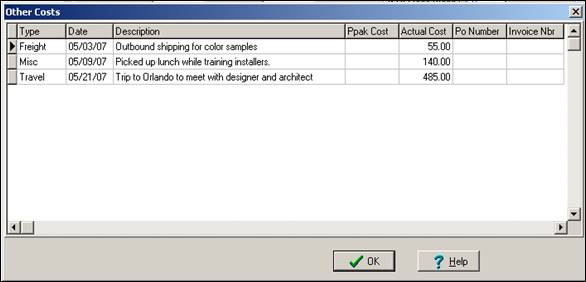
We manage miscellaneous job costs (Freight, Travel, and Miscellaneous) at the Job Item level. Clicking the Misc Job Costs button displays the Other Costs dialog box:
Adding a new Other Cost
1. Right mouse click the Other Cost grid. This displays a pop-up menu.
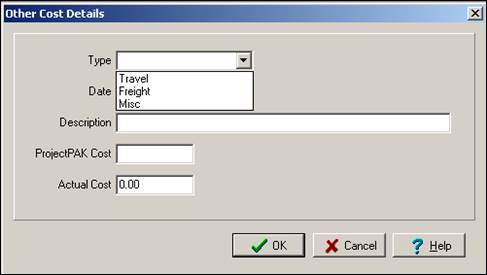
2. Select New. This displays the Other Cost Details dialog box. Enter information about the miscellaneous cost and click OK.
Field
Purpose
Type
3 types of other expenses exist: Travel, Freight, and Miscellaneous.
Date
Enter the date the expense was incurred.
Description
Describes expense.
ProjectPAK Cost
Estimated cost of the expense. (Optional)
Actual Cost
Actual cost incurred.
Modifying an Other Cost
1. Select the Other cost row you want to modify.
2. Right mouse click the Other Cost grid. This displays a pop-up menu.
3. Select Modify. This displays the Other Cost Details dialog box. Edit information about the miscellaneous cost and click OK.
Deleting an Other Cost
1. Select the Other cost row you want to delete.
2. Right mouse click the Other Cost grid. This displays a pop-up menu.
3. Select Delete. A warning message appears. Select Yes to delete the Other cost. Select No to cancel the deletion.
ShopPAK lists all of the Job Item’s work orders and pertinent information about each work order. This read-only grid gives you a great place to browse work order level information on one screen.
User entered percent complete. If you maintain percent complete at the Job Item level, ShopPAK automatically ‘bubbles up’ the percent complete to the Job level based on the Job Item’s percentage of sell price as compared with the overall job’s selling price.
If job item is too broad of a grouping to accurately determine percent complete then you should maintain sell price / percent complete at the work order level. If you do, ShopPAK ‘bubbles up’ work order percent complete changes and automatically calculates Job Item and Job percent complete based on the work order’s percentage of sell price relative to Job Item sell price and overall Job selling price.
Percent Complete is a very important tracking percentage. It shows how much of the job item has been finished, and consequently, how much is left before it is completed. Percent Complete, by its very nature, is highly subjective. The project manager must gather and interpret a lot of information in order to enter a value that approximates where the Job Item is at.
Although % of Budget and Percent Complete are related, they won’t necessarily have the same value. Sometimes you’ll be ahead of schedule, and sometimes you’ll be behind. For example, say your actual labor hours thus far are 70% of the budgeted labor hours, but by your best reckoning, you’re only 50% complete. This Job Item is in trouble and needs your attention.
ShopPAK automatically calculates percent of labor budget at the job item level. Depending on how you’ve set up your ShopPAK options, ShopPAK calculates percent of labor budget either by dividing actual labor hours by estimated labor hours, or dividing actual labor cost by estimated labor cost. This is a great metric because it is automatic, and it gives project managers a good sense as to where they’re at relative to estimated labor cost or hours.
ShopPAK automatically calculates percent of work orders that are finished. In order to use this tracking ratio, make sure you choose work order status considered completed in ShopPAK Options.
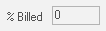
ShopPAK automatically updates this percentage based on the amount of money billed (including both progress billings and regular invoicing) relative to the Job Item’s sell price.
Overall material due date for the Job Item. This date indicates when material needs to be delivered in order to make the scheduled ship date. When a user enters a material due date at the job item level, ShopPAK automatically fills all lower Work Order and Material due dates with the same date, unless the user had previously typed a specific material due date into the lower level Work Order or Material due date control.
Primarily used by Project Managers so they can communicate shifting priorities to the person running the Scheduler application. Indicates to the person running Scheduler that the work orders under this job item should not be included in the scheduling until the date chosen or after. Changes are automatically sent to the Scheduling application, just as the Scheduler sends back changes to ShopPAK.
Overall target finish date for the Job Item. This date indicates when the Job Item needs to be finished before it is considered late. Target Finish Date is primarily used by the ShopPAK Scheduler as it determines if a scheduled finish date is late or on time. If the scheduled finish date is equal to or later than the Target Finish Date, the job item is considered to be on time. However, if the Target Finish Date is later than the scheduled finish date, the job item is considered late and is marked accordingly. When a user enters a target finish date at the job item level, ShopPAK automatically fills all lower level Work Order and Department target finish dates with the same date, unless the user had previously typed a specific target finish date into the lower level Work Order or Department target finish date control.
Date the Job Item will ship. When a user enters a ship date at the Job Item level, ShopPAK automatically fills all lower level Work Order ship dates with the same date, unless the user had previously typed a specific ship date into the lower level Work Order ship date control.
ShopPAK automatically highlights ship date to be on time, late, in jeopordy of being late, etc. based on your date tracking color choices located via the Define | Date Tracking Colors menu item. We cover setting up date tracking colors in the milestone section in "Job Form".
Date the Job Item is scheduled to begin. ShopPAK automatically highlights scheduled start date to be on time, late, in jeopordy of being late, etc. based on your date tracking color choices located via the Define | Date Tracking Colors menu item. We cover setting up date tracking colors in the milestone section in "Job Form".
Date the Job Item is scheduled to finish. ShopPAK automatically highlights scheduled finish date to be on time, late, in jeopordy of being late, etc. based on your date tracking color choices located via the Define | Date Tracking Colors menu item. We cover setting up date tracking colors in the milestone section in "Job Form".