
Generating Material Labels From PO Builder
Once you place a reservation against inventory, ShopPAK updates inventory and the associated material accordingly. Next, it displays the “Generate Material Labels” button in the Inventory window pane.
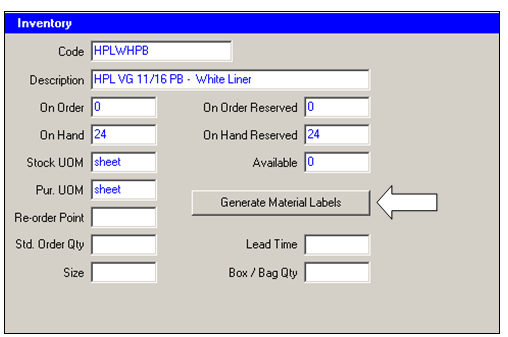
There are several places throughout ShopPAK for generating material labels. If you decide that it makes sense to generate material labels at this point, click the button. ShopPAK displays the “Reservation Label Generation” dialog box.
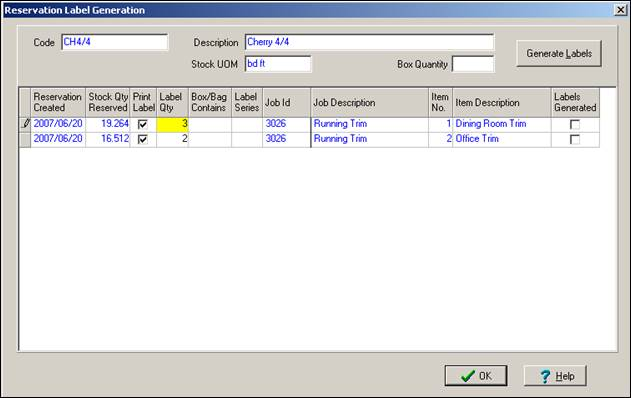
Enter the number of labels to generate and click the ‘Generate Label’ button. Generating and printing labels is a two step process.
Recommended Purchasing Sequence
Because PO Builder lets you place material reservations against inventory items, we recommend the following purchasing sequence to get the most out of PO Buider’s ability to place reservations against inventory.
1. In the morning, before bringing up PO Builder to address specific job material needs, create all your ‘stock’ purchase orders via the ‘Purchasing’ main tab. As you’ll see in “Chapter 11 – Purchasing Form”, we’ve automated the process of creating ‘stock’ purchase orders to replenish inventory items that are beyond their ‘reorder points’. By doing all of the ‘stock’ purchasing first, you will be able to place reservations against ‘On Order’ inventory counts, as well as, ‘Available’ inventory counts.
2. In PO Builder, first address materials that are inventory items. The easiest way to focus on inventory items is to select - Only stock items - in the Sequence dialog box.
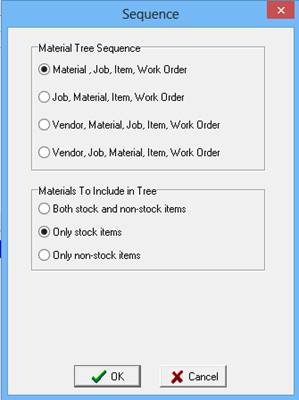
Work through each inventory material, creating reservations. If insufficient inventory exists to cover needed quantity, you can still reserve whatever partial inventory is available via the “Reserve Inventory” button. However, you’ll also need to create a purchase order for the difference.
3. After placing reservations for all of the inventory items, re-sequence the material tree to only show non-stock items. When you click the Fill Tree button, only direct material purchase items will be displayed in the material tree, making it easier to focus on building purchase orders.
4. Create purchase orders by dragging materials from the materials tree over to the purchase order window pane.