To properly display this page you need a browser with JavaScript support.
Employee Assignments Grid Pop Up Menu Commands
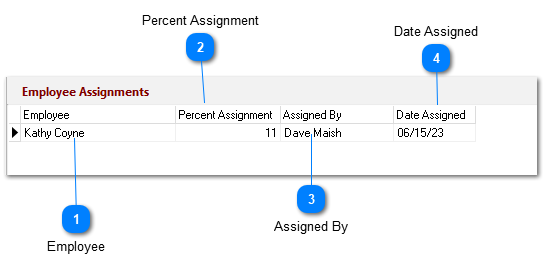
When you click a department, ShopPAK displays employee assignments that have been established for the department…….for the work order.
Employee Choose the employee you want to assign to the work order department.
Percent Assignment Amount of the employee’s daily availability you want them to spend in this department for the work order.
Assigned By Person who created the employee assignment.
Date Assigned System generated field. Date employee assignment was made.
Right mouse click in the ‘Employee Assignments’ grid to display the Employee Assignments grid’s pop up menu:
New Employee Assignment... 1. Select the department you want to add an employee assignment to by clicking it with your mouse.
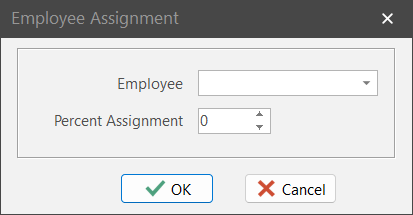
2. Right mouse click the “Employee Assignments” grid. Select “New” from the pop up menu. This displays the “Employee Assignment” dialog box.
Modify Employee Assignment... 1. Select the employee assignment you want to modify by clicking it with your mouse.
2. Right mouse click the Employee Assignment grid. Select “Modify” from the pop up menu. This displays the “Employee Assignment” dialog box. Make changes and click OK.
Delete Employee Assignment 1. Select the row you wish to remove by clicking it with your mouse.
2. Right mouse click the Employee Assignment grid. Select “Delete” from the pop up menu.
3. This displays a warning message. Select “Yes” to delete the employee assignment. Click “No” to cancel the deletion.