
Customer Code / Name
When exporting AR invoices, the customer code/name must match the corresponding customer code/name in your accounting package. ShopPAK does not create a new customer record in your accounting package for you. It must already exist. The only exception is when exporting invoices to QuickBooks via the QuickBooks (integrated) method. That interface will create a customer record if it is missing. Use ProjectPAK’s import and export capabilities to sync ProjectPAK with your accounting package, or enter customer names manually in both packages.
If the Customer form’s “Name” field matches your accounting package’s customer name or code, then the export utility uses the “Name” field. However, if you use special customer codes instead of descriptive names in your accounting package, then you need to create customer codes in ProjectPAK.
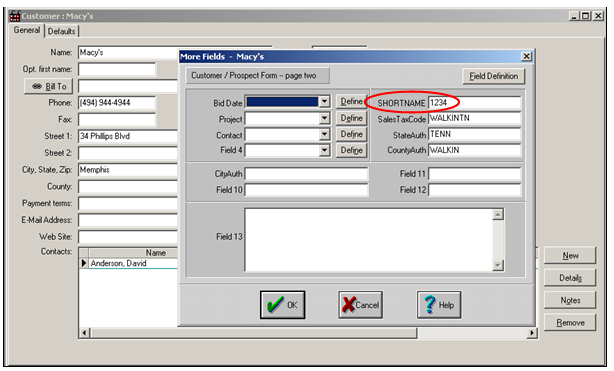
ProjectPAK More Fields
From a ProjectPAK customer record, click the user defined “More Fields” speedbar button  . This displays the “More Fields” dialog box for the customer record. “More Fields” allow you to create custom data fields in ProjectPAK. If you are using customer codes in your accounting package, you must create a custom customer “More Field” called -> SHORTNAME (It must be in all caps exactly as shown here). Any custom field will work, just make sure you define the field tag exactly as shown here -> SHORTNAME.
. This displays the “More Fields” dialog box for the customer record. “More Fields” allow you to create custom data fields in ProjectPAK. If you are using customer codes in your accounting package, you must create a custom customer “More Field” called -> SHORTNAME (It must be in all caps exactly as shown here). Any custom field will work, just make sure you define the field tag exactly as shown here -> SHORTNAME.For information on creating more fields, refer to the ProjectPAK User’s Guide, “Chapter 13 – Creating New Database Fields”.
In the example above, the accounting package refers to “Macy’s” as “1234”, and thus, we had to create the corresponding customer code -> “1234” on the ProjectPAK side in the special SHORTNAME custom field.
When ShopPAK sends an AR Invoice to your accounting package, it first checks if there is a SHORTNAME custom field value for the customer record. If so, it sends the SHORTNAME value to the accounting package. If it doesn’t find a SHORTNAME code, it sends the customer’s name.