
Creating a New Product
1. Select the Work Order from the Job Tree that you want to add a new Product under.
2. Navigate to the Work Order’s Products sub tab. Right mouse click the products grid. This displays the product pop up menu.
3. There are several ways to add a new product. You can select New Product from the menu and add the product manually. Or you may want to base the new product on a ProjectPAK library item, ProjectPAK assembly or ShopPAK inventory item. See "Work Order Form" for more information.
4. Once you create a new product and click on the Job Tree, ShopPAK refreshes the Job Tree with the newly added product. Selecting the new product from the Job tree displays all of the product’s information on the Product Details sub form.
Product Icons
There are 5 product icons representing the 5 types of products:
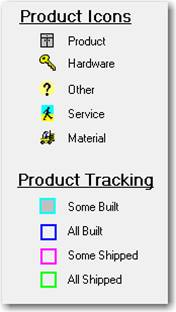
There are 4 different colored icon overlays that distinguish whenever a product has some of quantity built, all quantity built, some quantity shipped, or all quantity shipped.