
Approving Material Cards
ShopPAK separates the function of entering material usage transactions from the function of approving actuals.

Each action requires its own level of security, and thus, you can assign responsibility for entering material transactions to one person, and assign responsibility for approving material transactions to someone else.
The person responsible for approving material cards needs an intimate understanding of the work being performed on the shop floor. Although material card information can be corrected at any time, it’s best to get it right the first time. The person responsible for approving actuals needs to make sure:
-
Material has been posted to the correct work order (which identifies a Job and Job Item)
-
A reasonable quantity of material is being reported
-
The correct type of material is being reported
Before approving a material card, make sure the correct ‘Card Date’ is picked and the correct employee is selected. Click the “Approve Card” tab to see the material transactions that have been reported for that employee for that day.
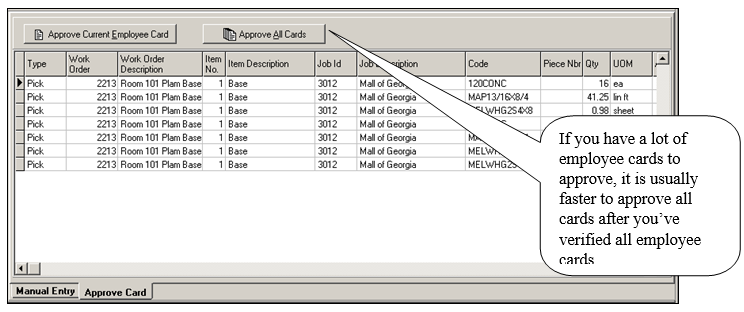
The “Approve Card” tab contains more information than the “Manual Entry” tab. Whereas the “Manual Entry” tab displays the material transaction information, the “Approve Card” tab displays ‘Work Order Number’, ‘Work Order Description’, ‘Job Item Number’, ‘Job Item Description’, ‘Job Id’, and the ‘Job Description’. Use this additional “job” information to make sure the material transaction is posted to the right Job / Job Item combination.
If you need to change a transaction, select the transaction and right-mouse click the “Approve Card” grid. Choose ‘Modify’ or ‘Delete’. These operations work the same as they did on the “Manual Entry” tab explained on page 5.
When you’re satisfied with the material card entries, click the “Approve Current Employee Card” button. When ShopPAK is finished updating the database, it places a check in the employee’s ‘Approved’ checkbox in the Employee List, it updates the aggregate ‘Approved Cards’ totals at the top of the form, and places a check in all of the individual job cost entries that make up the material card.
At this point, the new material card transactions will have been added into the overall job cost material accumulators and can be reviewed on any job cost report and/or form.
ShopPAK also updates associated inventory item counts. If an inventory item was ‘picked’ from inventory, ShopPAK subtracts the quantity used from ‘On Hand’ counts. If the inventory item has a reservation for the job identified by the material usage transaction, ShopPAK also subtracts the quantity used from the reserved counts as well. It re-calculates the inventory item’s ‘Available’ count.
If an inventory item was ‘returned’ back to inventory, ShopPAK adds the quantity returned to the ‘On Hand’ counts. If the inventory item has a reservation for the job identified by the material usage transaction, ShopPAK also adds the quantity returned to the reserved counts as well. It re-calculates the inventory item’s ‘Available’ count.