Verifying Shipments
ShopPAK gives you both a manual and automated means to verify the Ship Ticket against the actual items staged to be loaded on to the truck.
Manually Verifying Shipments
To manually verify all of the products are ready to be loaded on the truck:
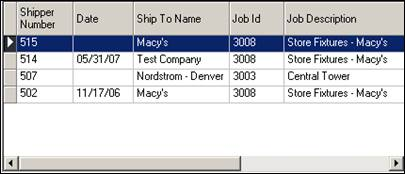
1. Open and select the Ship Ticket from the Ship Ticket List area.
2. Click the Print or Preview speed bar buttons  . This displays the “Shipping Reports” dialog box.
. This displays the “Shipping Reports” dialog box.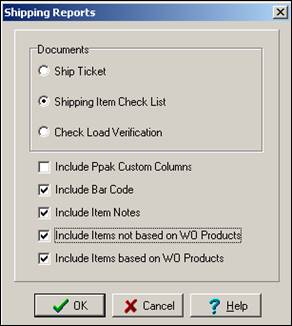
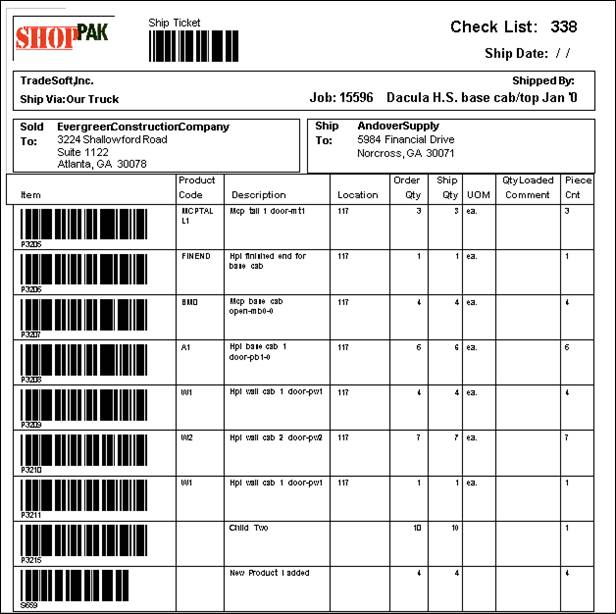
Select the document print options you want and click OK. This generates the “Check List” report. Give this to your employee tasked with verifying shipping items and quantity.
Using Shop Floor Data Collection to Automate Ship Ticket Validation
We’ve included a Ship Ticket Validation function in Shop Floor Data Collection. This works best if you scan product bar code labels as you position or load products and parts on to a truck,
Ship Ticket ‘Check Load’ Status
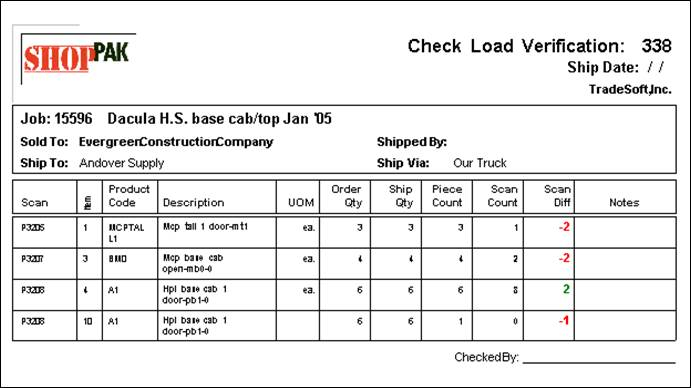
If the Ship Ticket status is changed to “Check Load”, you’ll see any discrepancies between “Piece Count” and “Scan Count” colored in red.
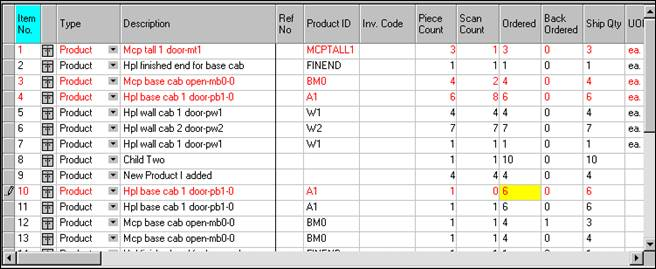
Piece Count is the anticipated count based on the “Ship Quantity” and the characteristics of the product or loose material / hardware. For example, products tend to have Ship and Piece quantities that match. Loose material (e.g., a piece of molding), may have a Ship Quantity of 12 feet but a Scan Quantity of 1 piece. ShopPAK allows you to set up defaults to automate the Piece Count value. Check out Define | ShopPAK Options | Shipping / Billing sub-tab.
Check Load Verification Report
A “Check Load Verification” report can also be generated as needed to reconcile any shipment discrepancies. This report is available in ShopPAK on the “Shipping” tab. Open the Ship Ticket you want to verify, select the “Preview” icon to view available documents.  Select “Check Load Verification” from the report choices.
Select “Check Load Verification” from the report choices.