
Shipping
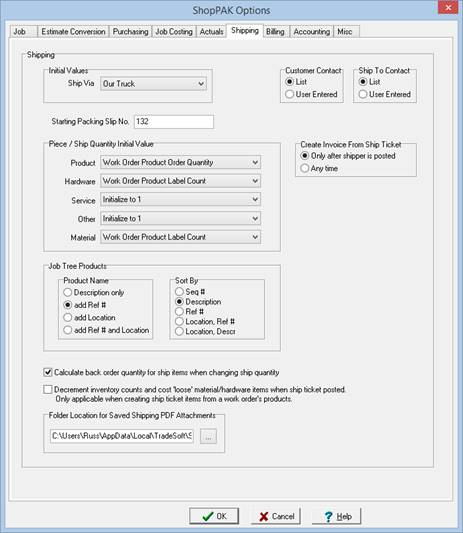
Ship Via
Select the “Ship Via” value that you typically use. New ship tickets/packing slips will be pre-populated with this default value.
Starting Packing Slip Number
Type the number that you want ShopPAK to use as the next packing slip number generated. From that point, ShopPAK provides the next sequential number for each packing slip created.
Piece / Ship Quantity Initial Value
This option allows you to set up how the ship quantity of a ship item will be determined. For each Product Type: Product, Hardware, Service, Other, and Material, choose how ship quantity will be determined. Four choices are available:
-
Work Order Product 'Order Quantity'
-
Initialize to 1
-
Work Order Product 'Label Count' (this one is especially useful when shipping loose hardware)
-
Work Order Product 'Built So Far' Count
Calculate back order quantity for ship items
This option tells ShopPAK to automatically calculate back order quantity when the ship quantity changes and it is less than the order quantity.
Decrement inventory counts and cost 'loose' material/hardware items when ship ticket posted
Tells ShopPAK that you want it to decrement inventory when shipping inventory items.
NOTE: This option is only used when dragging ‘Product’ information over to the ship ticket grid via the job tree. It is not used when dragging finished goods / loose hardware from inventory over to the ship ticket grid. In that case, ShopPAK ALWAYS decrements inventory and costs the finished goods or materials back to the ship ticket's job.
|
If a product (contained on a work order) is actually an inventory item, and you don’t generate inventory ‘Pick’ transactions prior to shipping, place a check into the checkbox so inventory is properly decremented (relieved) from inventory. However, if employees always log their inventory ‘Pick’ transactions via shop floor data collection or manually via the ‘Materials’ tab before shipping, then you should leave the checkbox blank.
Again, this option only applies to job nodes dragged while in the “Jobs View”.
TIP: See “Auto generate Pick to WO Transactions” earlier in this chapter.
|
Create Invoice From Shipping Ticket
Controls timing of when you can generate an invoice from a ship ticket. You can either restrict generation until after the ship ticket is posted, or you can generate an invoice any time after you've created a ship ticket.
Folder Location For Saved Ship Ticket PDF Attachments
Tells ShopPAK where you want it to save generated Ship Ticket PDF attachments.
Customer/Ship-To Contact
ShopPAK provides a pick list of employees based on either Bill-To or Ship-To company employees for referencing the primary shipping contact representative. “User Entered” will allow you to simply type a free form name if a Contact record has not been created in ProjectPAK.
-
List
-
User Entered