
Running the Vendor Invoice Export Utility
To export one or a batch of reconciled vendor invoices, select File | Export | Reconciled Vendor Invoices from the ShopPAK menu. This displays the “Vendor Invoice Export” window shown on the next page.
Vendor Invoice Export has two tabs: Filter and Results.
Filter Tab
First, select the reconciled vendor invoices you want to export by using the filter options. Clicking the search button fills the “Results” tab with the reconciled vendor invoices that match your filtering request.
Results Tab
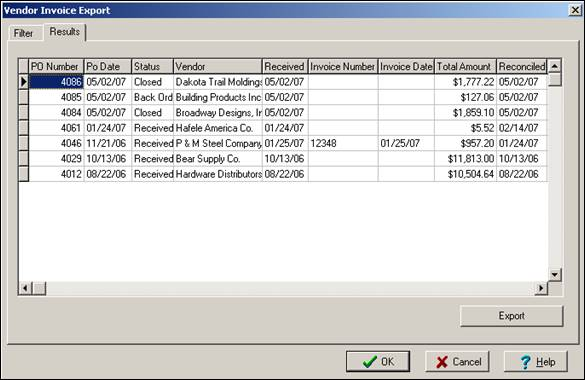
Second, export the list of vendor invoices from the “Results” tab by clicking the “Export” button. This tells ShopPAK to read necessary information from the ShopPAK database and format the export file according to the import requirements of your accounting package.
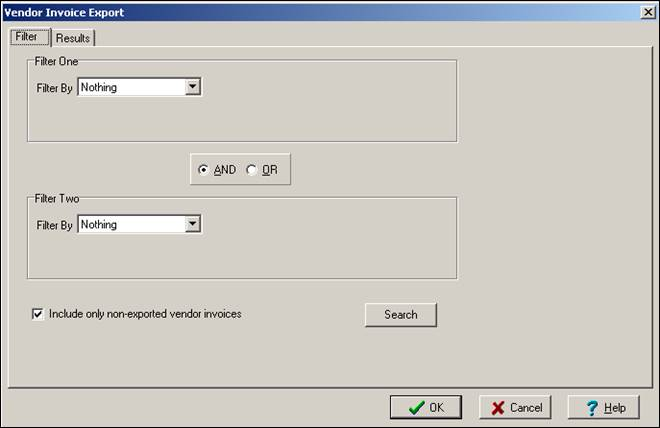
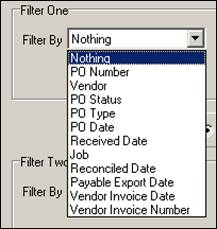
Use the filter(s) to find the reconciled vendor invoices you want to send to your accounting package. As you can see, there are several criterion that you can filter on.
Include Only Non-Exported Vendor Invoices
This filter option is turned on by default. Typically, you want to bypass previously exported AP invoices. However, if you need to create an ‘old’ batch and re-send to your accounting package, make sure you un-check this filter option first.
Search Button
Once you’ve selected your filtering directives and have entered search values, click the “Search” button. ShopPAK retrieves the reconciled vendor invoices that match your filter options and lists them on the “Results” tab.
Export button
If you’re satisfied that you’ve found the reconciled invoices that you want to export, click the “Export” button. ShopPAK checks for any missing information. If it finds any problems, it displays a warning message explaining the problem.
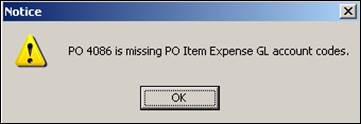
If there’s a problem, ShopPAK cancels the export operation. If the reconciled invoices have all the necessary information to be exported, ShopPAK displays an “Export File Name” dialog box so you can enter a name for the export file.
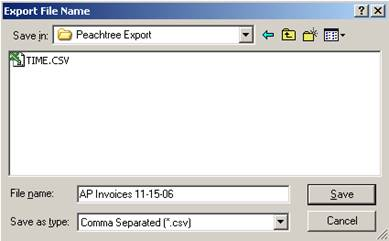
Create the file by clicking “Save”. ShopPAK displays a progress bar while it extracts information and formats it according to the accounting package’s import specification. When finished, it displays the number of export records created. The file is ready to be imported.