
Running the Inventory Auto Pick Transaction Function
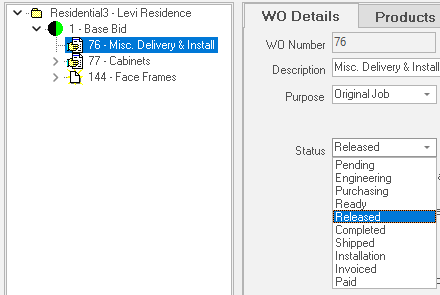
Invoking the auto ‘Pick’ transaction routine is simple…..just change work order status to a value defined to trigger auto ‘Pick’.
ShopPAK displays a dialog box that alerts you that you’re about to trigger an Auto Pick for this Work Order, and asks if you want to proceed or not. Click “Proceed” to contine and “Exit” to cancel the auto ‘Pick’ generation routine.
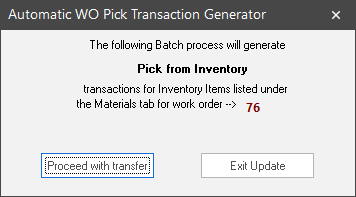
TIP: The Work Order status will still be updated to the trigger status if the user chooses to Exit the Update. If you want to launch the Auto Pick at a later time, you can reset the Work Order status back to the trigger status again.
|
If you proceed with the Auto Pick request, ShopPAK displays a progress meter to keep you informed of progress. Upon completion, ShopPAK displays a status message informing you of record count.
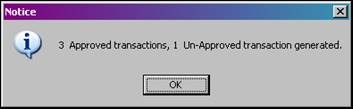
After clicking OK, ShopPAK generates and displays the “Auto Pick Batch Status List” report that gives you a detailed look at all of the generated ‘Pick’ transactions and whether there was a problem or not. The report can be printed or saved as a PDF for future reference or simply previewed and deleted.
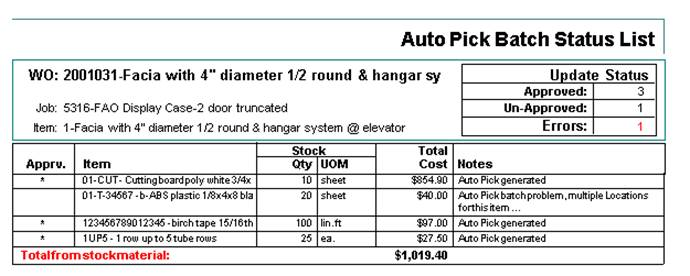
During the update process, the ‘Notes’ of each transaction will detail the status of the transaction. If there was a problem, the reason for the failure will be included in the Notes.
TIP: The Inventory Transaction report also lists transactions along with any exceptions. Utilizing Filter and Sort options enable Users to target transactions of interest, including Employees, date, Approved, Not Approved, etc.
|
ShopPAK updates the Material Card form with all of the generated ‘Pick’ transactions. Any transaction that generated an error will be available here so it can be Re-Approved once the problem has been solved.
