
Running Auto Reorder From PO Form
Make sure the “Purchasing” tab is selected. Right mouse click in the Purchase Order list area of the form and select “Auto Reorder” from the pop up menu. This displays the “Auto Stock Re-Order dialog box.
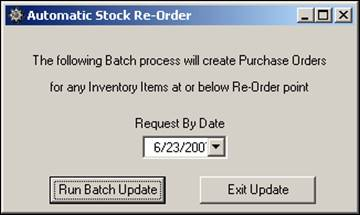
Click the “Run Batch Update” button. ShopPAK checks if any inventory items need to be replenished and generates purchase orders accordingly.


In our example, Auto Reorder found two inventory items that were at or below their re-order points. Since the number of purchase orders matches the number of PO Items, each purchase order has one item. If ShopPAK finds multiple inventory items that exceed their re-order points and they all have the same primary vendor, ShopPAK puts all of the inventory items on the same purchase order.

Generated PO Items all have a PO Item type of ‘Stock’.
PO Item quantity will be the inventory item’s ‘Standard Order Quantity’ as defined on the Inventory Details sub tab.
Unit Price is based on the vendor’s ProjectPAK library item unit price.