
Previewing an Invoice
1. Select File | Preview or click the preview icon  from the speed bar.
from the speed bar.2. This displays the “Report Setup” dialog box.
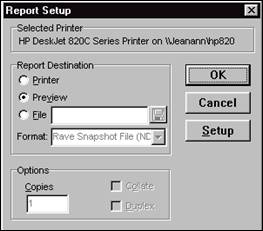
Use this dialog box to print a paper copy of the invoice, change the number of copies, or display the Print Setup dialog box.
3. Click the “OK” button to preview the work order.
TIP: You can print the document from the preview window if it looks good.
|
4. Close the “Preview” window.
Note: You’ll see the “Report Setup” dialog box appear more than once if you are generating multiple copies of an invoice. Hit cancel to bypass previewing a document copy.
|