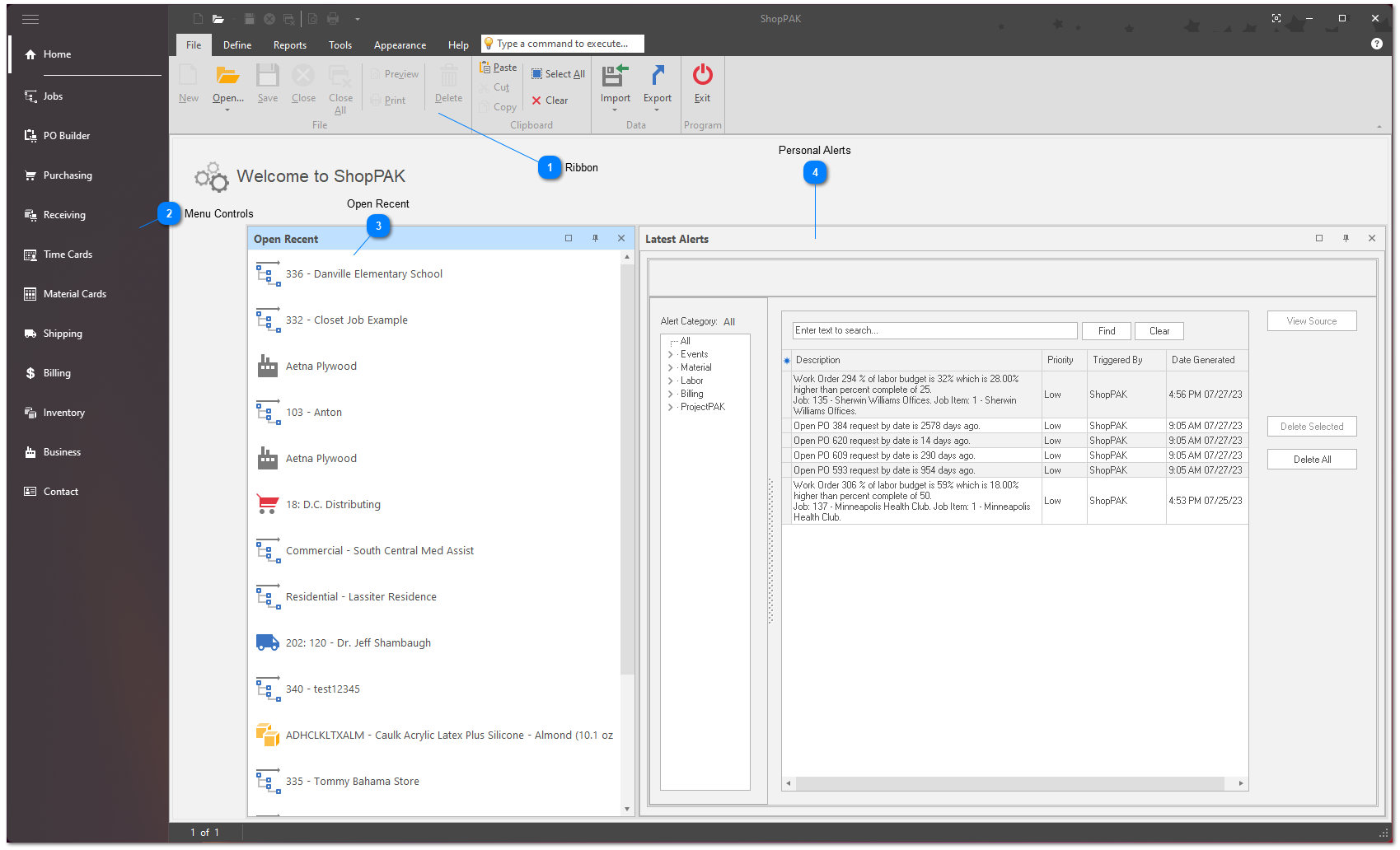
The Home page is the starting point to accessing all your shop control needs. It is broken down into sections which is outlined below.
Ribbon
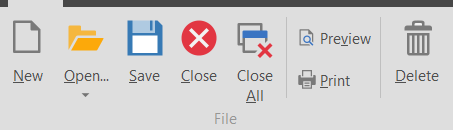
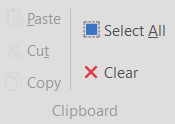
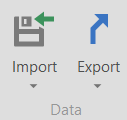
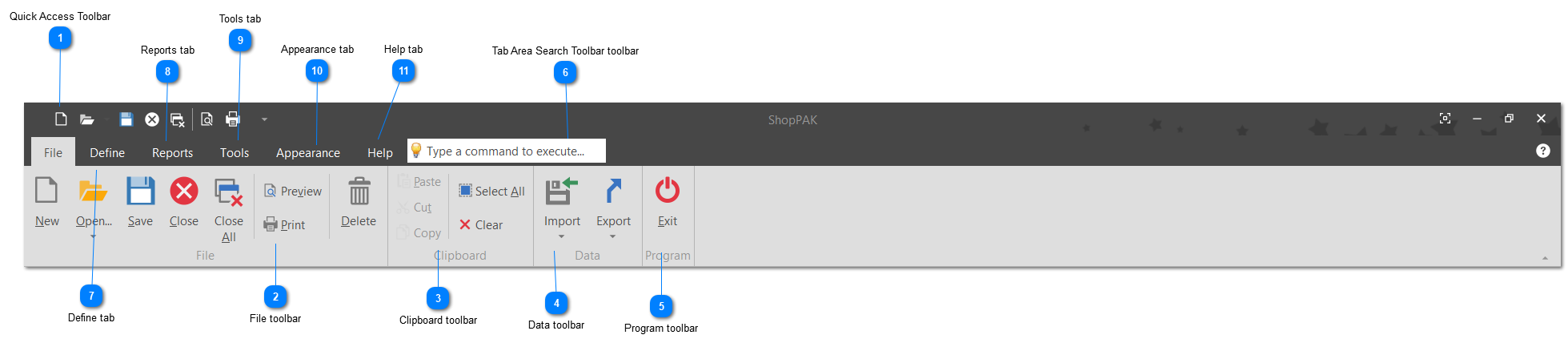
The ribbon displays across the top of the Home Page. It is completely customizable to display those functions commonly used as well as placed into custom group and you can define. See below for further details on customizing the ribbon.
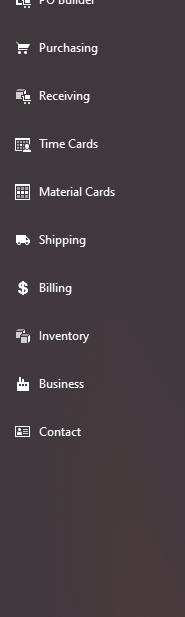
The left hand side of the home page displays the menu controls. Simply click on an area and it will take you to that section of ShopPAK. Clicking the 3 lines in the top left corner toggles the menu controls from wording to icons and vice versa.
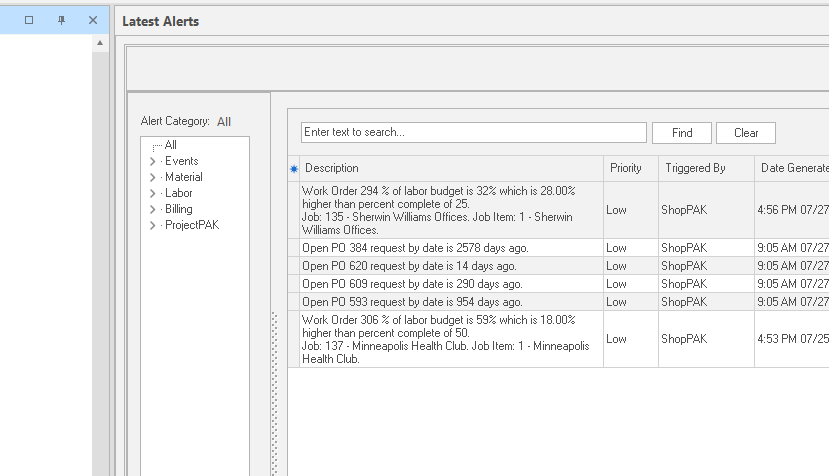
The Latest Alerts grid lists current alerts based on user-specific alert notification criteria. For more details on how to set up alerts, check out Alerts.
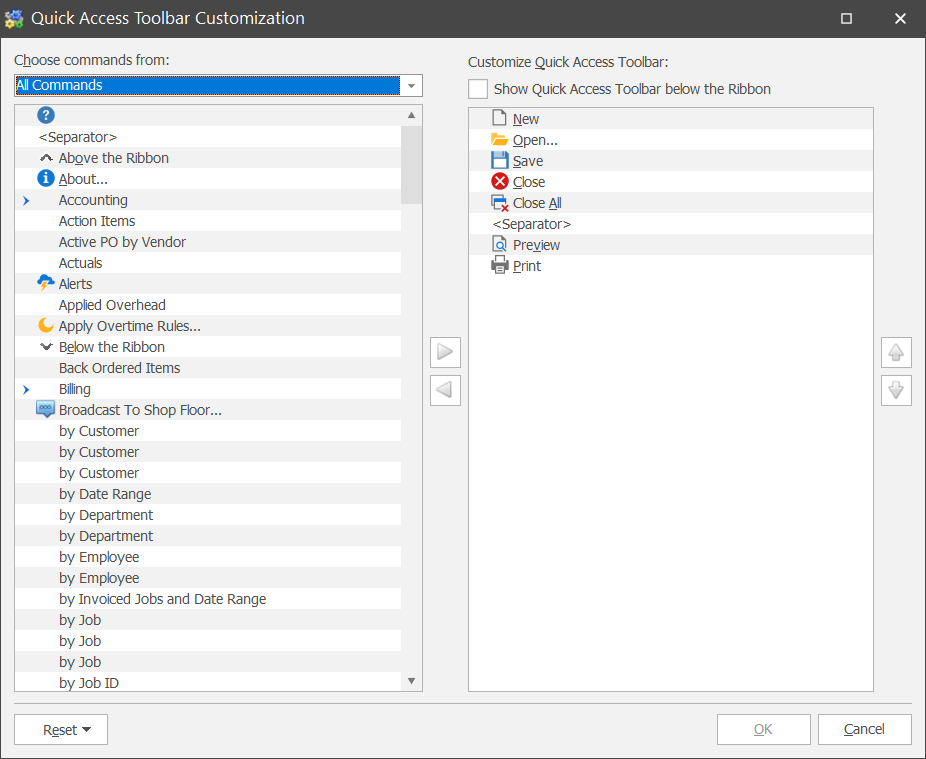
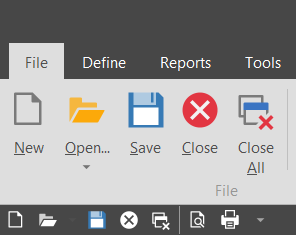
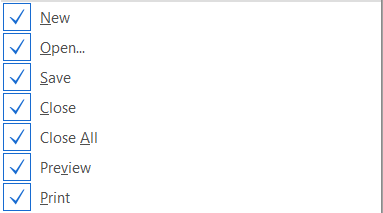
Click on "Customize Quick Access Toolbar..." to bring up the Customization window. Highlight a command and click the left/right arrow to add/remove it from the Quick Access Toolbar. Use the up/down arrows to move the order of the commands.
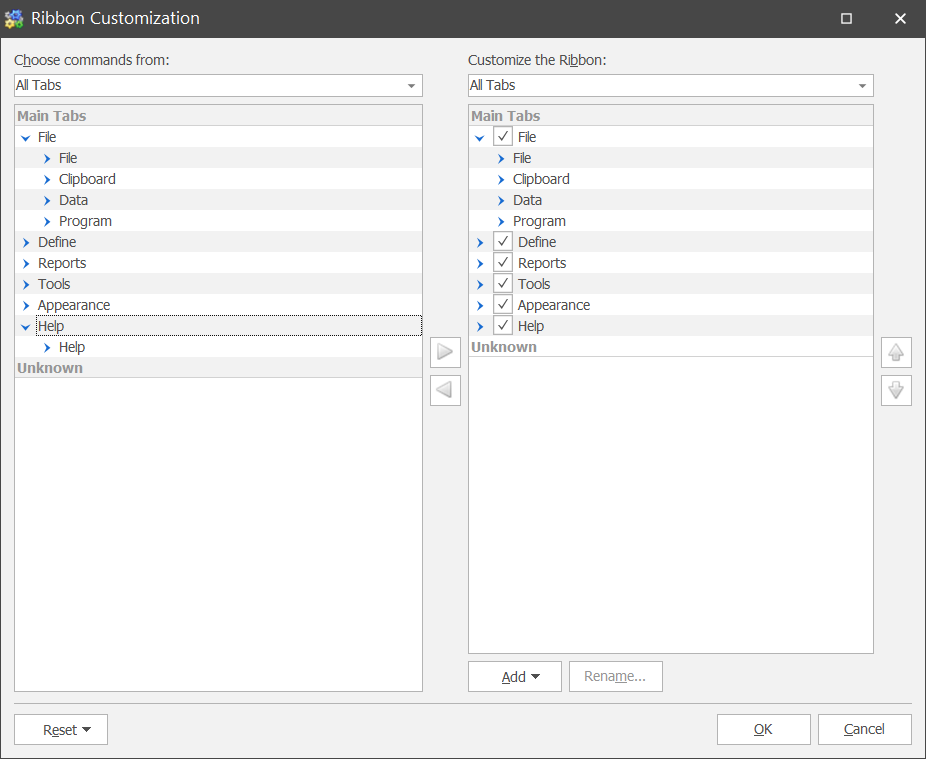
Click on Customize the Ribbon to bring up the Ribbon Customization window. Highlight a command and click the left/right arrow to add/remove it from the ribbon. Use the up/down arrows to move the order of the commands. The ribbon is organized based on the order shown in the right column.
To add a customized group, click on Add and select "Add New Group"
Click Minimize the Ribbon to remove the ribbon from the window. To add back, right click on the Quick Access Toolbar again and click Maximize the Ribbon.




 toggles the menu controls from wording to icons and vice versa.


 to access the customization menu.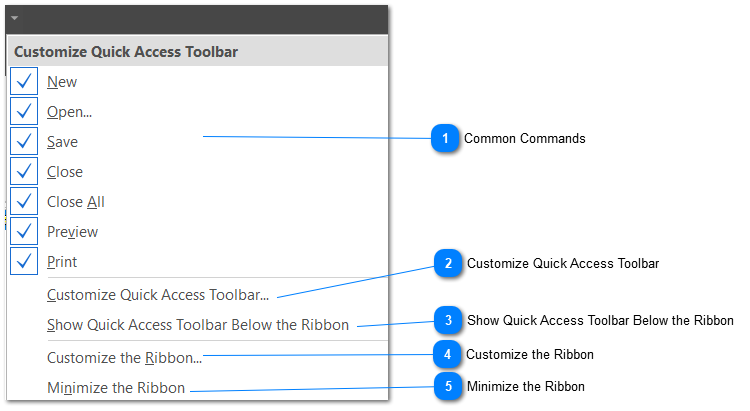

 to add/remove it from the Quick Access Toolbar. Use the up/down arrows
  to move the order of the commands.