Generating Material Labels
After you click the “Receive PO” button, ShopPAK updates the database and then displays a message saying it has finished updating information. At that point, it hides the “Receive PO” button, and in its place, displays the “Generate Labels”  button.
button.You can generate material labels for the PO you just received.
Note: If the received shipment contains inventory items that don’t have an auto-receive location, ShopPAK can’t generate labels for these items, since the inventory item location is not known at this point. You should generate labels for these items from the Inventory Form after you’ve assigned inventory locations. ShopPAK generates labels for inventory items that have auto-receive locations, as well as, for direct purchase items.
Generating labels is a distinct step from printing labels. When you generate labels, ShopPAK writes label information to the database. Later, you can print all of the generated material labels at one time as a batch.
To generate material labels for the shipment you just received:
1. Make sure the ‘Print Label’ column is checked for all of the PO Items / Job Assignments that need material labels. Also make sure that you’ve entered the correct number of labels into the ‘Label Quantity’ cell.
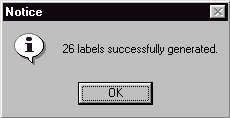
2. Click the “Generate Labels” button. This creates material label records for each PO Item and Job Assignment row with a checkmark in its ‘Print Label’ cell. The number of labels generated for each PO Item is driven by the item’s ‘Qty Received’ value. For example, if you receive a shipment that contains one PO Item, and the PO Item has a check in the “Print Label” cell, and the PO Item has a quantity received of ‘26’, ShopPAK will generate 26 material labels for the PO Item.