Generating Material Labels
You can generate material labels from the Purchasing tab, as well as, from other areas in ShopPAK including PO Builder, Receiving and Inventory Tabs.
Where you generate material labels depends on the timing of when it makes sense to do so. For example, you may prefer to generate and print labels at the same time as you print your purchase orders. On the other hand, you may prefer to wait and generate and print labels when you actually receive shipment.
You can either generate and print labels “on demand”, or generate and print at a later time. When you generate labels, ShopPAK writes label information to the database. Later, you can print all or a subset of related material labels at one time as a batch.
To generate material labels for the active PO:
1. Select the “PO Items” tab if not already active.
2. If a PO Item has a type of ‘Stock’ or ‘Other’, make sure the Label column is checked for all of the PO Items that need material labels, and you have specified the number of labels to be printed for each PO Item.

If the PO Item has a type of ‘Job’ or ‘Reserve’, make sure the Label column is checked for all of the job assignment rows under the PO Item you want labels for, and you have specified the number of labels to be printed for each job assignment.
3. Click the “Generate Labels” button. This displays the Material Labels dialog box:
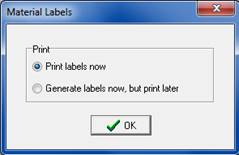
If you want to generate material labels immediately (on demand), select “Print labels now”. If you want to print material labels later, perhaps batching them with other material labels you’ve also generated, select “Generate labels now, but print later”.
Either choice generates material label records for each PO Item (or job assignment) with a check mark in its Label cell. The number of labels generated depends on the label quantity you’ve supplied.
If you generate and print labels immediately, the Select Label Format dialog box displays:
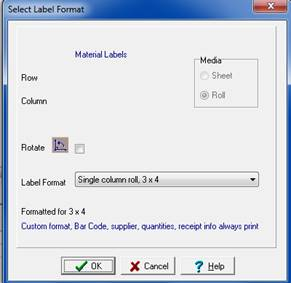
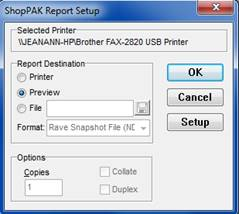
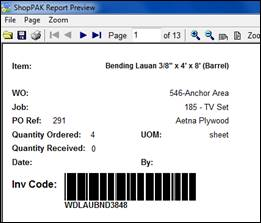
See Setup and Options, Material Label section, for instructions on choosing the default material label you typical use. The default label is automatically chosen when the dialog displays. If you wish, you can choose another label size and format. Clicking OK displays the actual print dialog and preview window if you wish: